

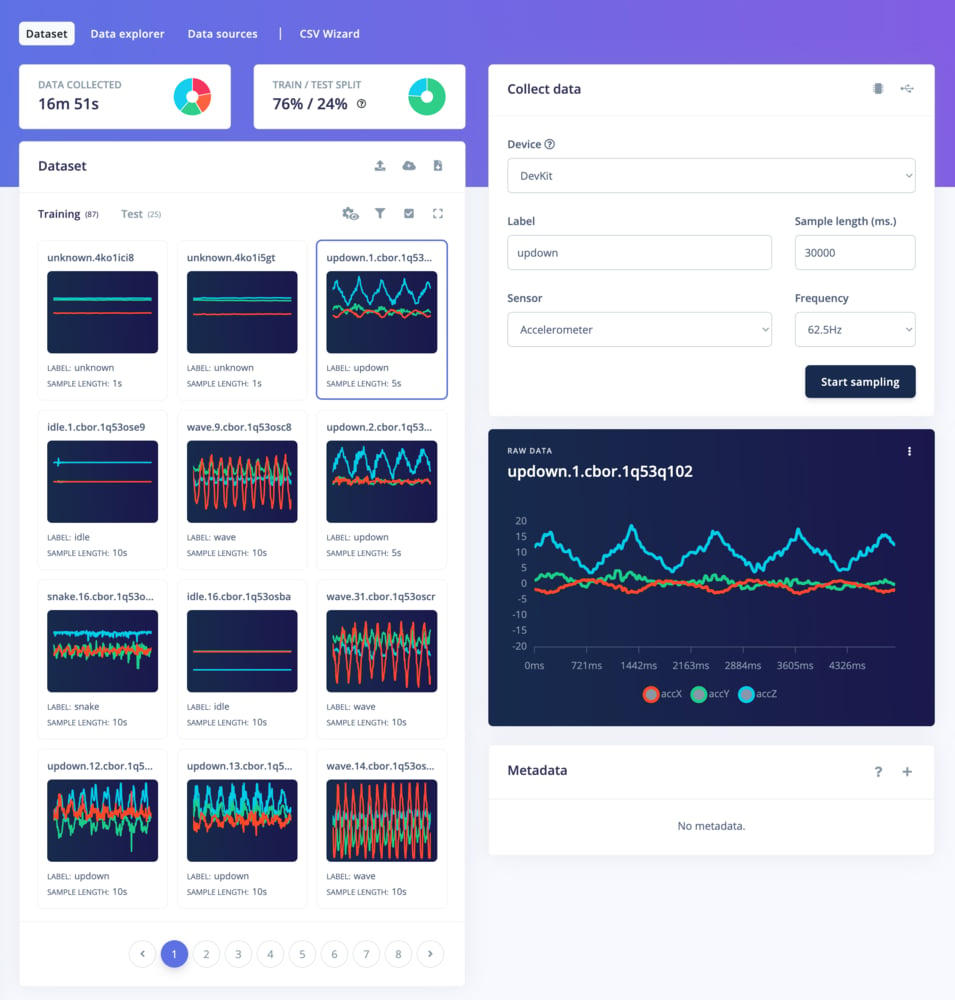
Dataset tab
Add data to your project
From the dataset tab, you can add data to your project in two ways: by collecting new data using devices connected to your project or by uploading existing datasets.Collect new data
The panel on the right allows you to collect data directly from any fully supported platform:- Through WebUSB
- Using the Edge Impulse CLI daemon
- From the Edge Impulse for Linux CLI
Device not fully supported?If your device is not in the officially supported list, you can also collect data using the CLI data forwarder by directly writing the sensor values over a serial connection. The “data forwarder” then signs the data and sends it to the ingestion service.
edge-impulse-linux --clean and it will add your platform to the device list of your project. You will then will be able to interact with it from the Collect data panel.
Upload existing data
Edge Impulse also supports different data acquisition formats and dataset annotation formats (Pascal VOC, YOLO TXT, COCO JSON, Edge Impulse Object Detection, OpenImage CSV). You can import that data into your project in several ways:Edge Impulse DatasetsNeed inspiration? Check out our collection of Edge Impulse datasets that contains publicly available datasets collected, generated, or curated by Edge Impulse or its partners.These datasets highlight specific use cases, helping you understand the types of data commonly encountered in projects like object detection, audio classification, and visual anomaly detection.
Dataset overview panel
The dataset overview panel provides a high-level summary of your collected data, including the number of samples, class balance, labels breakdown, and metadata distribution. This overview can help you understand the composition of your dataset and identify any potential issues, such as class imbalance or missing metadata.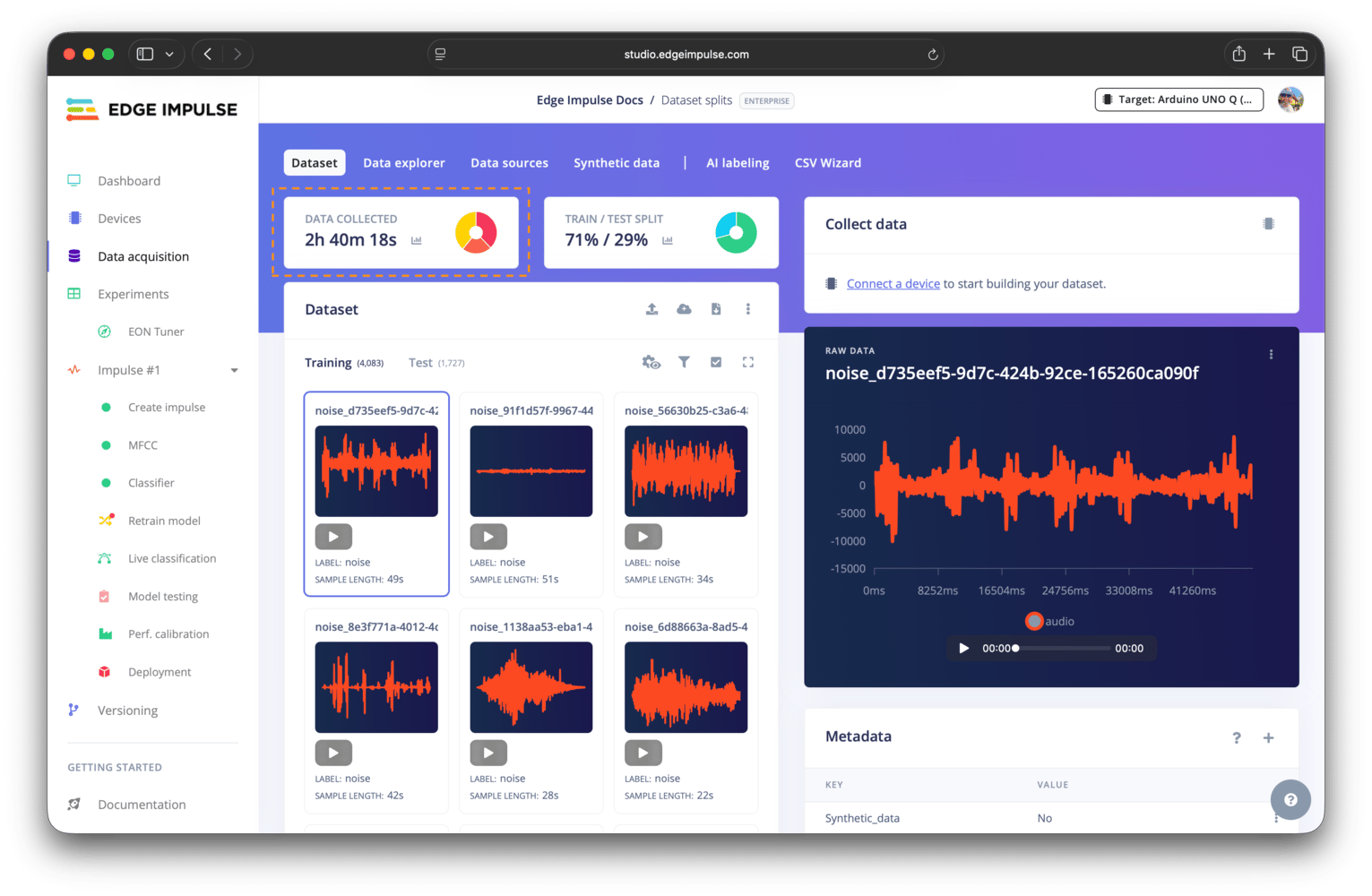
Dataset overview panel
Dataset distribution
Clicking the chart icon in the dataset overview panel will open the dataset distribution modal, where you can see the distribution of your data across different labels and metadata values.Labels breakdown
The labels breakdown option shows the distribution of your data samples across the labels in your dataset. This can help you identify any class imbalance issues, where some classes have significantly more samples than others, which can lead to biased model training.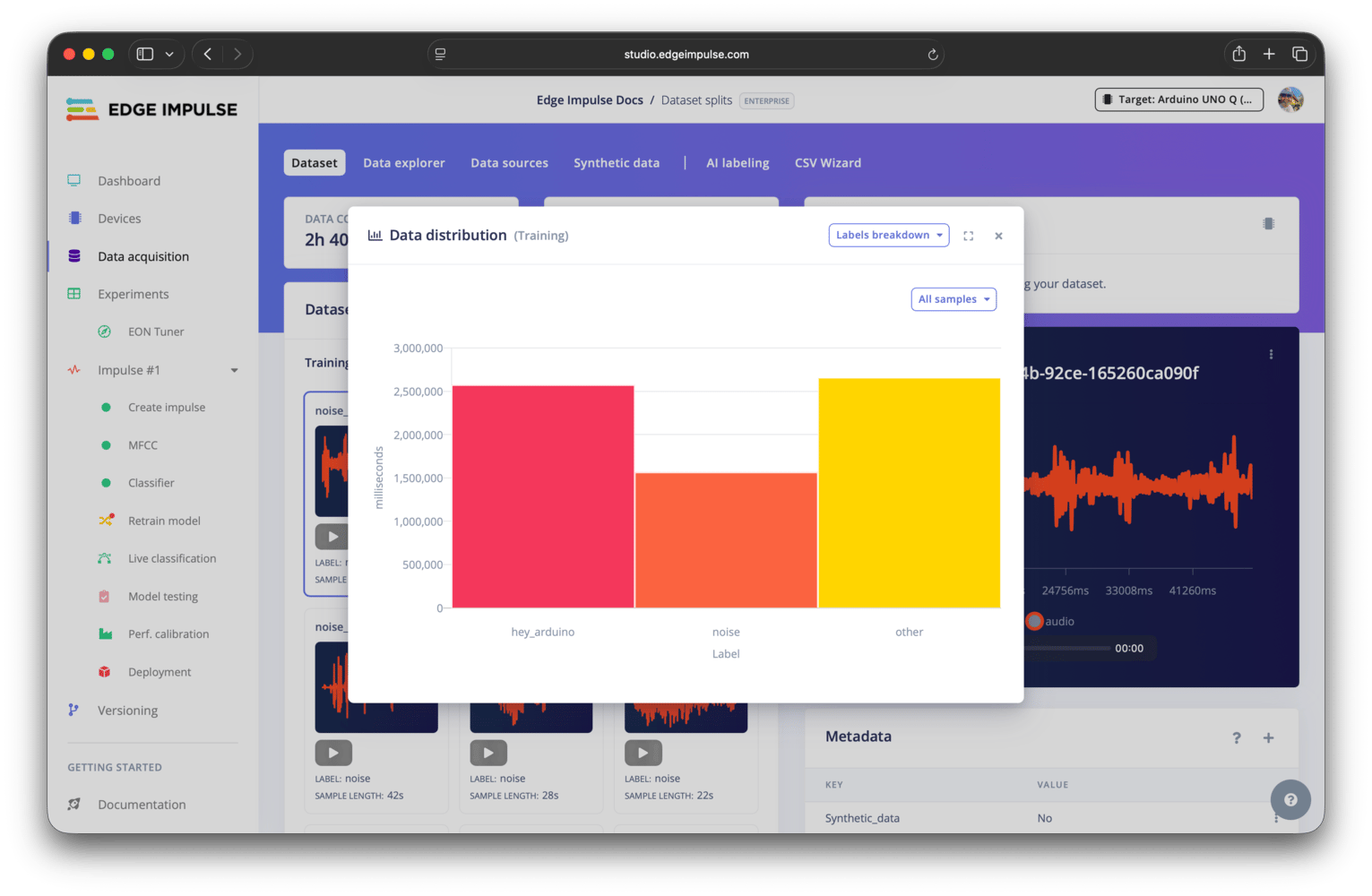
Dataset distribution - labels breakdown
Metadata distribution
The metadata distribution option shows the distribution of your data samples across different metadata values in your dataset. This can help you identify any potential issues with your metadata, such as missing values or imbalanced distributions across different metadata keys. See the Metadata analytics documentation for additional details.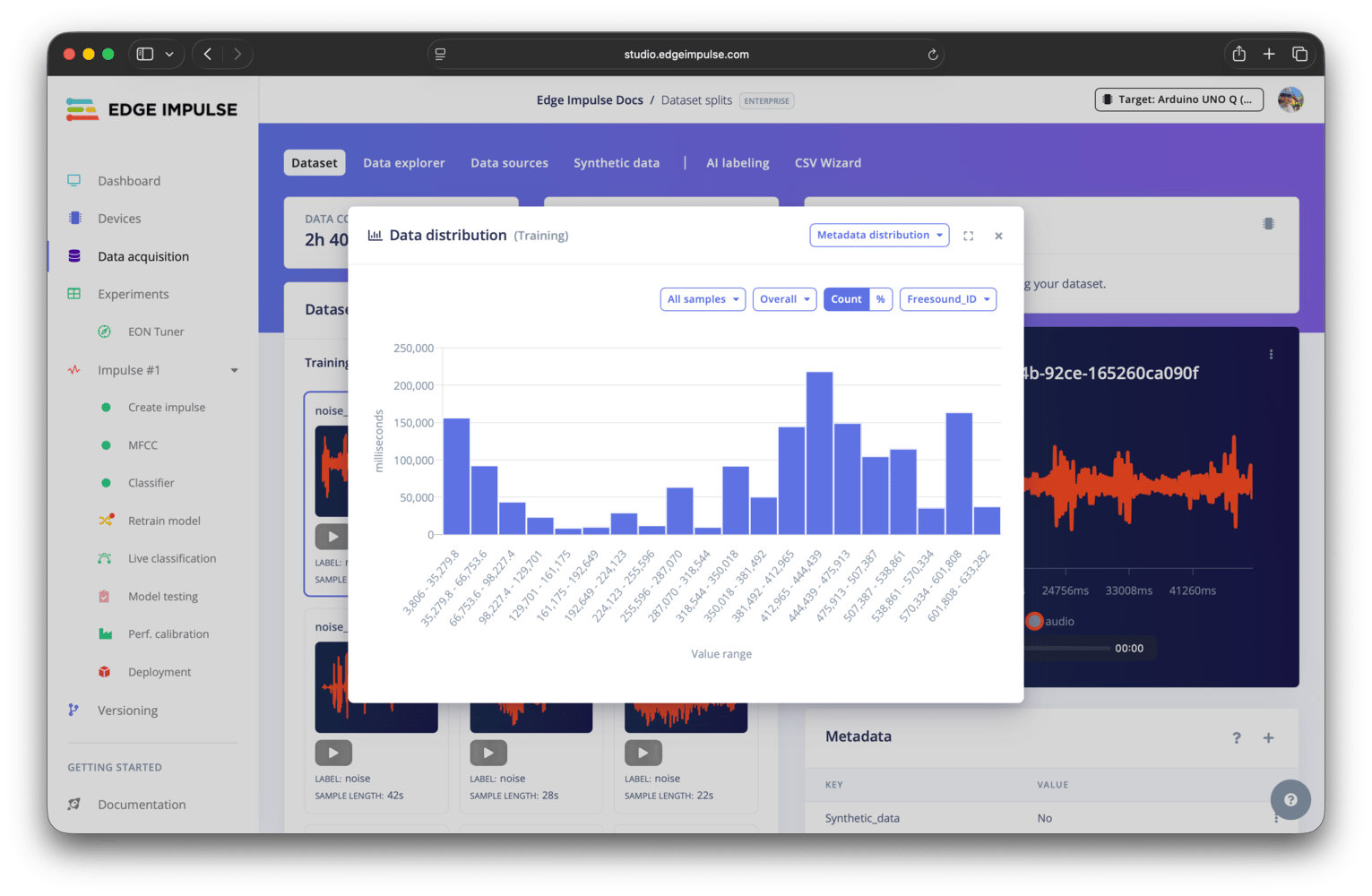
Dataset distribution - metadata distribution
Dataset split panel
Validation set only available when explicit validation set setting is enabledThe validation set option is only available when the explicit validation set advanced setting is enabled. If this setting is disabled, no separate validation set option will be shown.
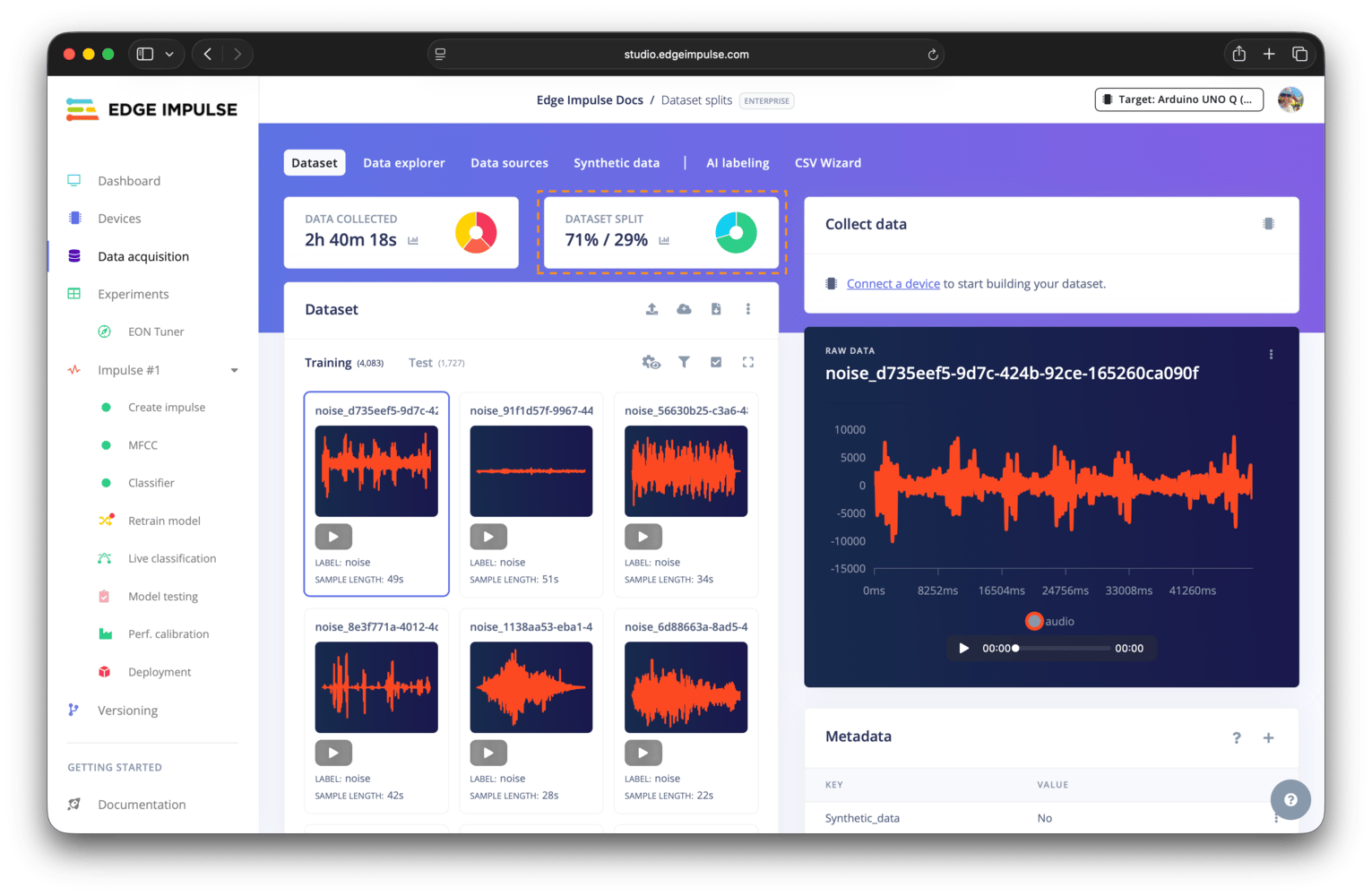
Dataset split panel
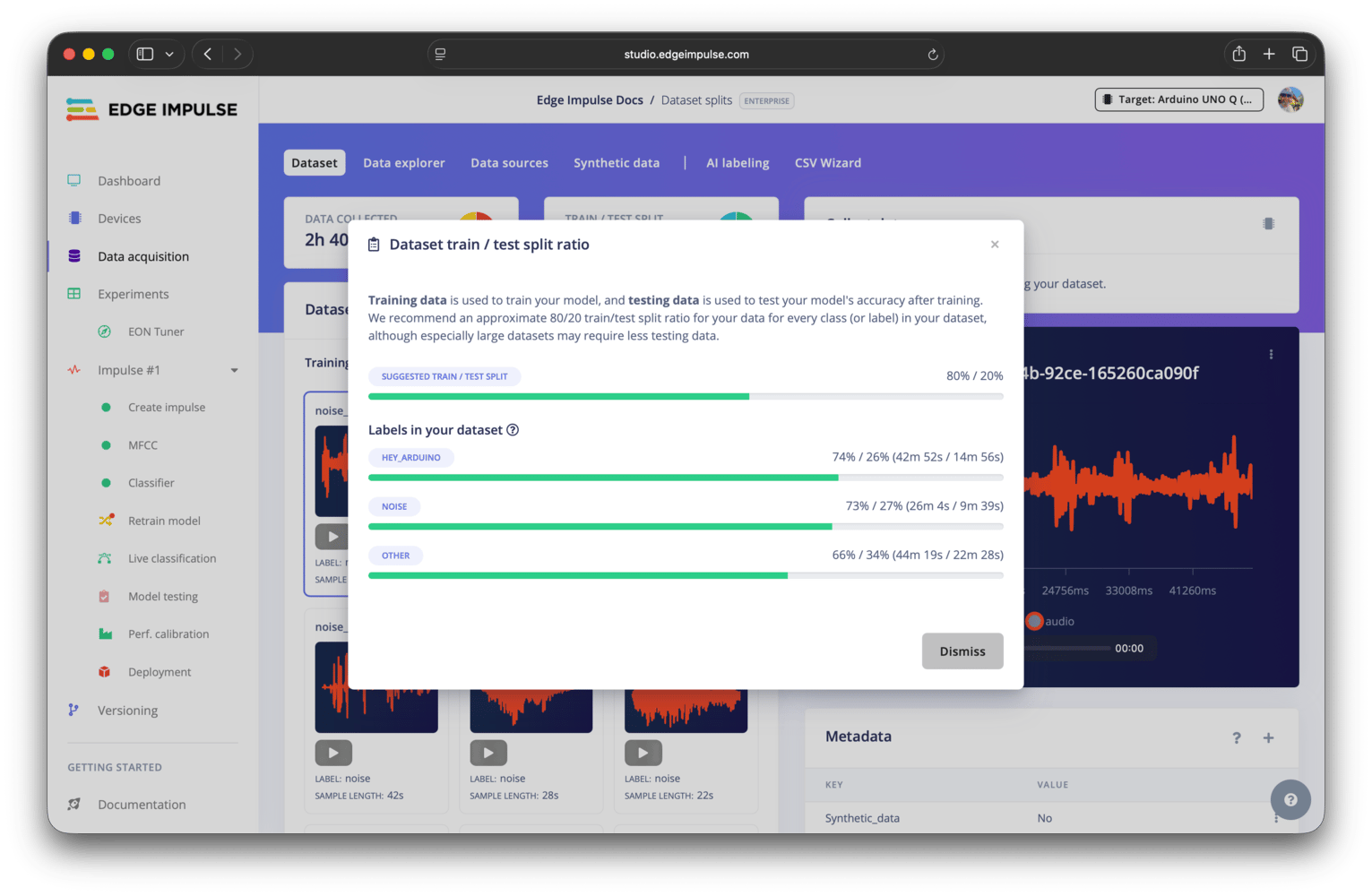
Dataset split details
Dataset panel
Your dataset is displayed across different sections: training, validation, test, and post-processing. Each section contains the data samples that are assigned to it. The exact sections available depend on your project type and the dataset settings you have enabled.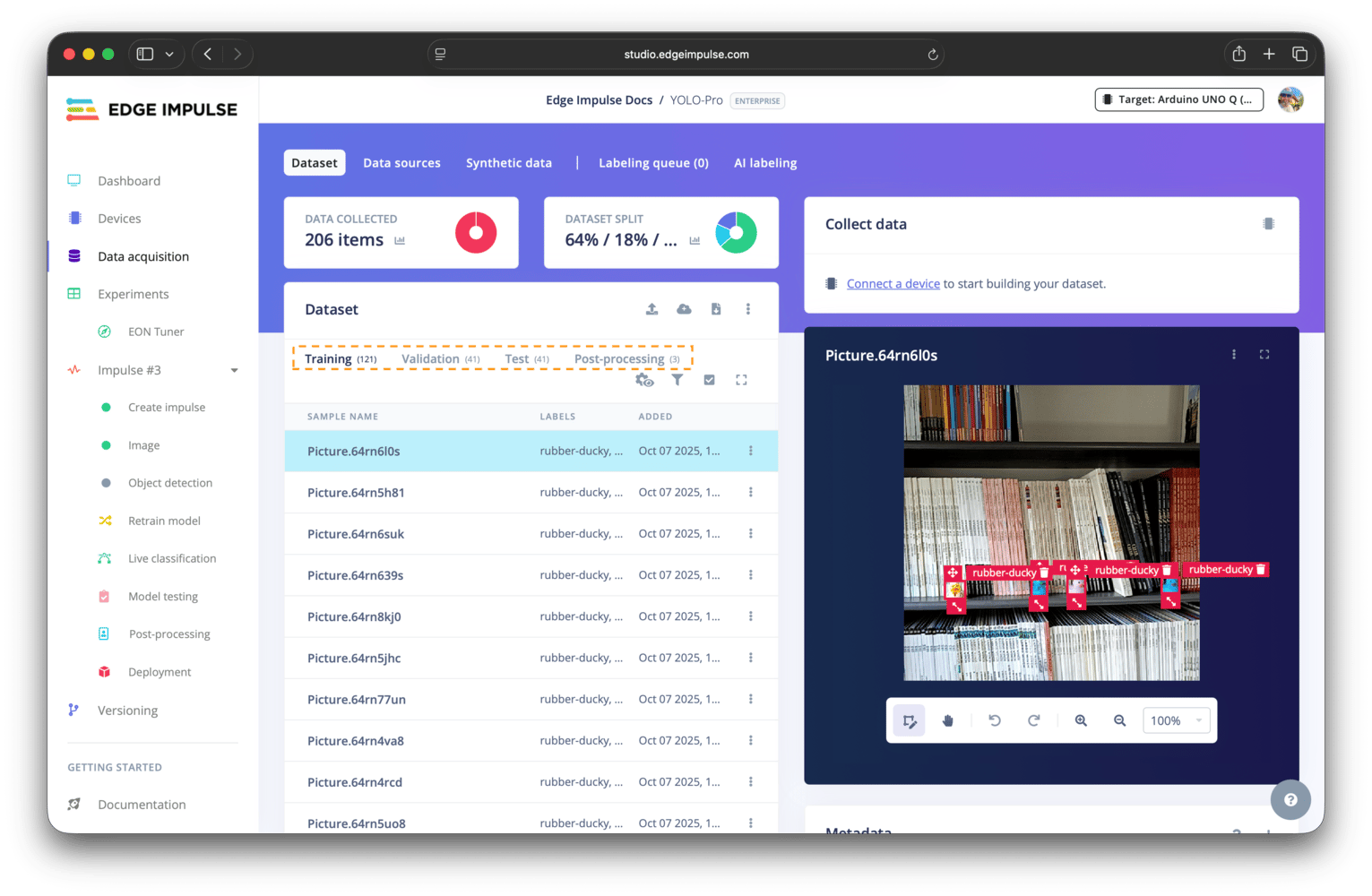
Dataset panel sections: training, validation, test, and post-processing

- List view
- Grid view
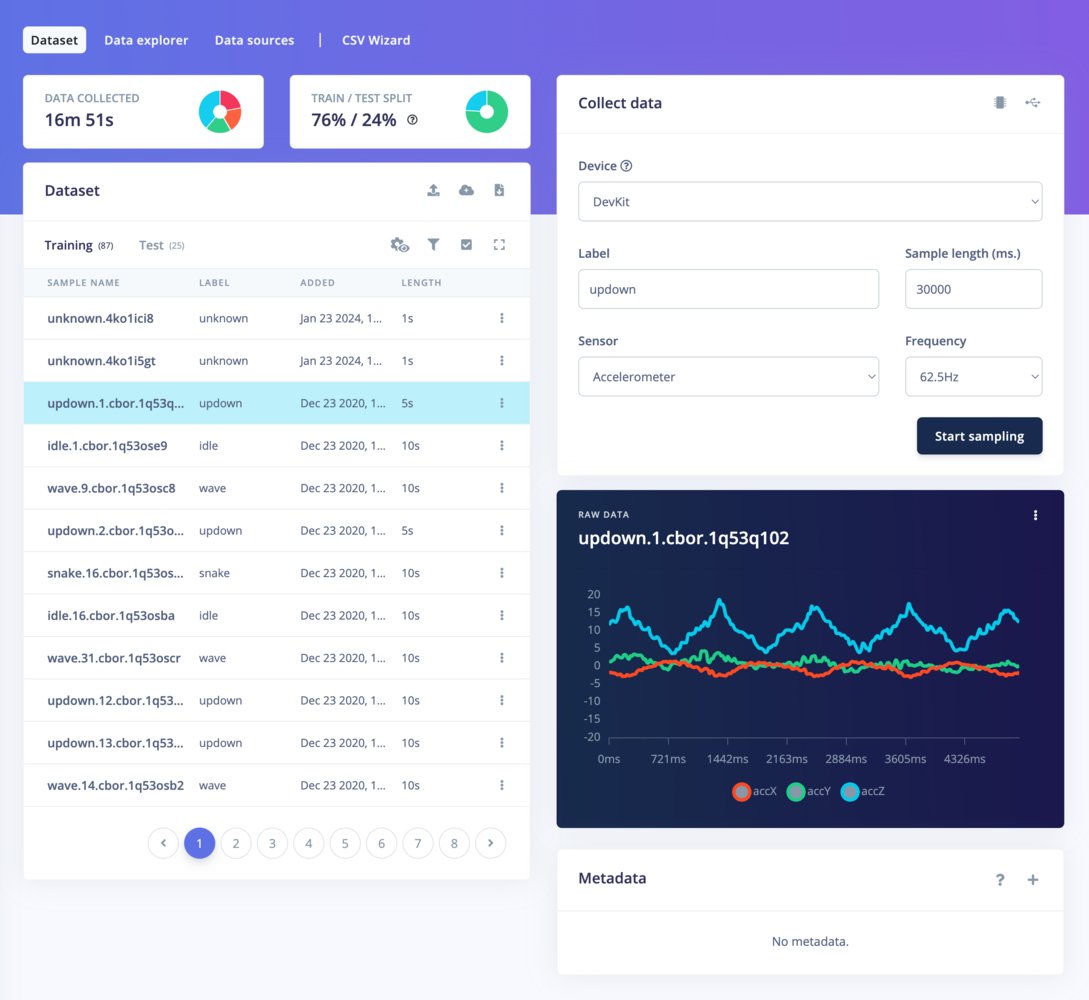
Dataset panel - list view
Training data
The training section contains the data samples that are assigned to the training set. These samples are used to train your machine learning model.Validation data
Validation set only available when explicit validation set setting is enabledThe validation set option is only available when the explicit validation set advanced setting is enabled. If this setting is disabled, no separate validation set option will be shown.
Test data
The testing section contains the data samples that are assigned to the testing set. These samples are used to evaluate the performance of your machine learning model after it has been trained.Post-processing data
Post-processing is only for object detection projectsThe post-processing section is only available for object detection projects, as it is designed for uploading and managing video data that will be used for advanced post-processing features, such as object tracking. If you are working on a different type of project, you will not see the post-processing section in your dataset panel.
Dataset filters
The dataset filters enable you to filter data samples based on some criteria of choice. This can be based on:- Search by name or ID - find samples by their sample name or unique ID.
- Labels - show samples for one or more classes. For regression projects, use Label range to filter by numeric label values.
- Metadata - show samples that match selected metadata keys and values, samples with no value for a metadata key, or samples with no metadata.
- Date added - choose a custom date range, or quickly filter to samples added today, yesterday, last week, or last month.
- Status - show only enabled or disabled samples.
- Length - filter samples by duration in milliseconds.
- Frequency - filter samples by sample frequency in hertz.
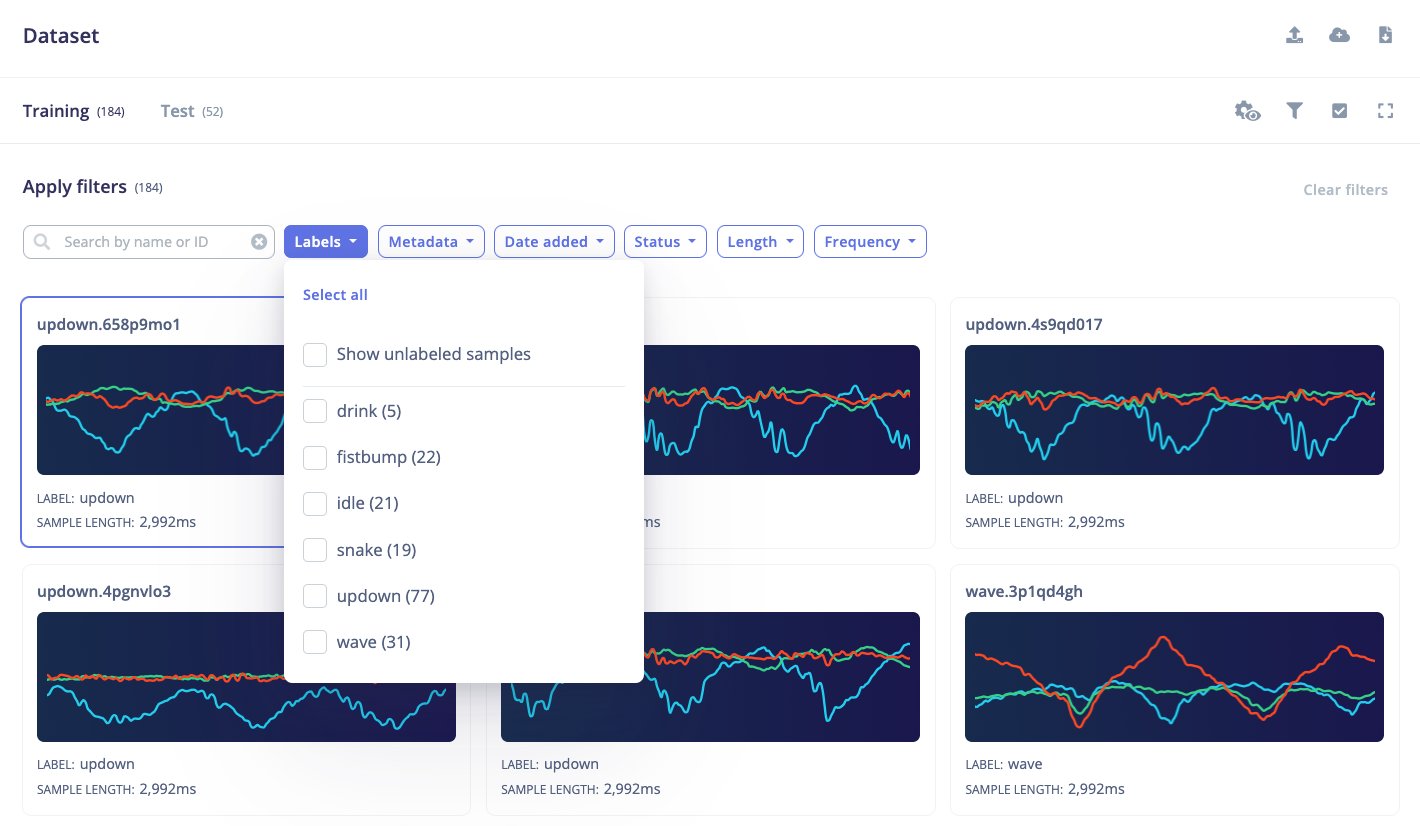
Dataset filters
Data sample preview panel
When selecting a data sample, you can see a preview of the sample on the right panel. The type of preview depends on the type of data sample, and it can be a time-series graph, an image, a table, or a video player.Time-series data samples
Time-series data samples (including audio) appear as a graph, with the x-axis representing time and the y-axis representing the sensor values: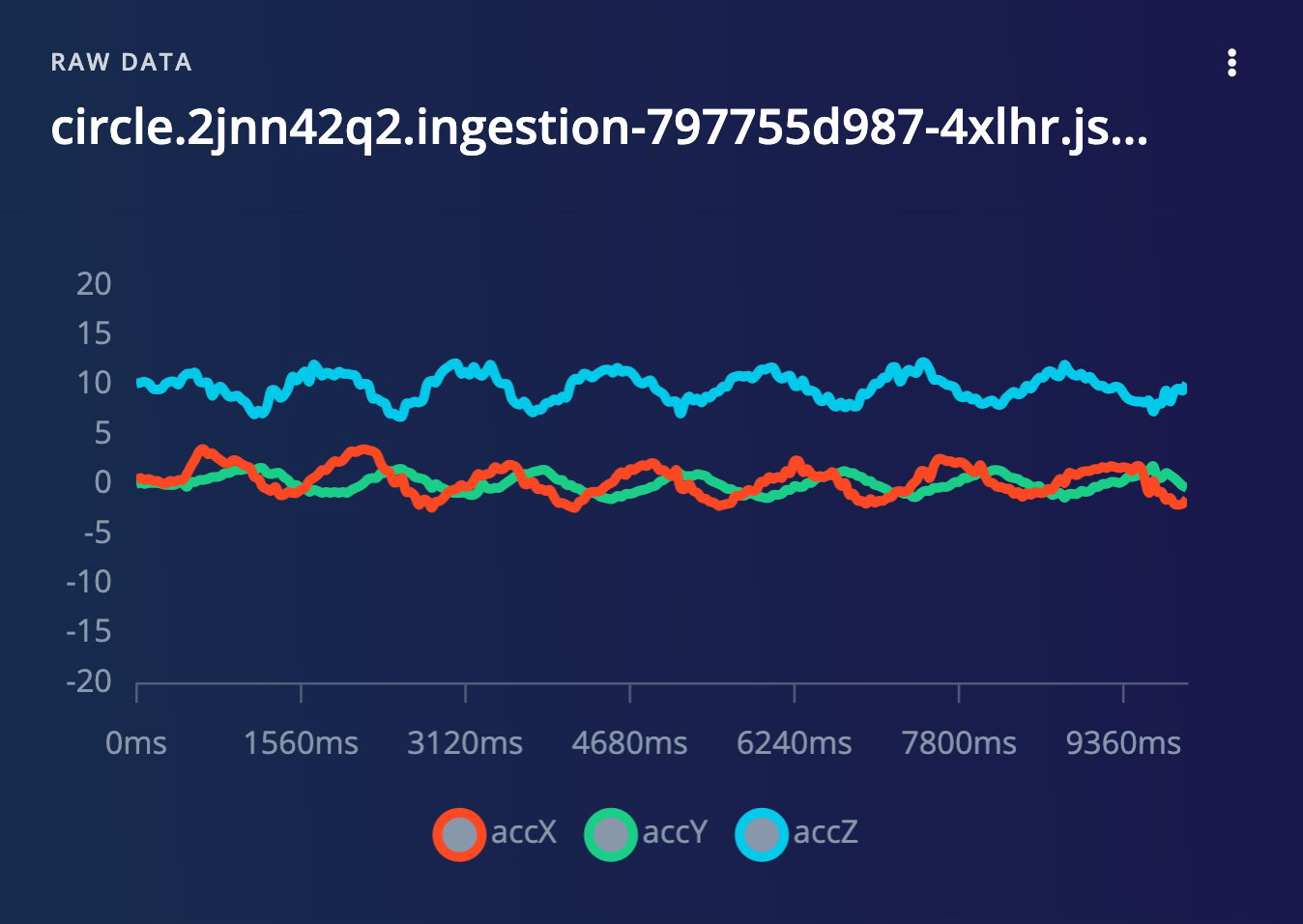
Time-series data sample preview
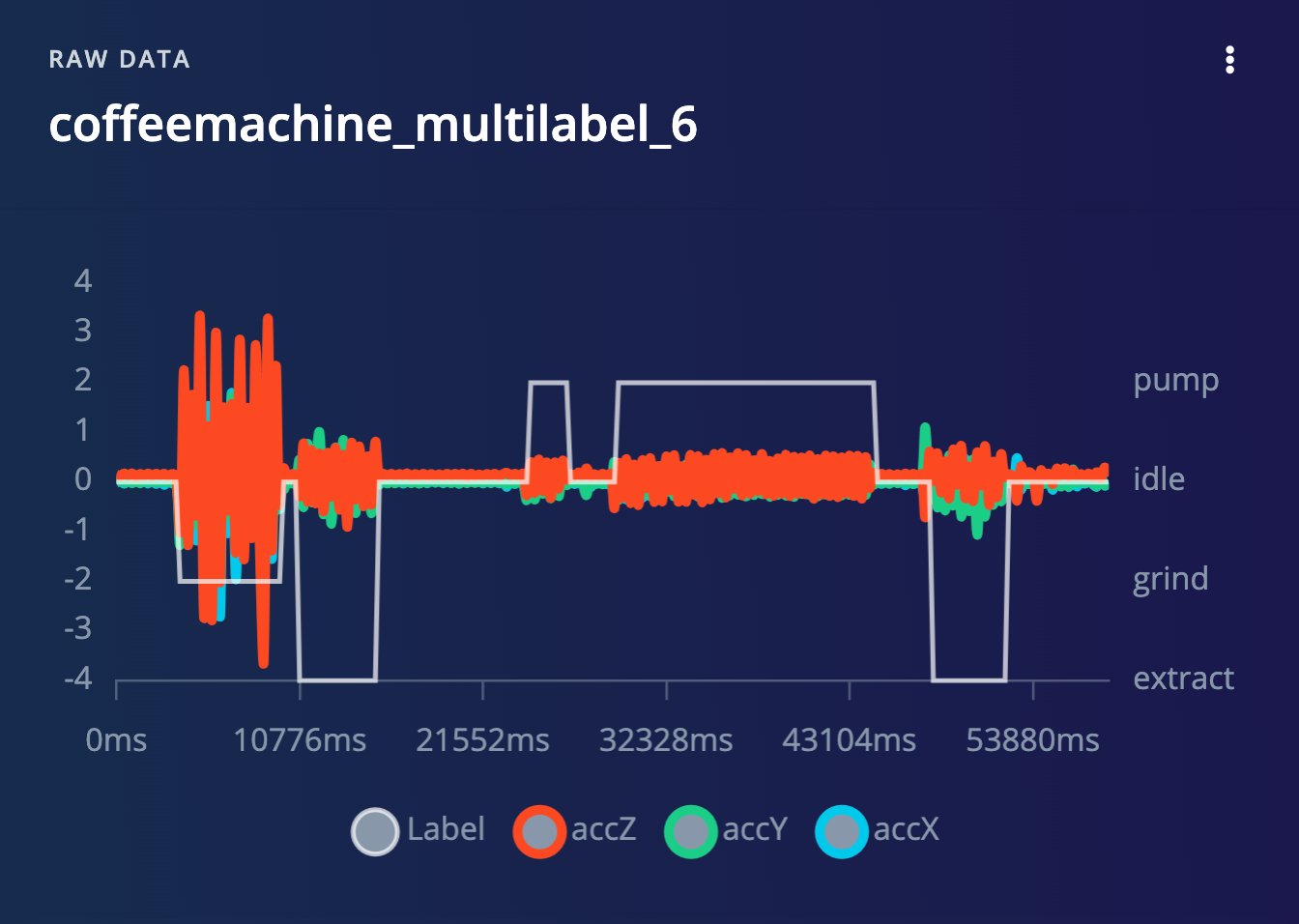
Multi-label sample preview
Images data samples
Raw images can be directly visualized from the preview: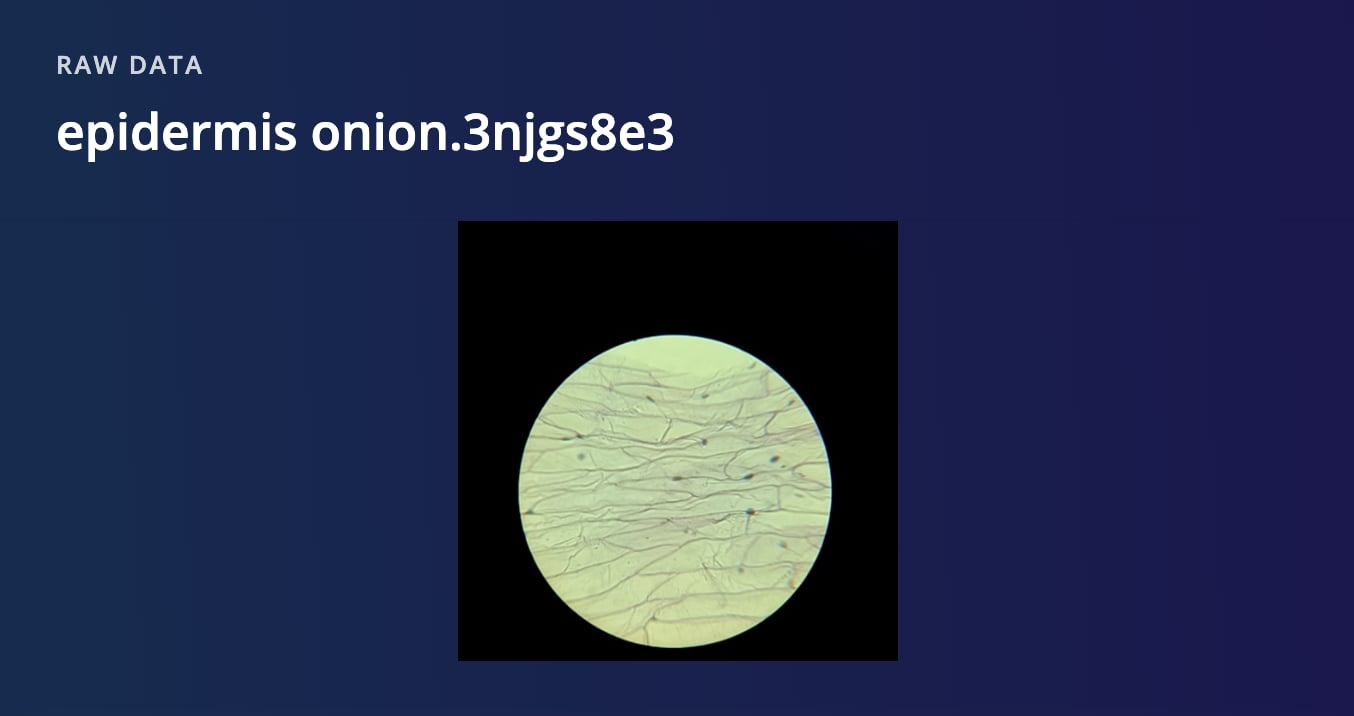
Raw image sample preview
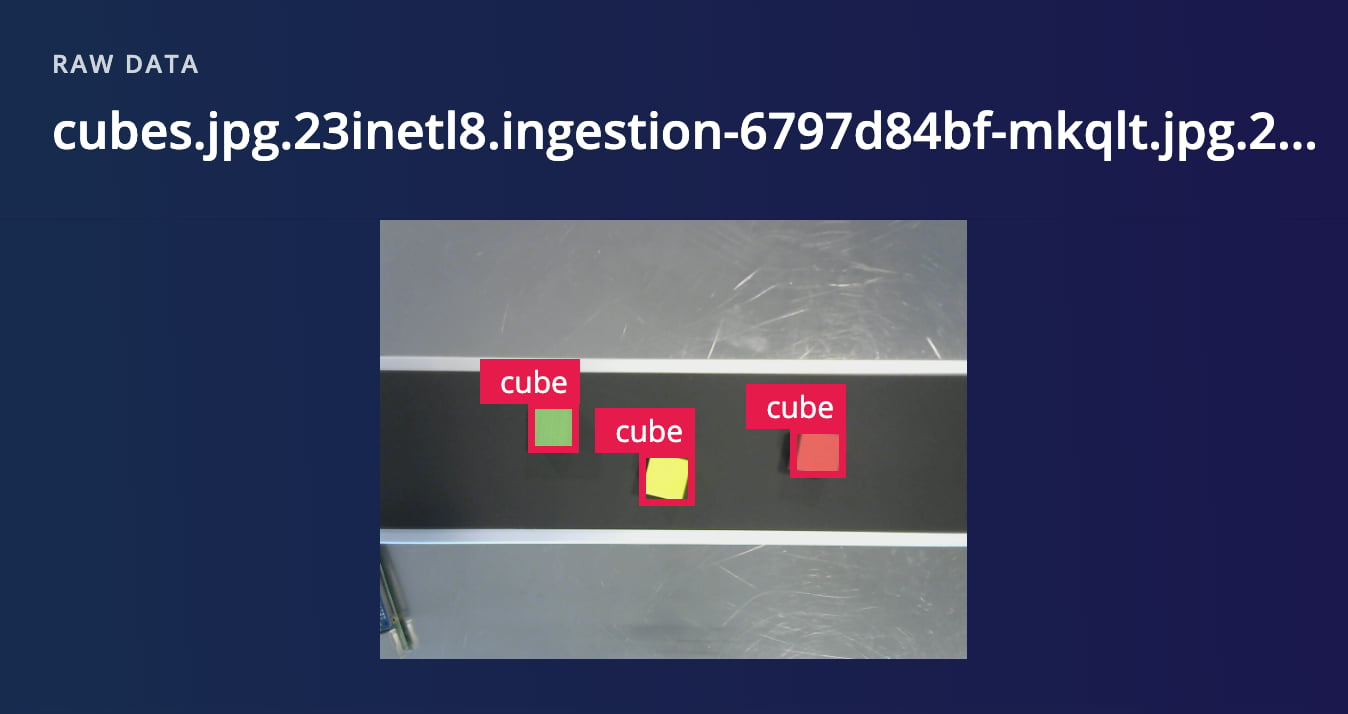
Object detection sample preview
Video data samples
Raw videos (.mp4) can be directly visualized from the preview: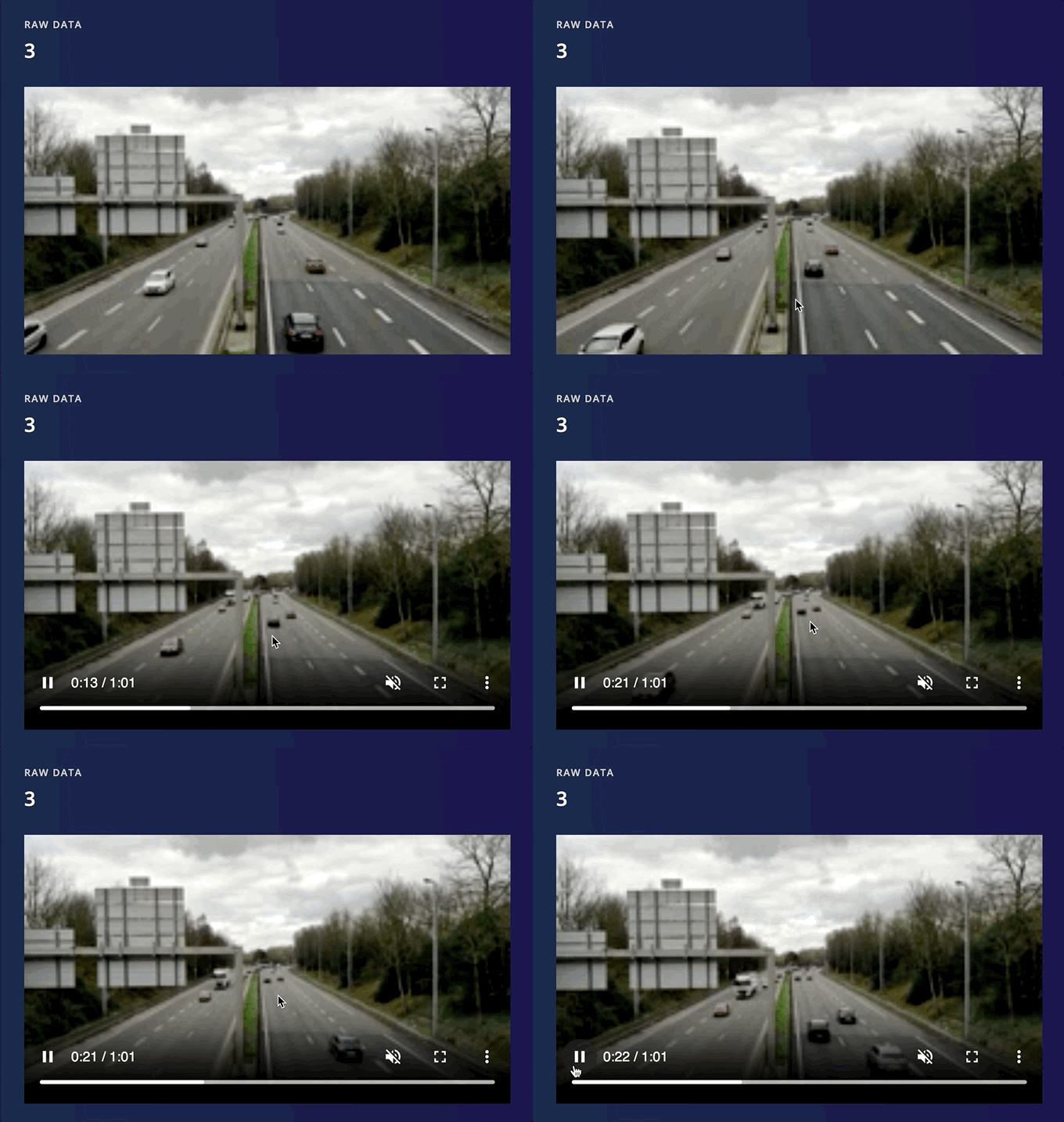
Video samples preview
Tabular data samples
Preview the values of tabular data samples: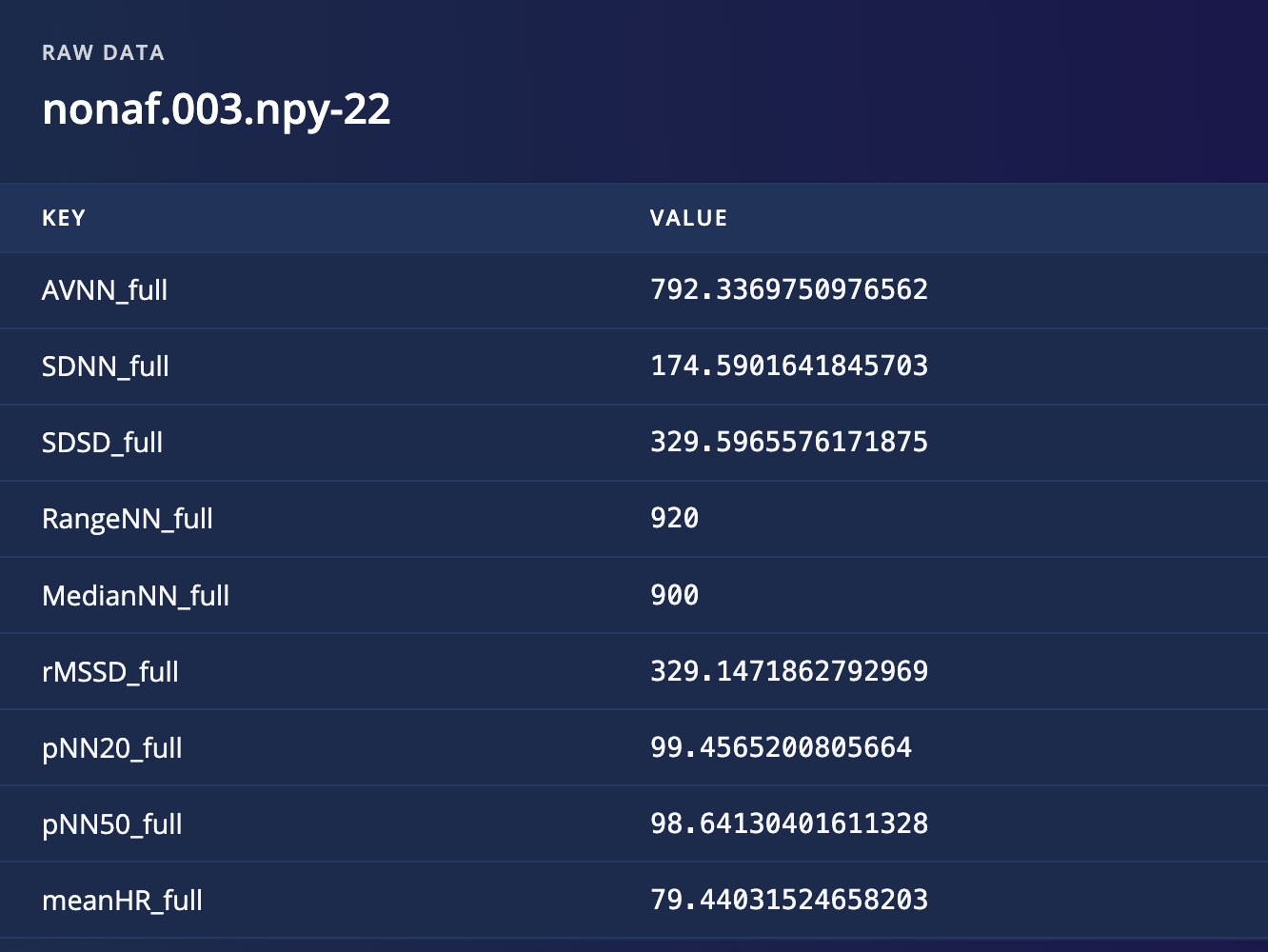
Tabular data sample preview
Data sample actions
Data samples can be manipulated in various ways, such as renaming, editing labels, disabling, cropping, splitting, downloading, and deleting. These actions can be applied at the data sample level by simply navigating to the individual data sample, clicking on ”⋮”, and selecting the type of action you want to perform on the specific sample.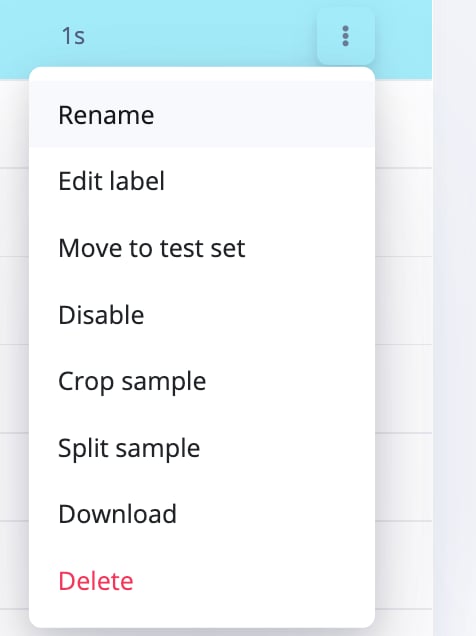
Data sample actions
Edit label
Single label
To edit the label of a data sample, go to the sample you want to edit and click ⋮, then select Edit label. You can then enter a new label for your sample in the text field.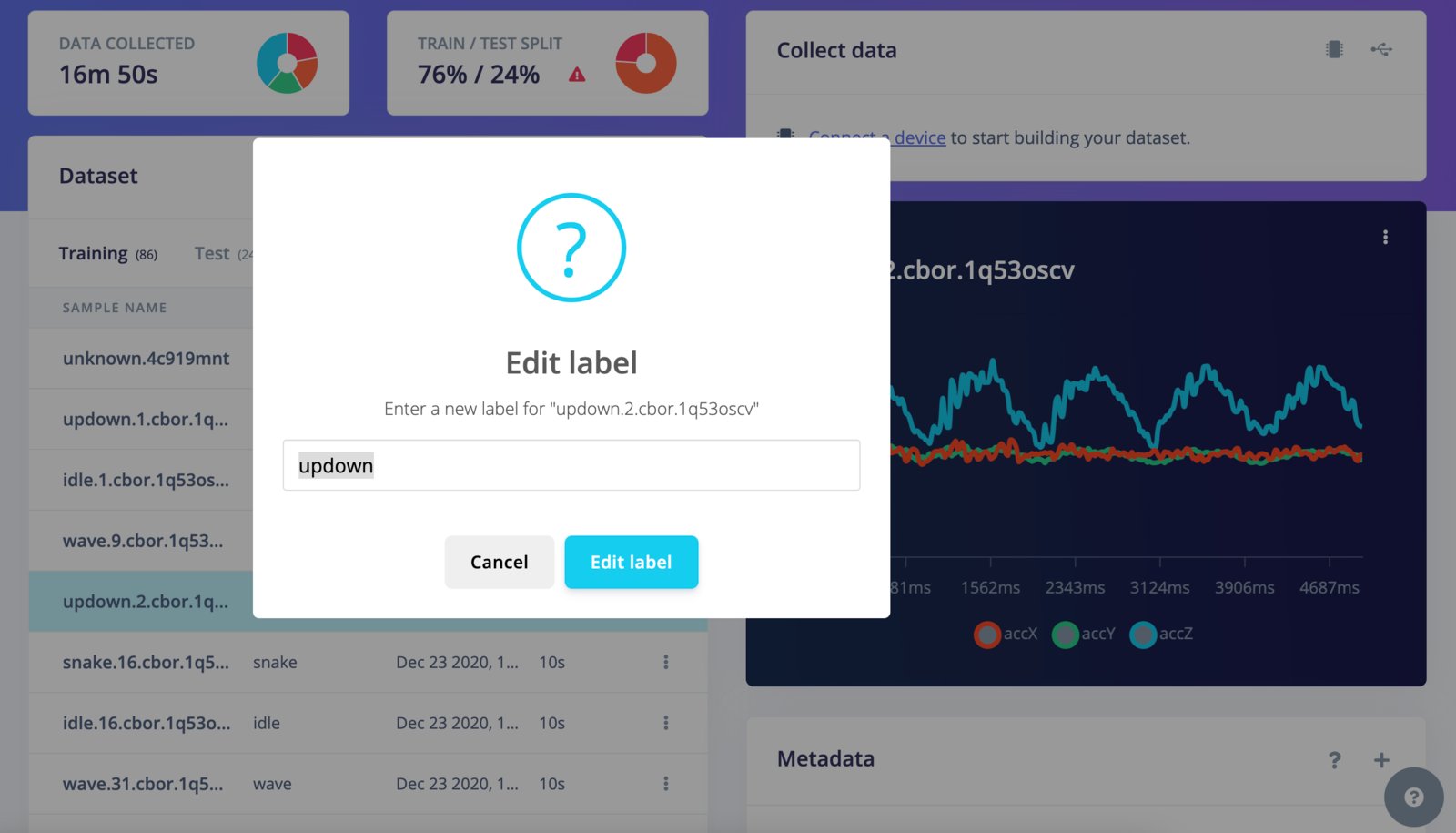
Edit sample label - single label
Multi-label
To edit the labels of a multi-label data sample, go to the sample you want to edit and click ⋮, then select Edit labels. You can then modify the labels for your sample in the provided interface. See the multi-label documentation for more information.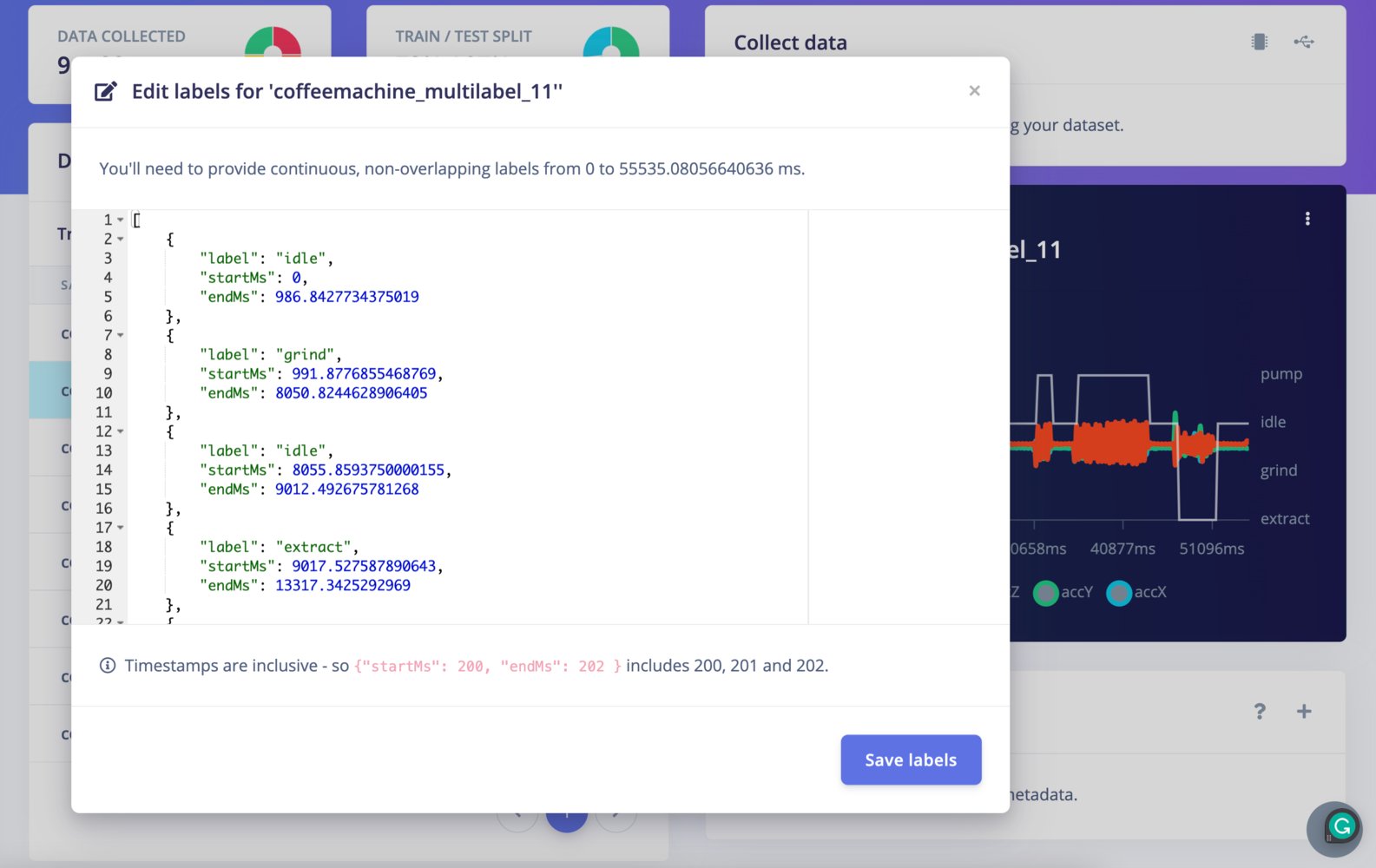
Edit sample labels - multi-label
Crop sample
To crop a data sample, go to the sample you want to crop and click ⋮, then select Crop sample. You can specify a length, or drag the handles to resize the window, then move the window around to make your selection. Made a wrong crop? No problem, just click Crop sample again and you can move your selection around. To undo the crop, just set the sample length to a high number, and the whole sample will be selected again.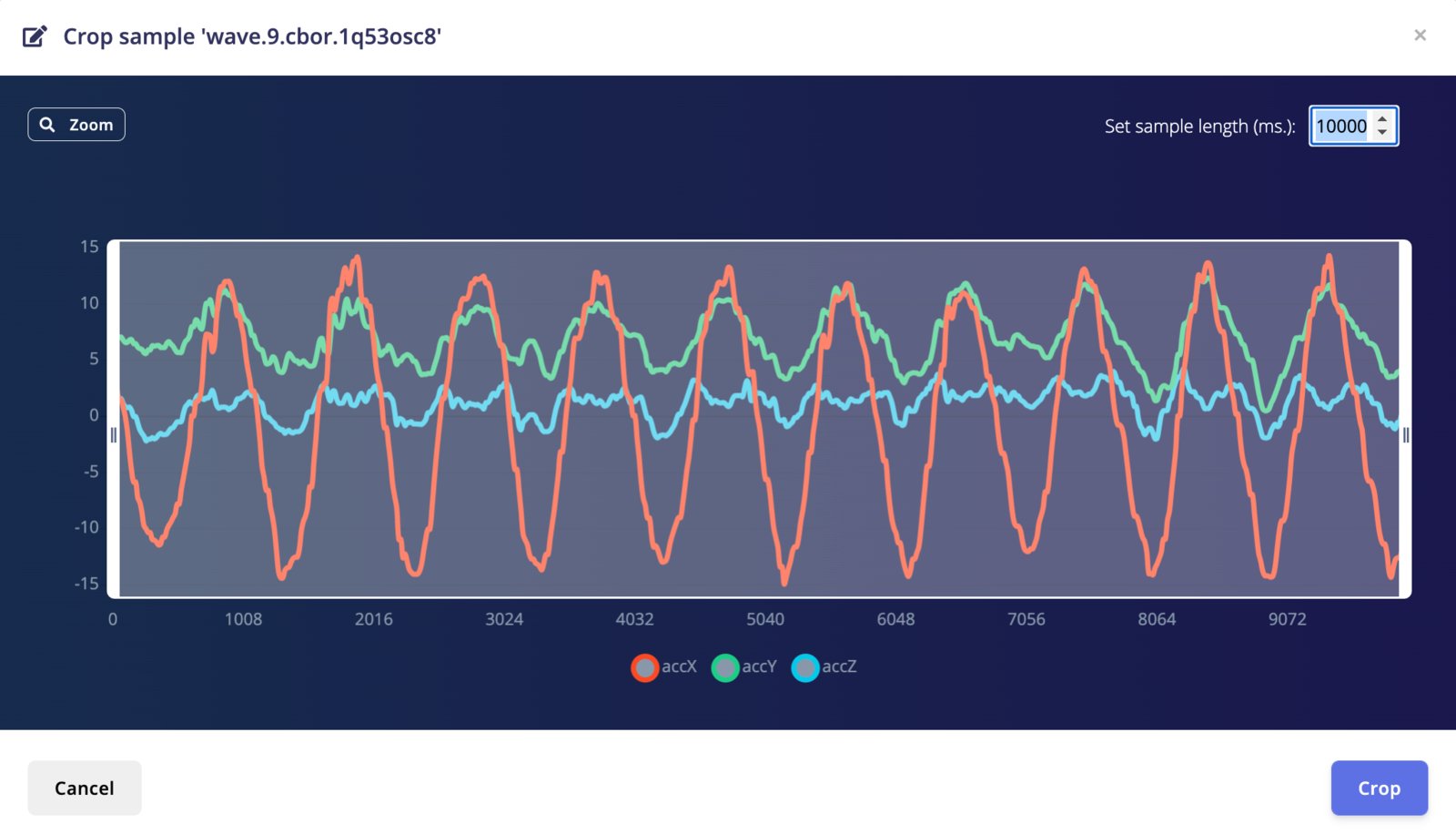
Crop sample
Split sample
Besides cropping you can also split data automatically. This allows you to perform one motion repeatedly, or say a keyword over and over again, and the events will be automatically detected and can be stored as individual samples during splitting. This makes it easy to quickly build a high-quality dataset of discrete events. To split a sample, go to the sample you want to split and click ⋮, then select Split sample. You can set the window length, and all events are automatically detected. If you’re splitting audio data you can also listen to events by clicking on the window, the audio player is automatically populated with that specific split.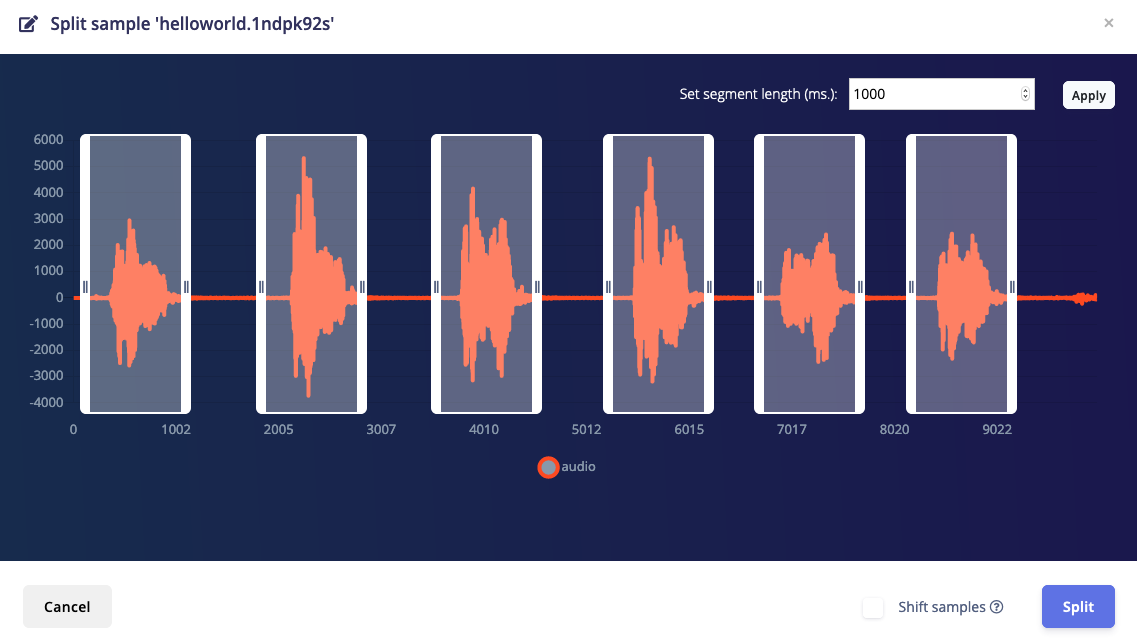
Split sample