Created By: Adam Milton-Barker Public Project Link: https://studio.edgeimpulse.com/public/176144/latest
Jetson Nano automated checkout prototype classifying produce with a USB webcam

Introduction

Even with the current limitations of Artificial Intelligence, it is still a very useful tool, and many tasks can be automated with the technology. As more tasks become automated, human resources are freed up, allowing them to spend more time focusing on what really matters to businesses: their customers. The retail industry is a prime example of an industry that can be automated through the use of Artificial Intelligence, the Internet of Things, and Robotics.

Solution

Computer Vision is a very popular field of Artificial Intelligence, with many possible applications. This project is a proof of concept that shows how Computer Vision can be used to create an automated checkout process using the NVIDIA Jetson Nano and the Edge Impulse platform.

Hardware

  • NVIDIA Jetson Nano Buy
  • USB webcam

Platform

Project Setup

Head over to Edge Impulse and create your account or login. Once logged in you will be taken to the project selection/creation page.

Create New Project

Your first step is to create a new project.
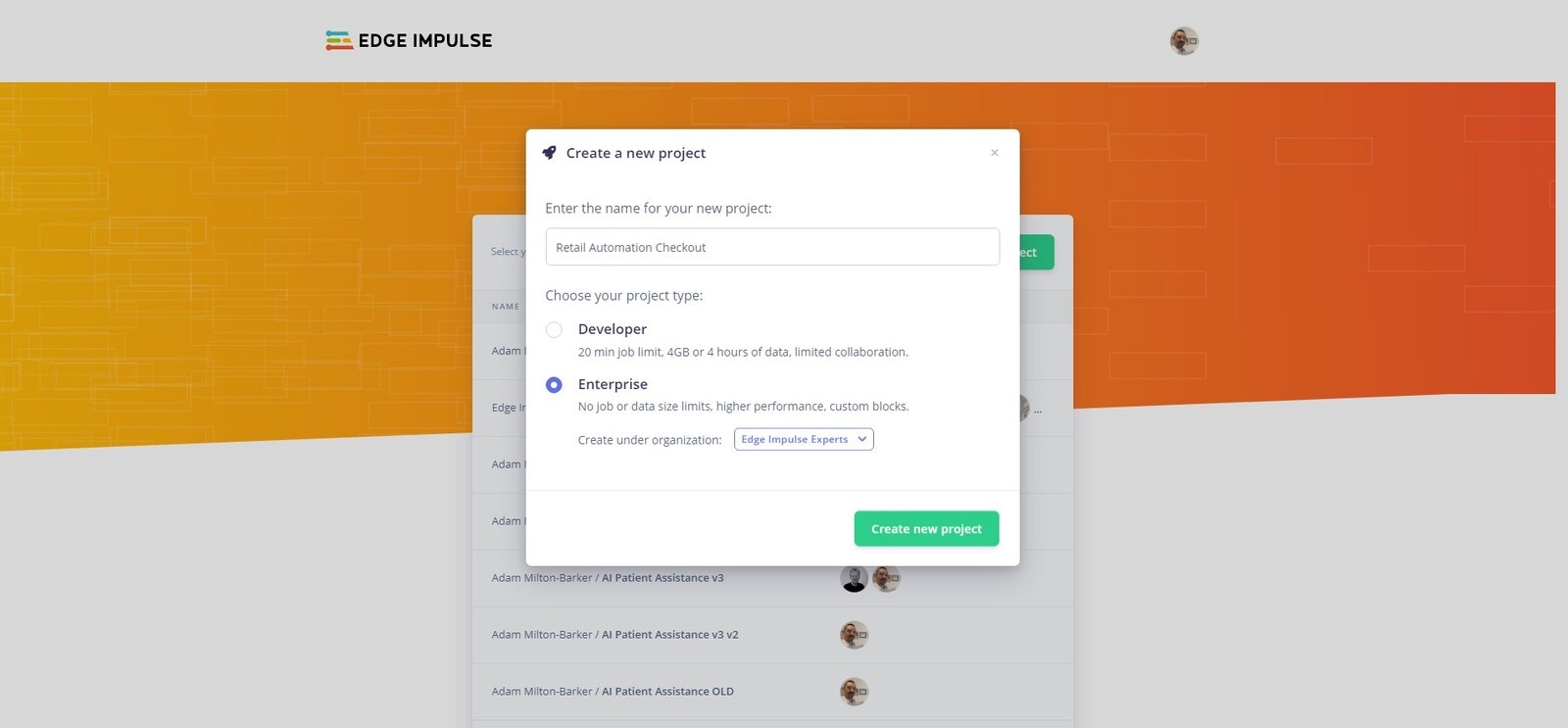
Edge Impulse project selection page with create project option

Create Edge Impulse project

Enter a project name, select Developer or Enterprise, and click Create new project.
New project dialog for selecting Developer or Enterprise project type

Choose project type

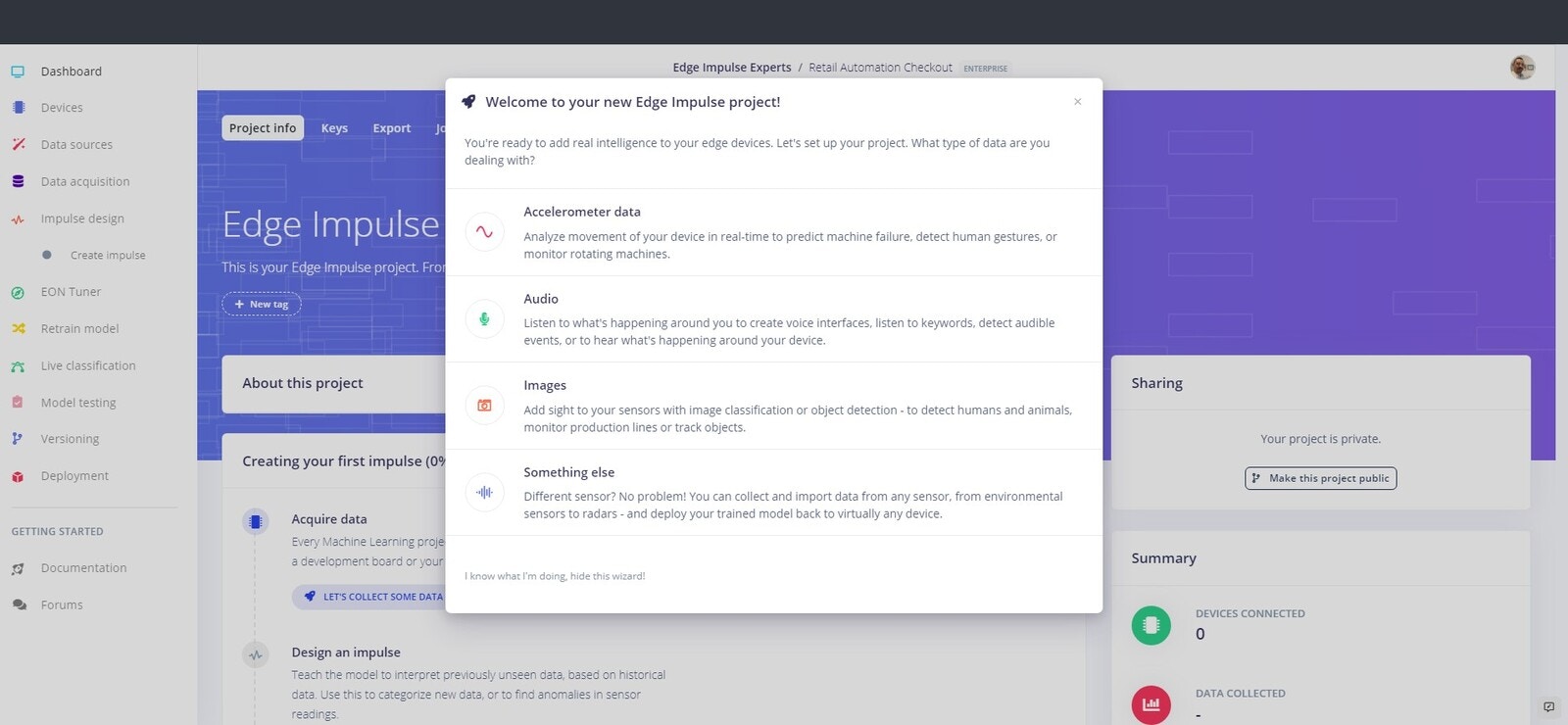
We are going to be creating a computer vision project, so now we need to select Images as the project type.

Connect Your Device

Edge Impulse Devices page before connecting the Jetson Nano

Connect device

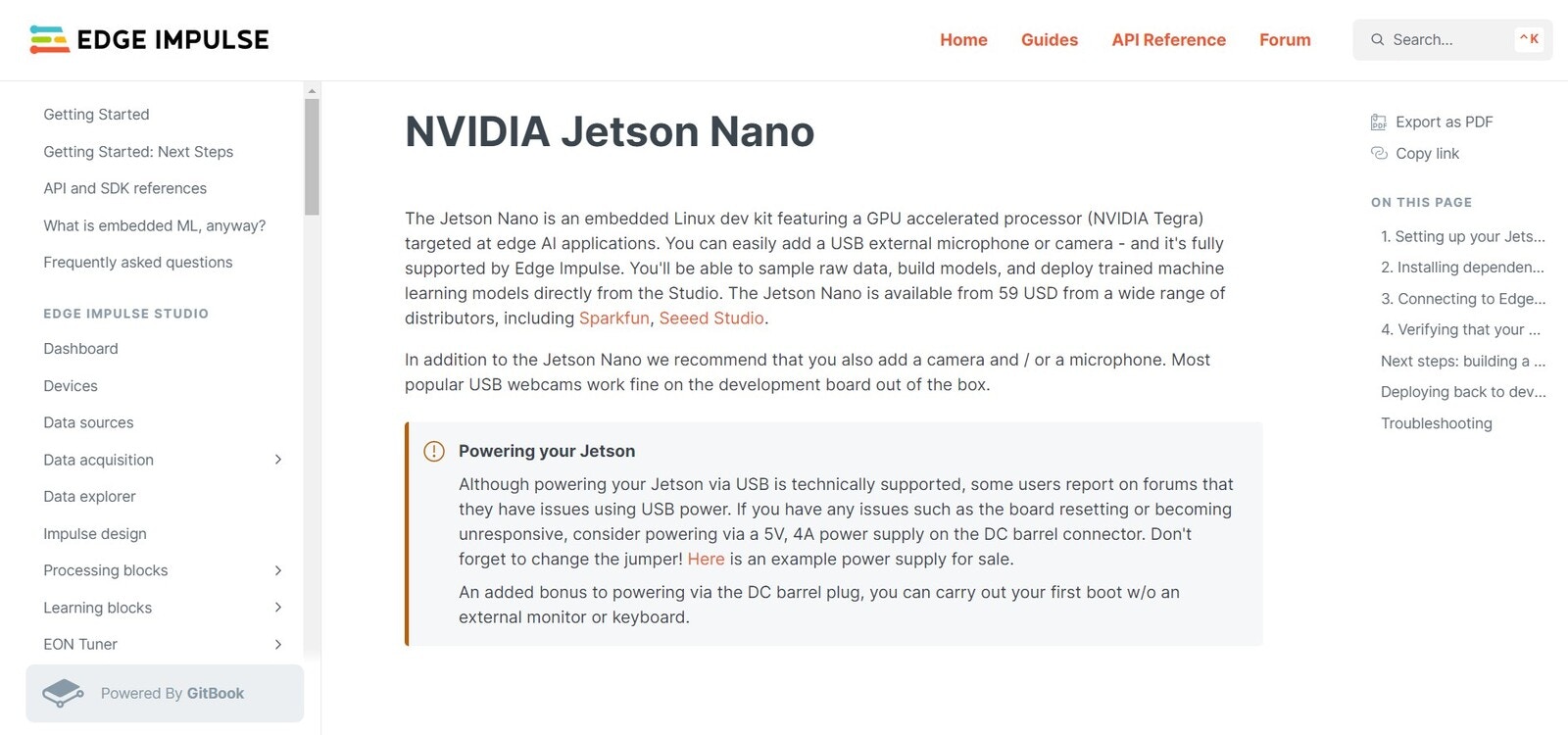
You need to install the required dependencies that will allow you to connect your device to the Edge Impulse platform. This process is documented on the Edge Impulse Website and includes:
  • Running the Edge Impulse NVIDIA Jetson Nano setup script
  • Connecting your device to the Edge Impulse platform
Once the firmware has been installed enter the following command:
If you are already connected to an Edge Impulse project, use the following command:
Follow the instructions to log in to your Edge Impulse account.
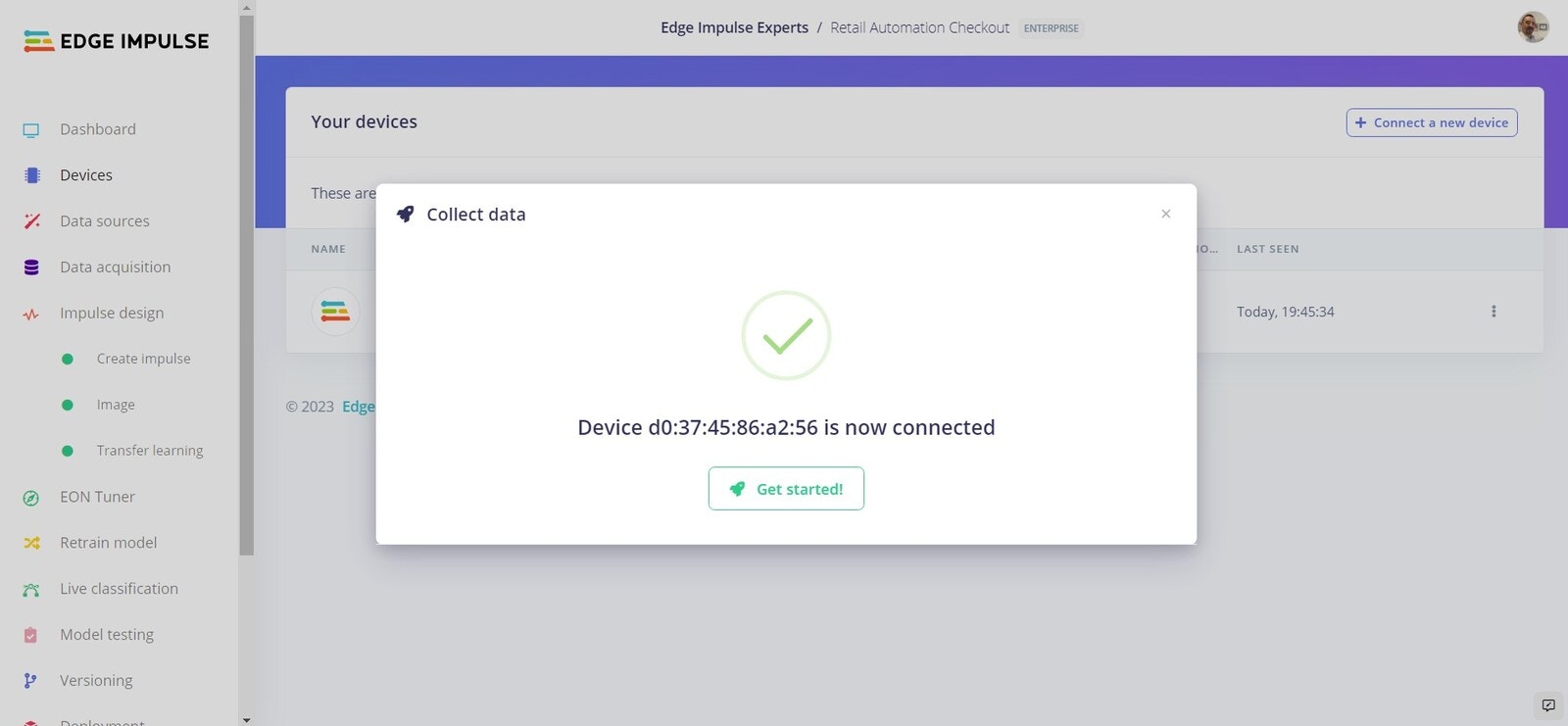
Devices page showing the connected Jetson Nano

Device connected to Edge Impulse

Once complete, head over to the Devices tab of your project and you should see the connected device.

Dataset

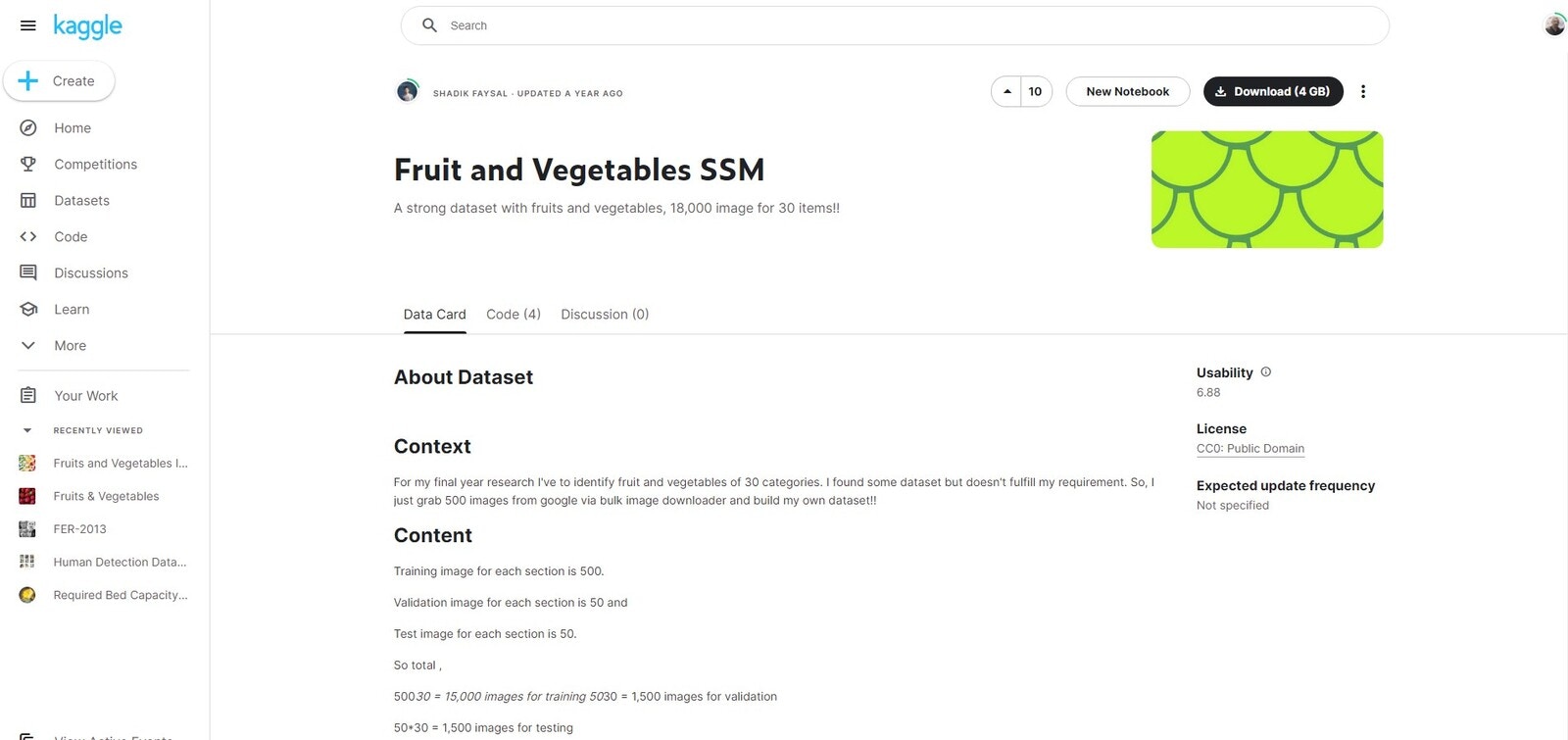
Kaggle fruit and vegetable dataset page used for produce images

Download data

We are going to use the Fruit and Vegetables SSM. This dataset has 18,000 images of various fruits and vegetables. In this example we will use images from the Apples, Bananas, Chillis and Broccoli classes.
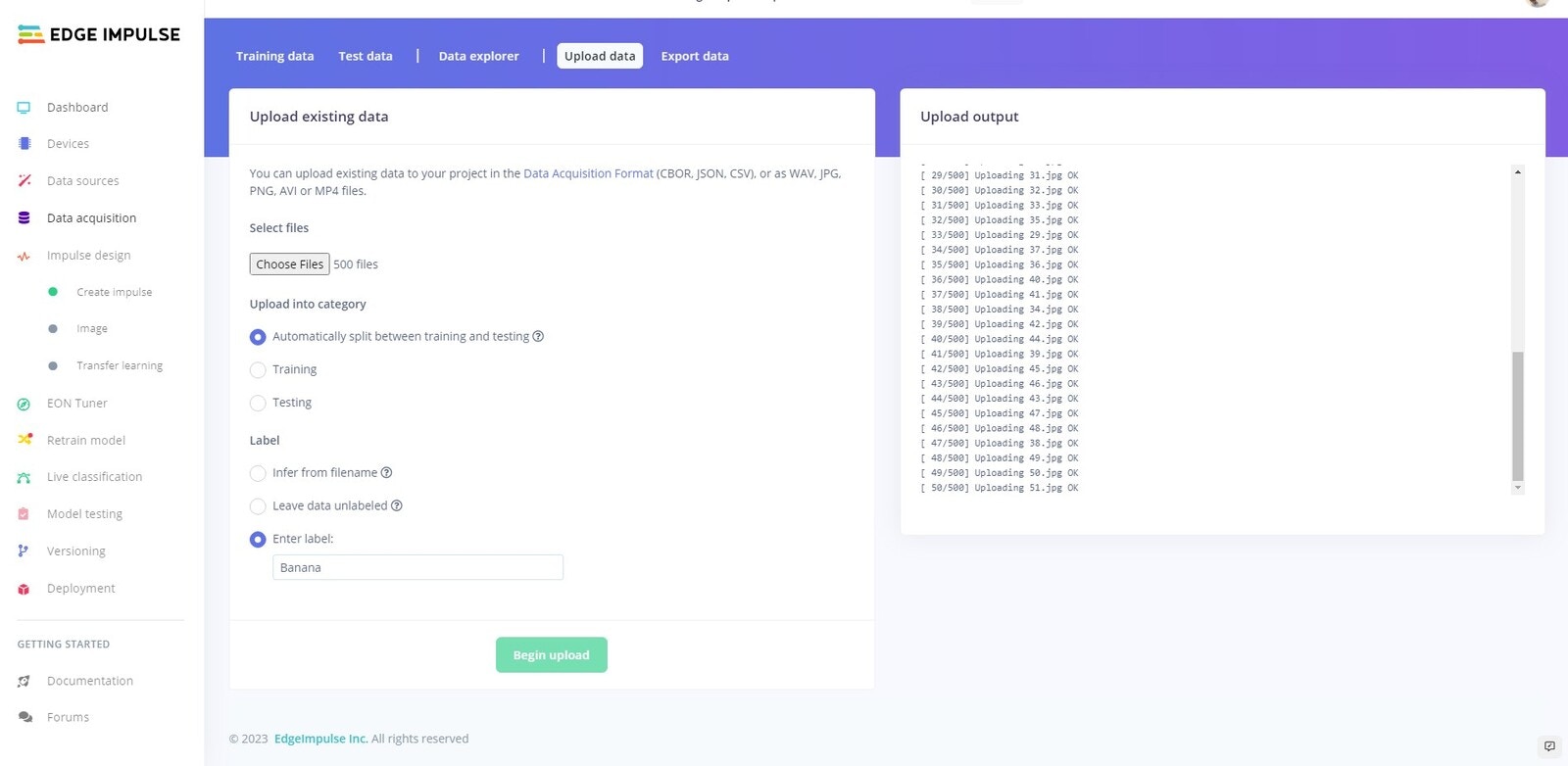
Upload data page adding produce image folders with labels

Upload data

Once downloaded, unzip the data and navigate to the Train folder. Then proceed to upload the contents of Train/Apples, Train/Bananas, Train/Chillis and Train/Brocolli. Make sure to select Automatically split between training and testing, and enter the correct label.
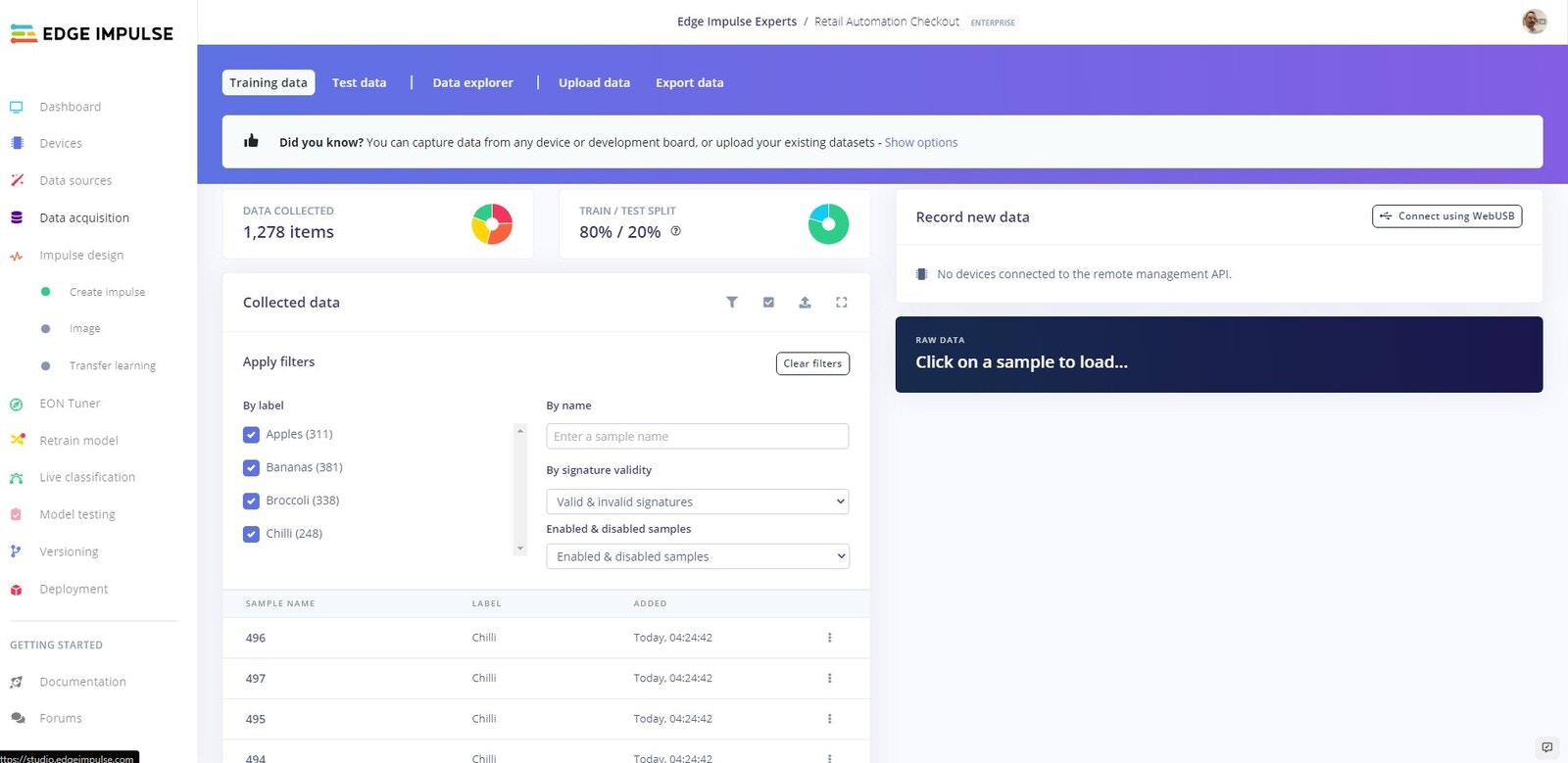
Data acquisition page showing uploaded produce image samples

Uploaded data

Once you have completed these steps, you should be able to see and filter your uploaded dataset.

Create Impulse

Now we are going to create our neural network and train our model.
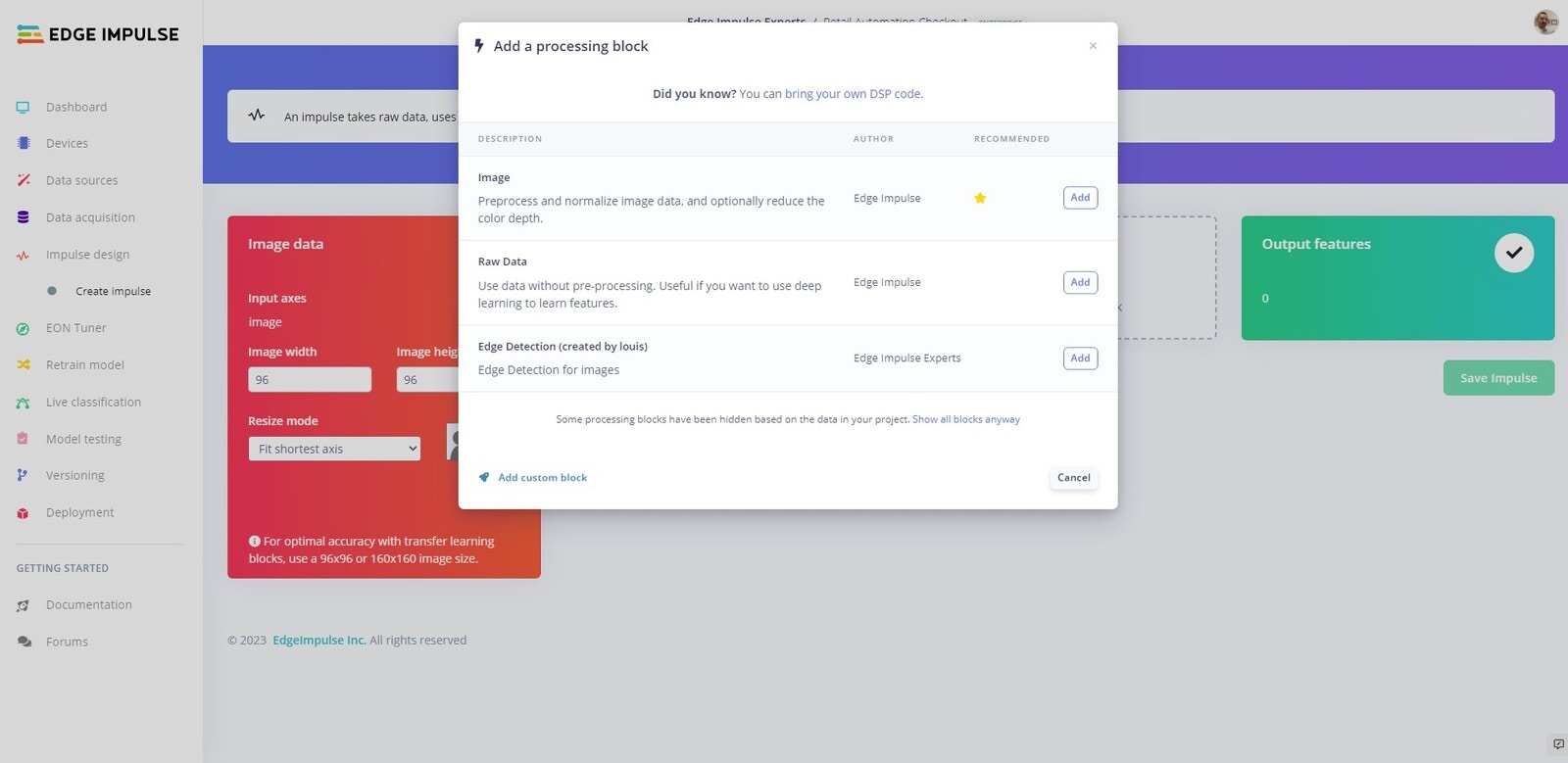
Impulse design page adding an Image processing block

Add processing block

Head to the Create Impulse tab. Next click Add processing block and select Image.
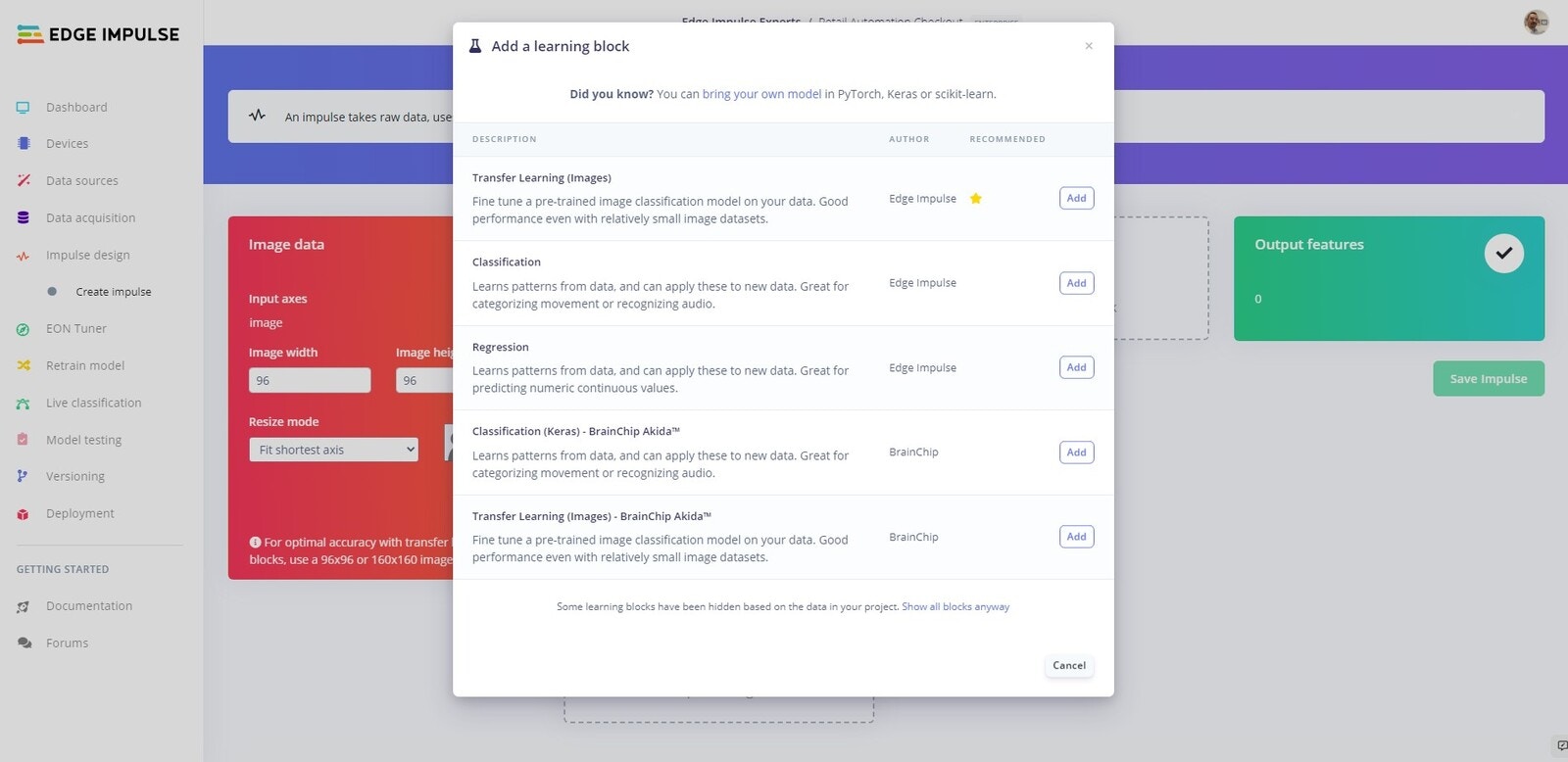
Impulse design page adding a Transfer Learning image block

Created Impulse

Now click Add learning block and select Transfer Learning (Images). Now click Save impulse.

Transfer Learning

Parameters

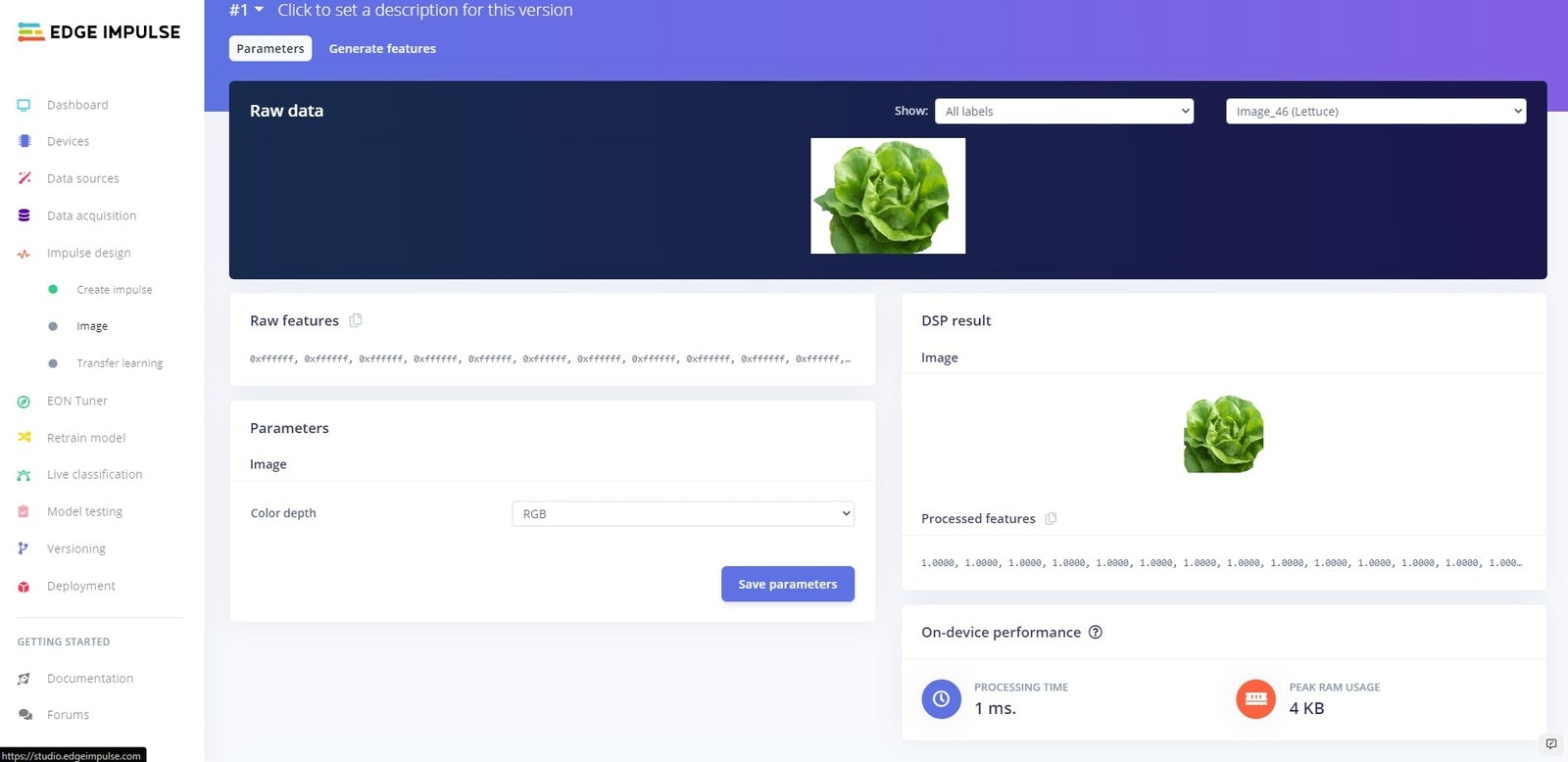
Image processing parameters for the produce classifier

Parameters

Head over to the Image tab and click on the Save parameters button to save the parameters.

Generate Features

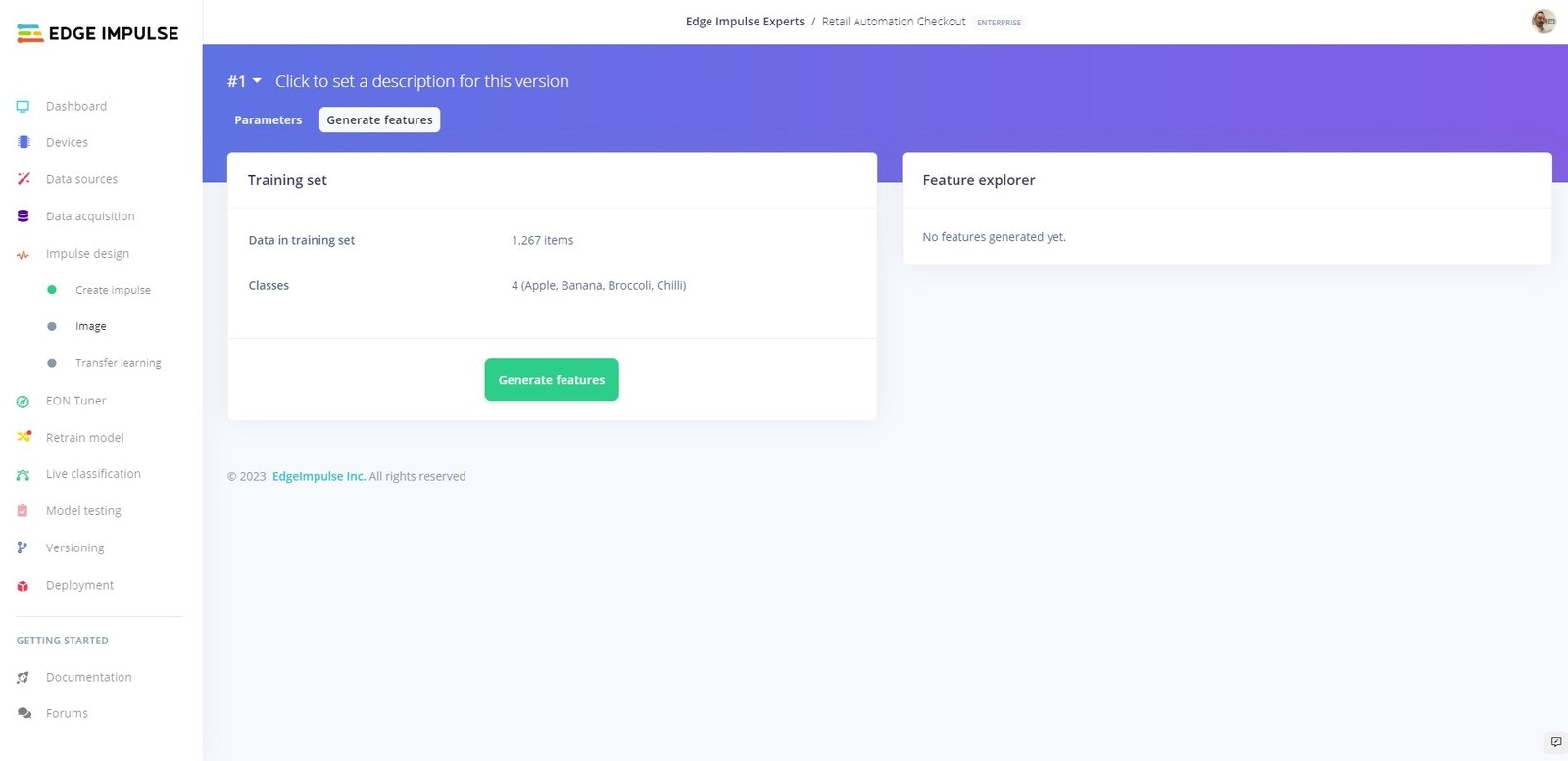
Generate features page ready to process produce images

Generate Features

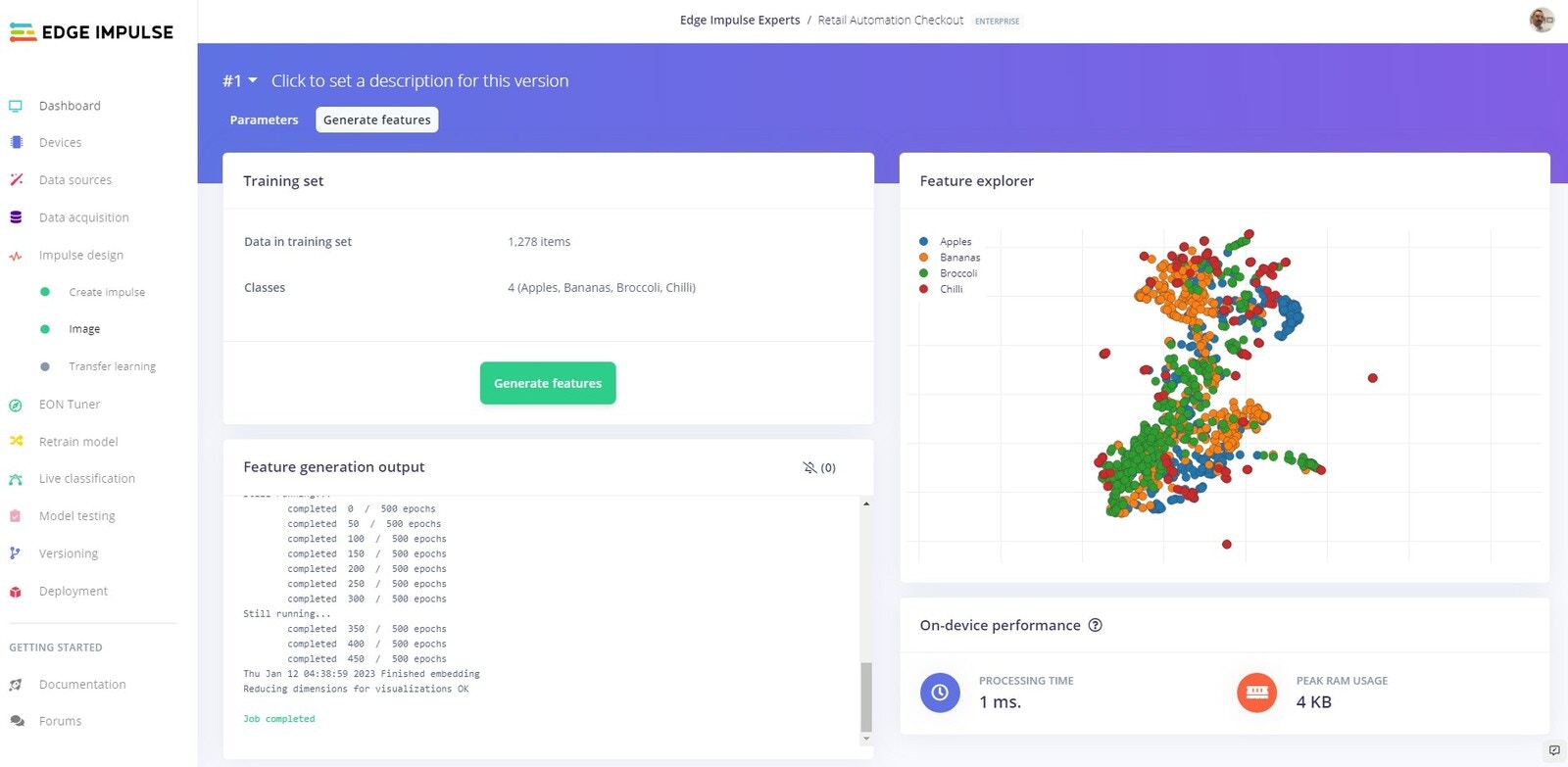
If you are not automatically redirected to the Generate features tab, click on the Image tab and then click on Generate features and finally click on the Generate features button.
Feature explorer showing clustered produce image embeddings

Generated Features

Your data should be nicely clustered and there should be as little mixing of the classes as possible. You should inspect the clusters and look for any data that is clustered incorrectly. If you find any data out of place, you can relabel or remove it. If you make any changes click Generate features again.

Training

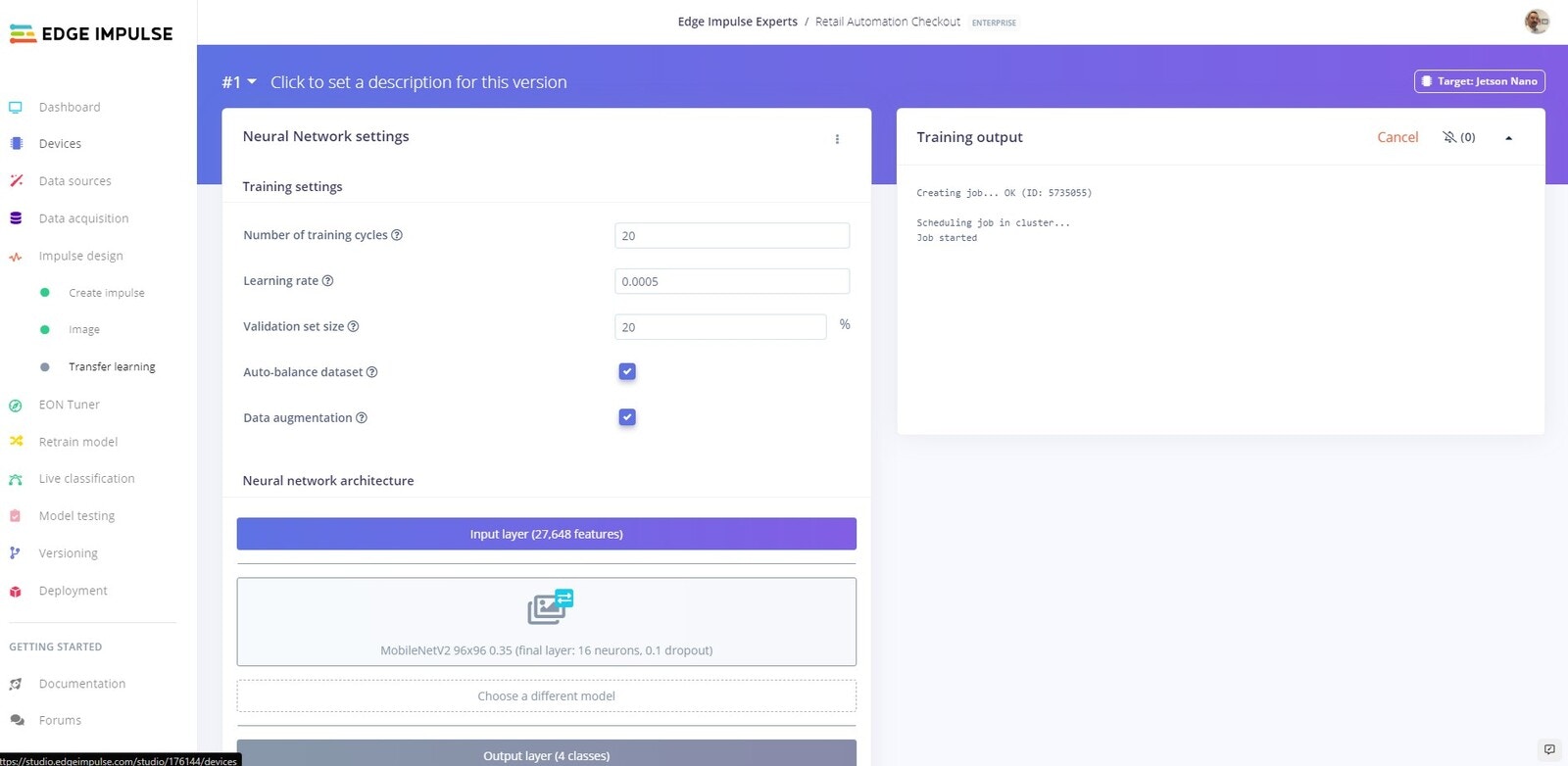
Transfer learning training page with augmentation and auto-balance selected

Training

Now we are going to train our model. Click on the Transfer Learning tab then click Auto-balance dataset, Data augmentation and then Start training.
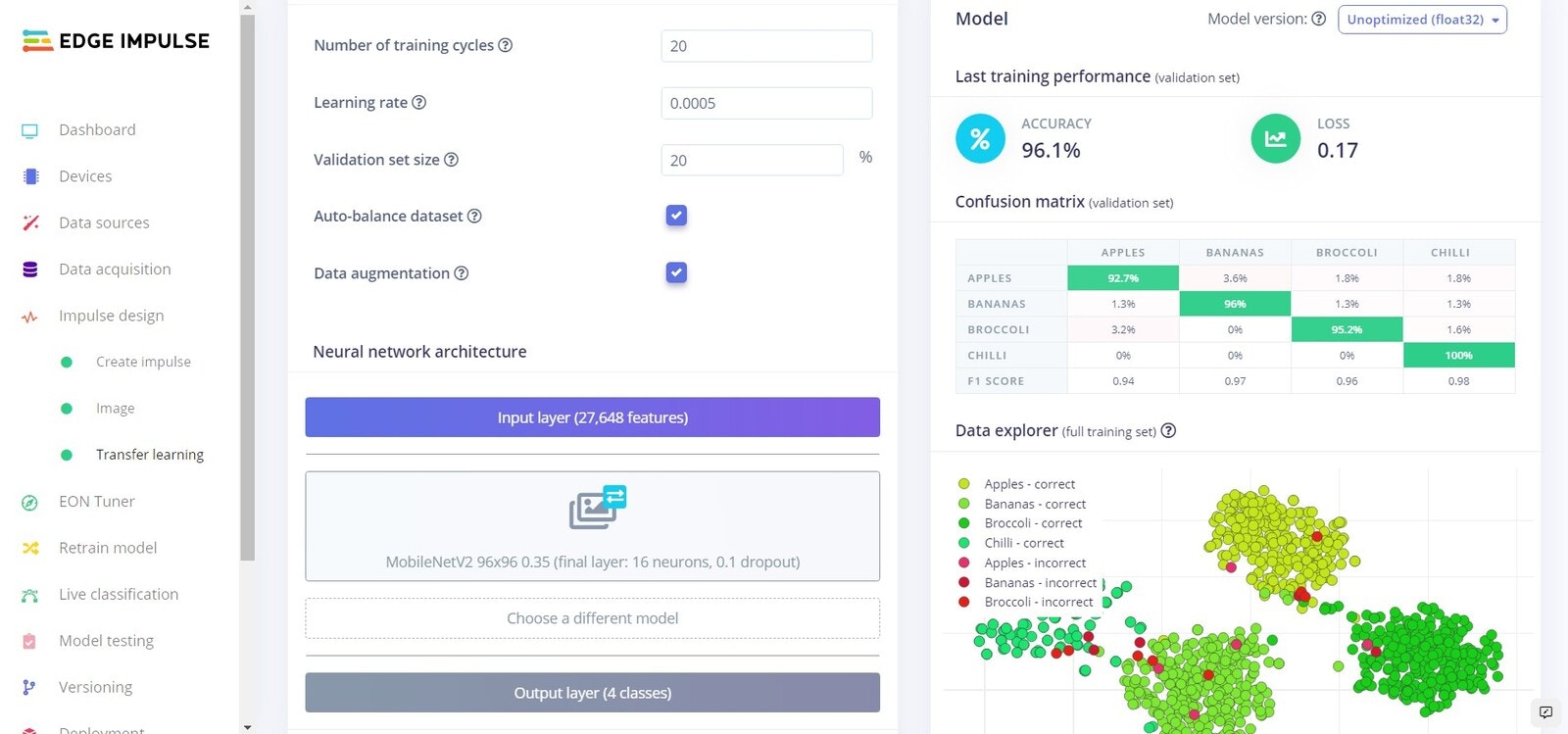
Training results showing accuracy for the produce classifier

Training complete

Once training has completed, you will see the results displayed at the bottom of the page. Here we see that we have 96.1% accuracy. Lets test our model and see how it works on our test data.

Testing

Platform Testing

Head over to the Model testing tab where you will see all of the unseen test data available. Click on the Classify all and sit back as we test our model.
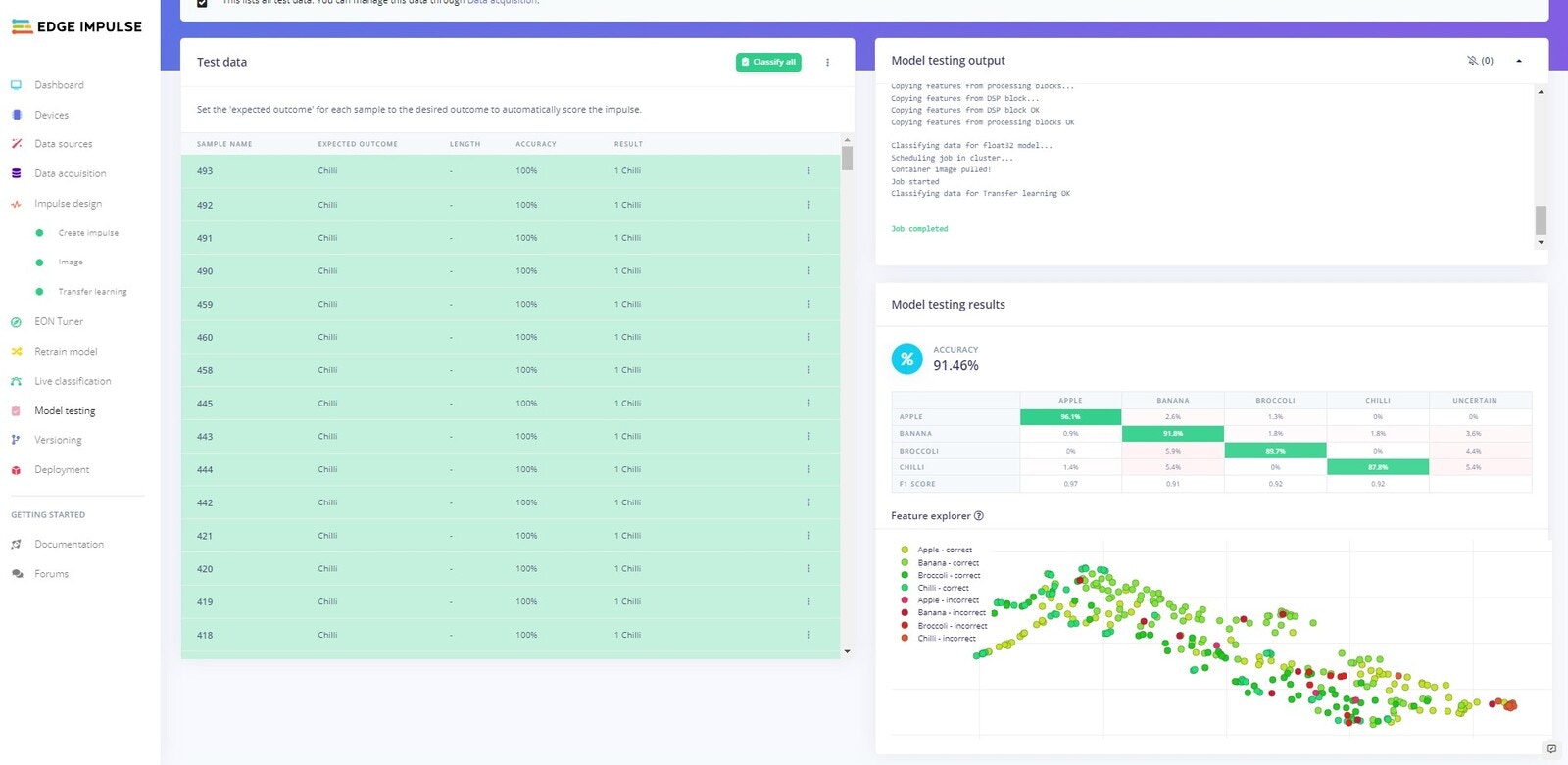
Model testing results for unseen produce images

Test model results

You will see the output of the testing in the output window, and once testing is complete you will see the results. In our case we can see that we have achieved 91.46% accuracy on the unseen data.

On Device Testing

Before we deploy the software to the NVIDIA Jetson Nano, lets test using the Edge Impulse platform whilst connected to the Jetson Nano. For this to work make sure your device is currently connected and that your webcam is attached.
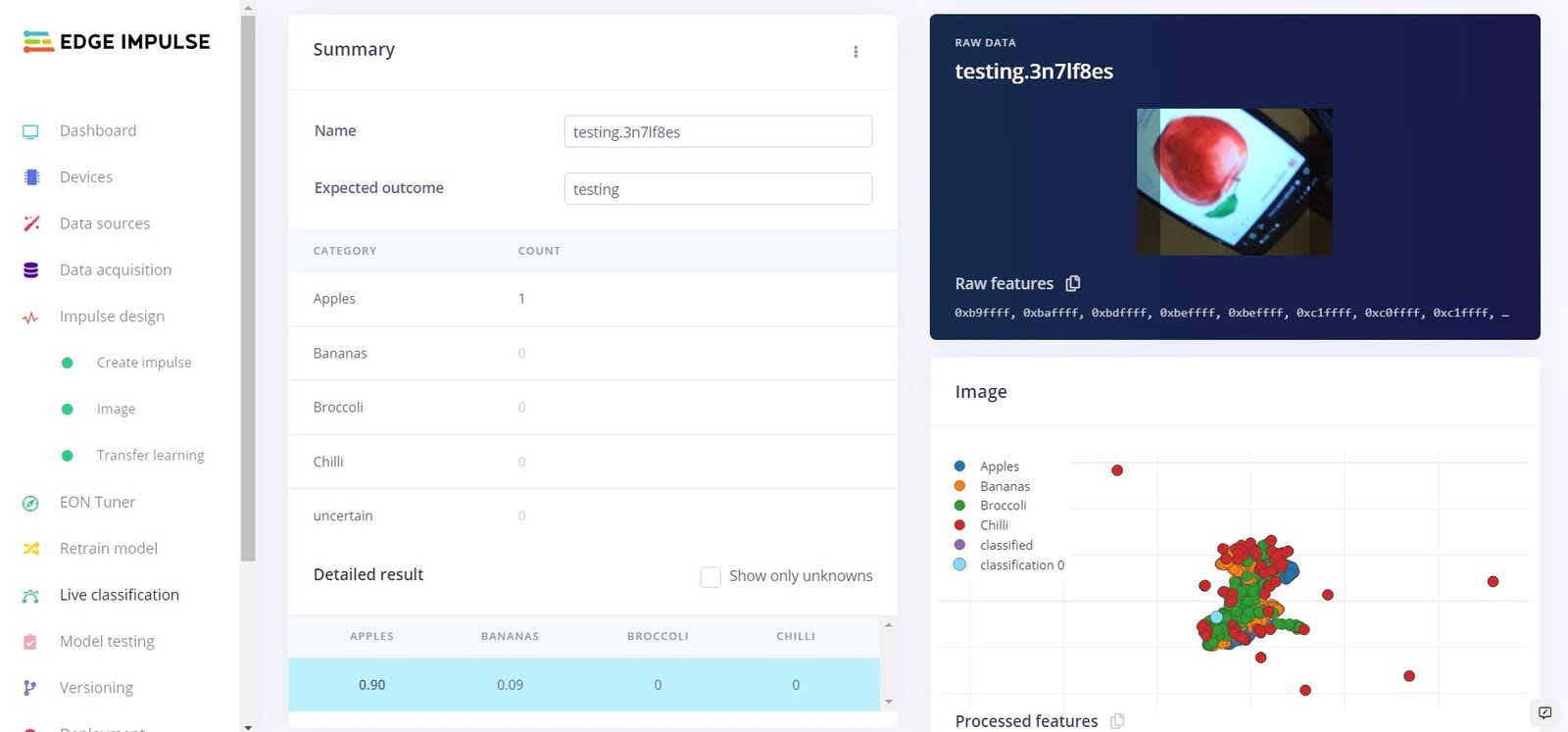
Live classification result for an apple sample from the webcam

Live testing: Apple


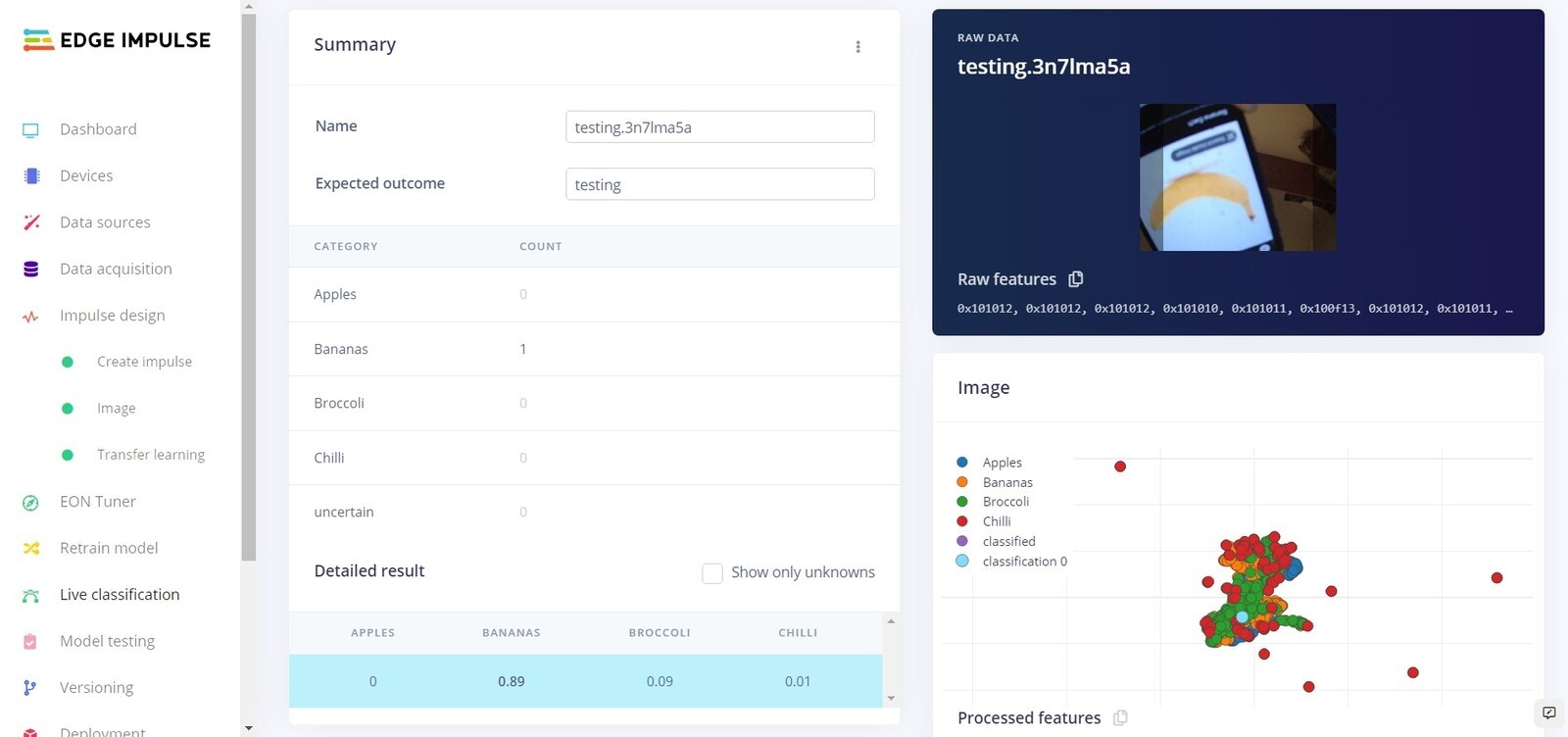
Live classification result for a banana sample from the webcam

Live testing: Banana


Live classification result for a broccoli sample from the webcam

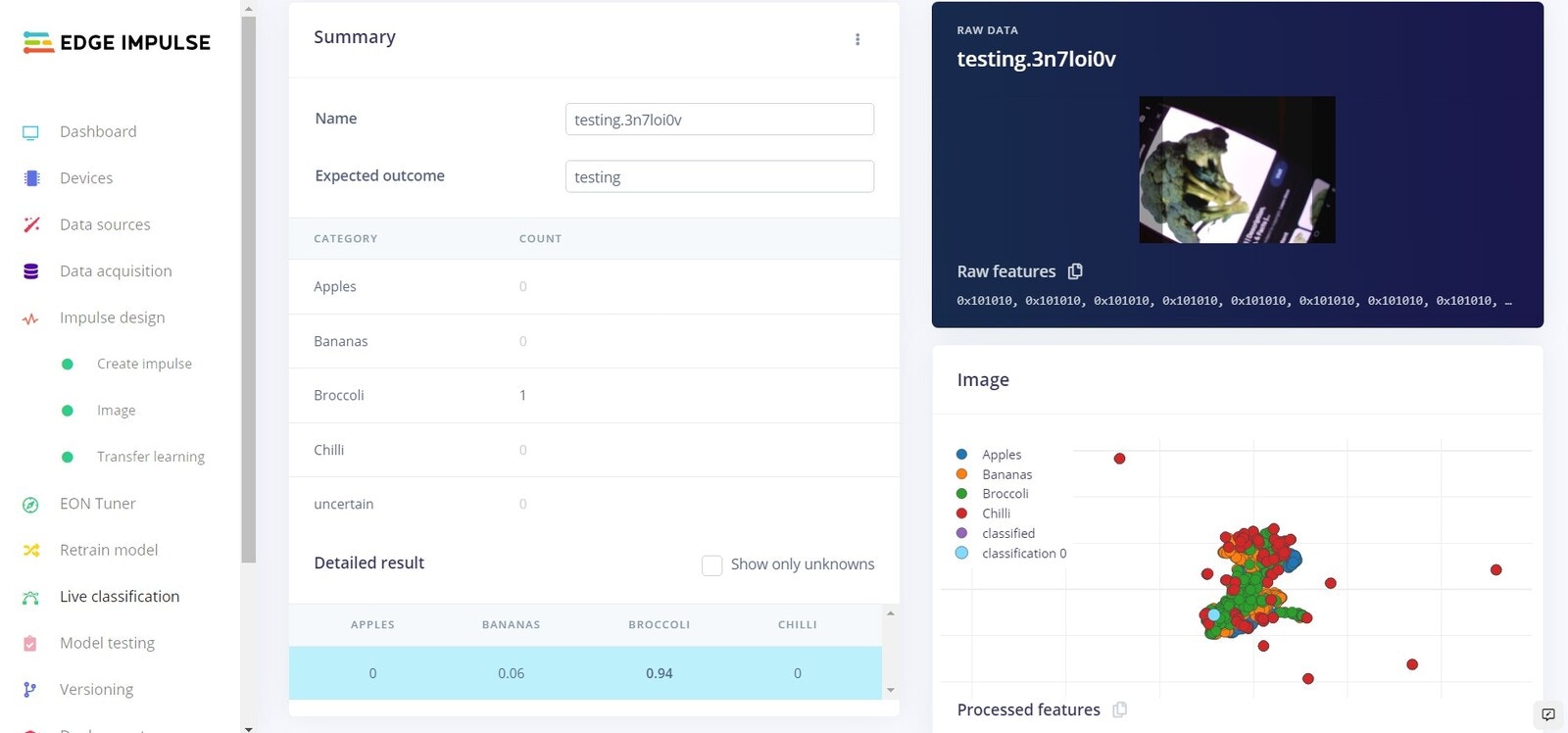
Live testing: Broccoli


Live classification result for a chilli sample from the webcam

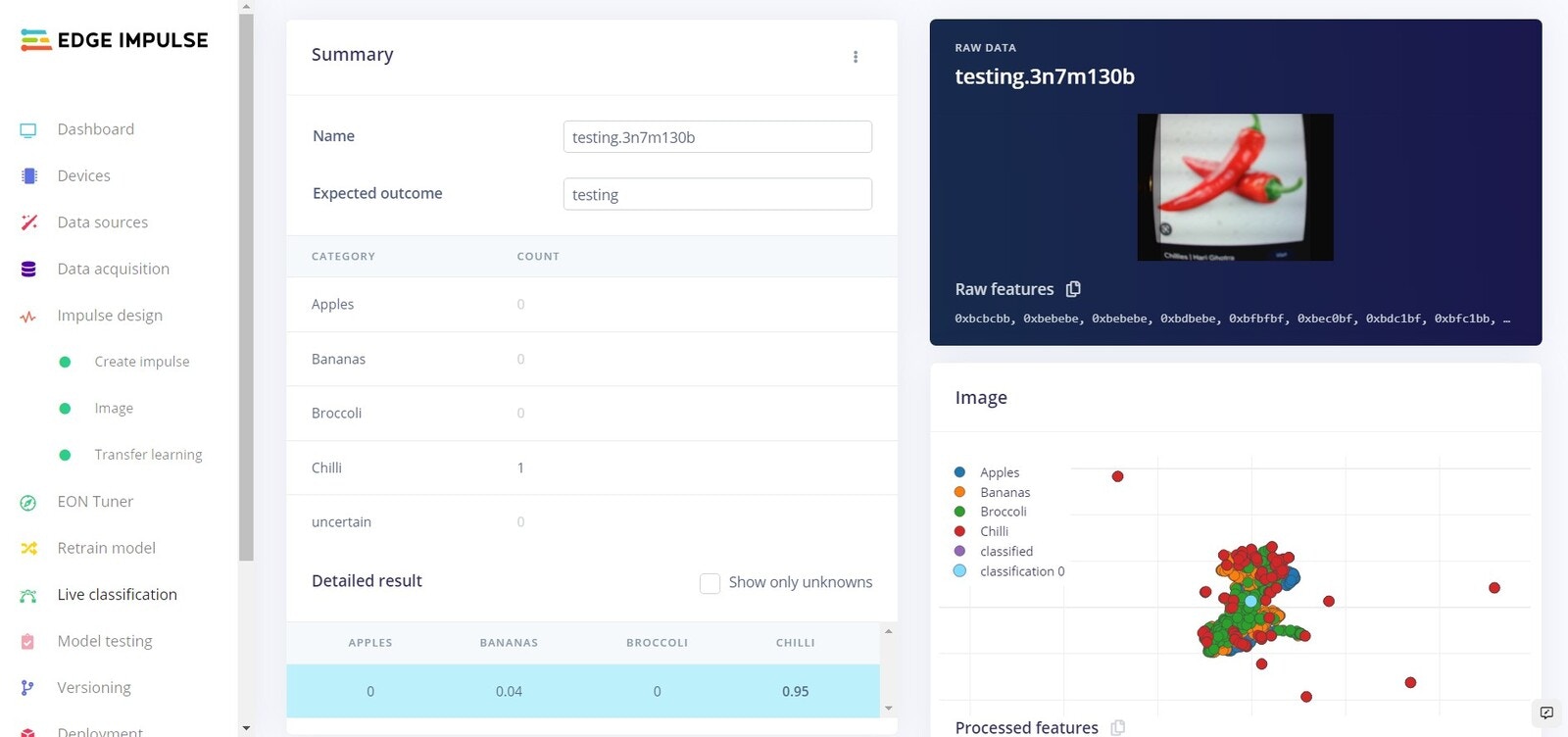
Live testing: Chilli

Use the Live classification feature to record some samples for classification from the webcam connected to the Jetson Nano. Your model should be able to correctly identify the class for each sample. If you are not getting accurate detections, you may need to provide more data samples, or fine tune the training parameters to increase your accuracy. First, you will want to save a Version though.

Versioning

Versioning page before saving the first trained model version

Versioning

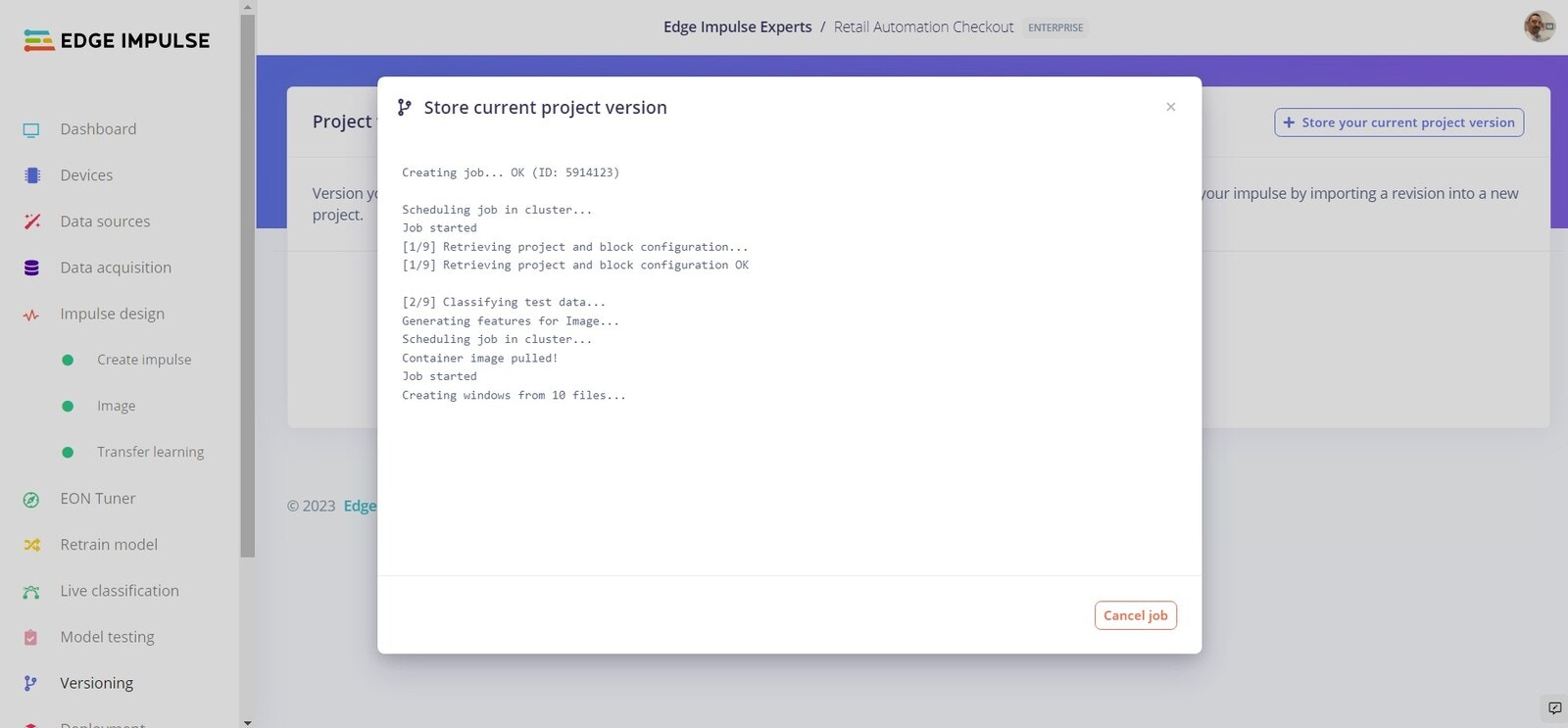
We can use the versioning feature to save a copy of the existing network. To do so head over to the Versioning tab and click on the Create first version button.
Versions page with a saved model snapshot

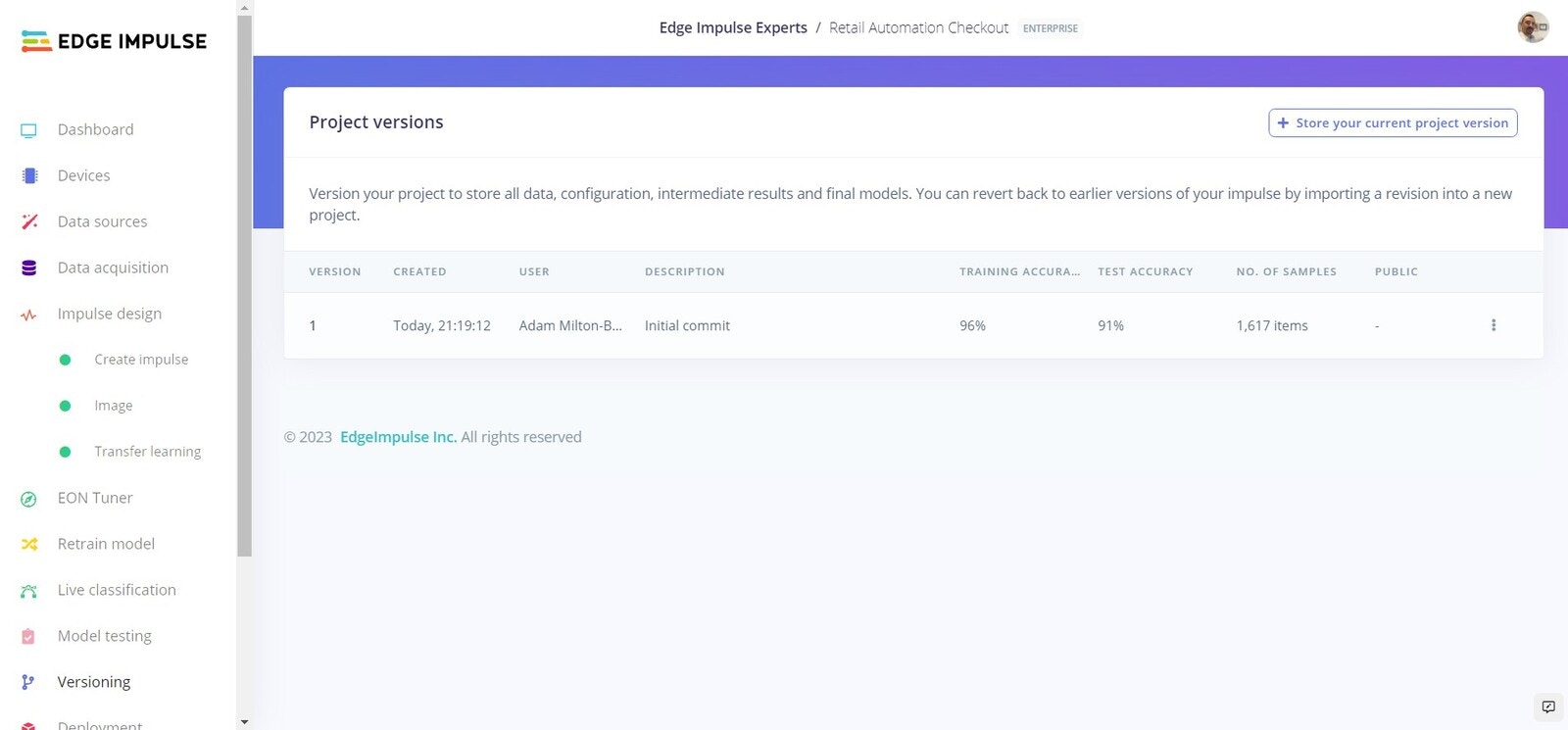
Versions

This will create a snapshot of your existing model that we can come back to at any time.

Deployment

Now we will deploy the software directly to the NVIDIA Jetson Nano. To do this simply head to the terminal on your Jetson Nano, and enter:
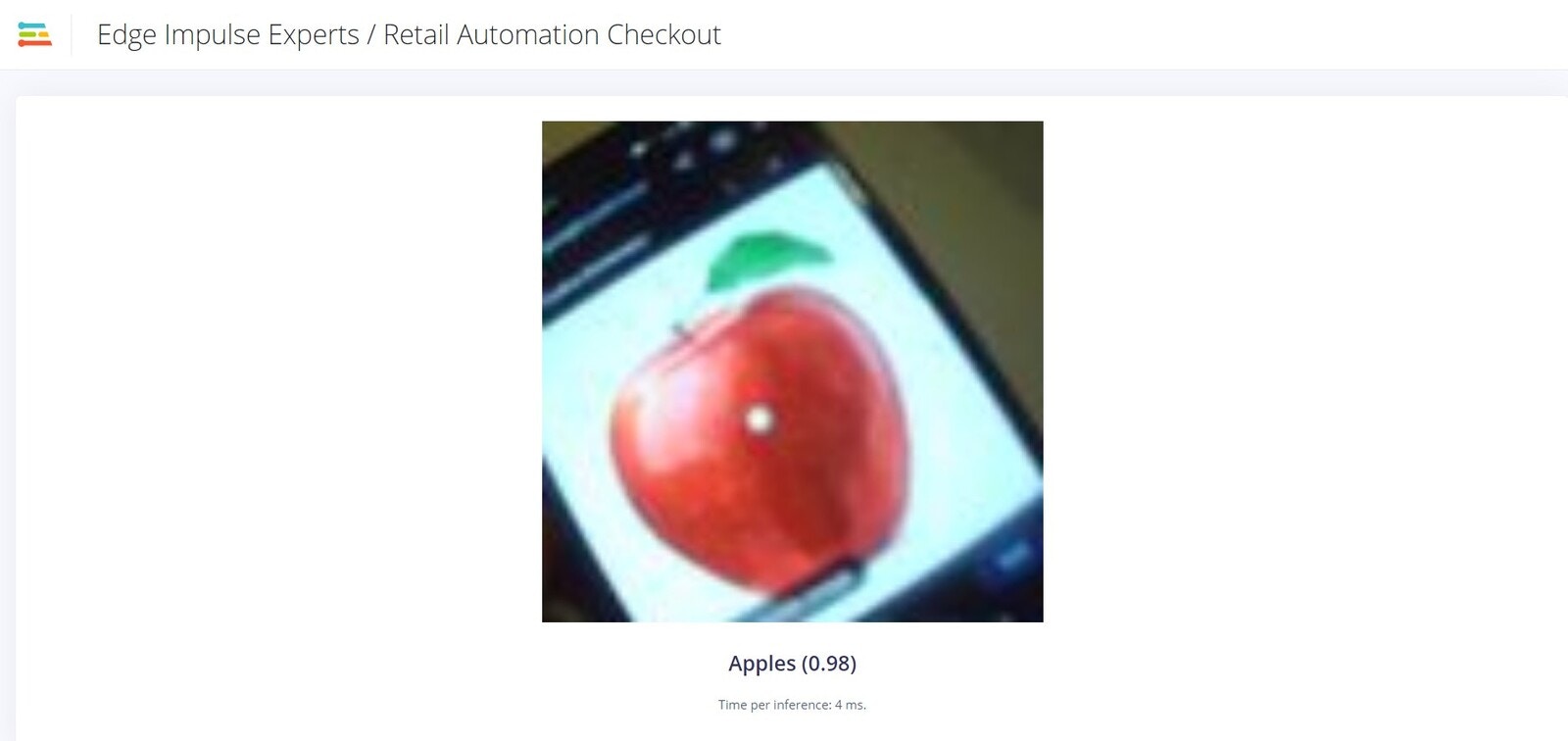
This will then download the built model from Edge Impulse and start local inferencing on the Nano. Keep an eye out for a message that gives you a URL to view the results in your browser.
Local Jetson Nano inference feed classifying an apple sample

Live Inferencing

Conclusion

Here we have created a simple but effective solution for classifying various fruits and vegetables using computer vision powered on an NVIDIA Jetson Nano, using Edge Impulse. You can train a network with your own images, or build off the model and training data provided in this tutorial.