


Edge Impulse Linux CLI Process
0. Prerequisites
- The CLI assumes that cameras and microphones are discoverable in the /dev/ directory
- The device should have internet connectivity to download the model via edge-impulse-linux. Internet connection at inference time is not required.
- Access to the target from the host via SSH to copy a model file in case it’s downloaded through a host computer.
1. Install dependencies and Edge Impulse Linux CLI on target
Debian Based Systems
Debian Based Systems
These commands install the Edge Impulse Linux CLI for your Debian based distribution (except Qualcomm and NVIDIA devices, see below):
Qualcomm Devices only
Qualcomm Devices only
To install the CLI components for Qualcomm devices running Qualcomm Linux or Ubuntu:
NVIDIA Devices only
NVIDIA Devices only
For NVIDIA Jetson Orin:
- use SD Card image with JetPack 5.1.2 or
- use SD Card image with JetPack 6.0
Note that you may need to update the UEFI firmware on the device when migrating to JetPack 6.0 from earlier JetPack versions. See NVIDIA’s Initial Setup Guide for Jetson Nano Development Kit for instructions on how to get JetPack 6.0 GA on your device.For NVIDIA Jetson devices use SD Card image with Jetpack 4.6.4. See also JetPack Archive or Jetson Download Center.When finished, you should have a bash prompt via the USB serial port, or using an external monitor and keyboard attached to the Jetson. You will also need to connect your Jetson to the internet via the Ethernet port (there is no WiFi on the Jetson). (After setting up the Jetson the first time via keyboard or the USB serial port, you can SSH in.)
Make sure your ethernet is connected to the Internet
Issue the following command to check:Running the setup script
To set this device up in Edge Impulse, run the following commands (from any folder). When prompted, enter the password you created for the user on your Jetson/Orin in step 1. The entire script takes a few minutes to run (using a fast microSD card).For Jetson:Systems without Package Manager
Systems without Package Manager
Before you install the CLI you will need to install node first, then the other CLI requirements like sox and gstreamer, and finally the CLI. It is recommended that you set up your buildroot or yocto processes with the base requirements listed previously (gstreamer, sox, etc). You may find examples root buildroot and yocto from the Microchip guides. Once successfully installed please proceed to the “Test Inference Example” section
2. Download model and run inference with edge-impulse-linux-runner
There are two ways to download the model to the device.Directly on the target, using edge-impulse-linux-runner (requires authentication to edge impulse on target)
Directly on the target, using edge-impulse-linux-runner (requires authentication to edge impulse on target)
Running the command below on the target will prompt you to log in to your edge impulse account, select the project, download the model and start inference in one go. Here you can select the project that you copied in the beginning of this guide. When the runner is working correctly you should get output on the terminal like shown below. A webserver will be started on port 1337 to which you can upload this test-image.jpg to test an inference.
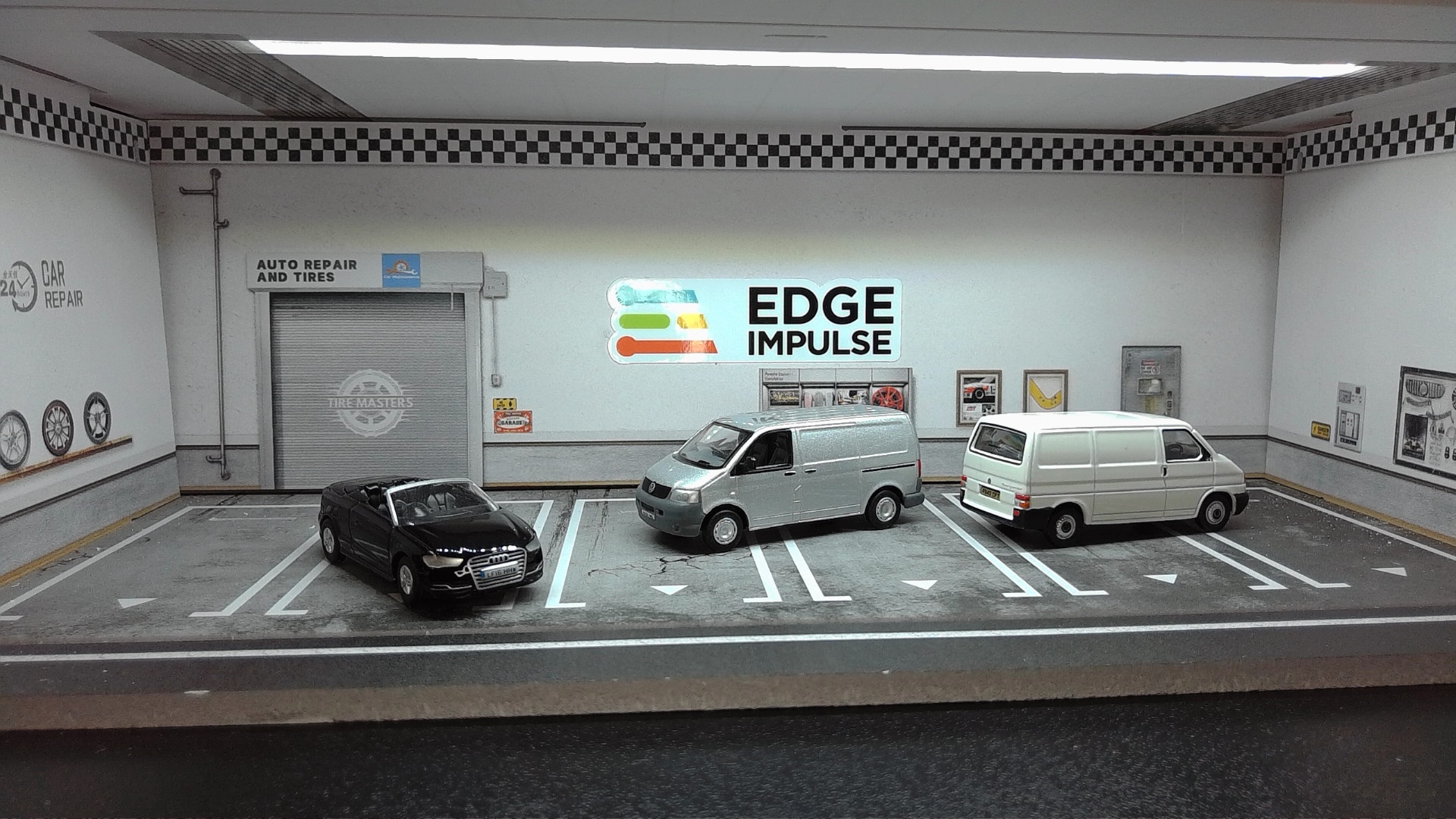
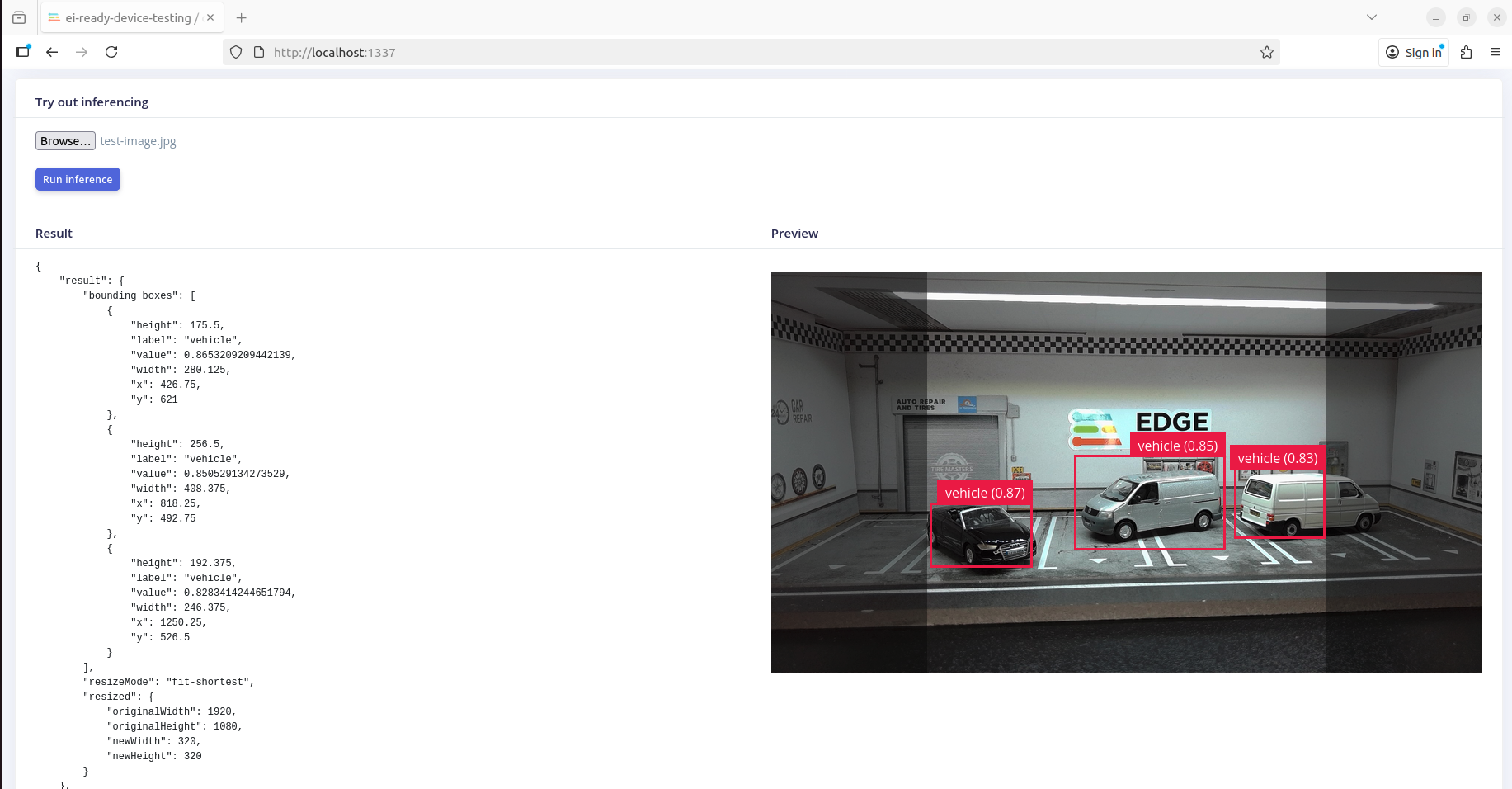
Live inference preview
Pre-load the model externally and copy on the target (no internet and authentication required on the target)
Pre-load the model externally and copy on the target (no internet and authentication required on the target)
In this method the same CLI tool is used on the target, but it will not require internet connection or authentication.First, on the host computer go to the deployment page of the project in Edge Impulse platform and select Linux option appropriate for your architecture. You will notice that a lot of different flavours ara available, so if your target falls into one of them (e.g., its a Qualcomm SoC with Hexagon NPU) - select that one.If its a general core without accelerators - select AARCH64 or other one that matches your architecture.
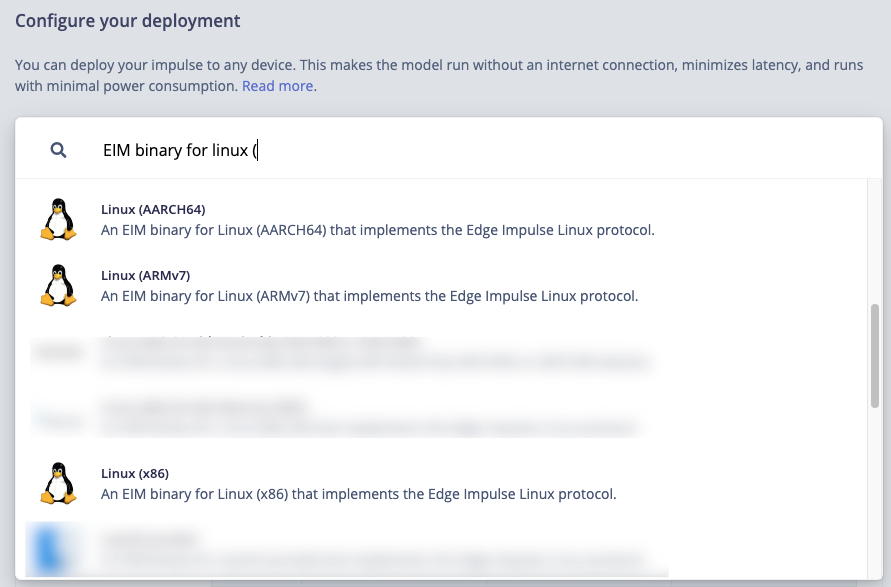
Linux Deployment Options
Live inference preview