

Knowledge requiredThis tutorial assumes that you’re familiar with building applications with ESP IDF development framework for ESP-EYE (ESP32). If you’re unfamiliar ESP-IDF, you can download a ready-to-flash binary compatible with the ESP32-EYE or download the generated Arduino library directly from the Deployment page in the studio.
Prerequisites
Make sure you’ve followed one of the tutorials and have a trained impulse. For the purpose of this tutorial, we’ll assume you trained an Continuous motion recognition model. Also install the following software:Cloning the base repository
We created an example repository which contains a small application for Espressif ESP32, which takes the raw features as an argument, and prints out the final classification. Download the application as a .zip, or import this repository using Git:Deploying your impulse
Head over to your Edge Impulse project, and go to the Deployment tab. From here you can create the full library which contains the impulse and all required libraries. Select C++ library and click Build to create the library. Download the .zip file and unzip the deployed C++ library from your Edge Impulse project and copy only the folders to the root directory of this repository example-standalone-inferencing-espressif-esp32 folder. Your final folder structure should look like this:Running the impulse
With the project ready, it’s time to verify that the application works. Head back to the studio and click on Live classification. Then load a validation sample, and click on a row under ‘Detailed result’.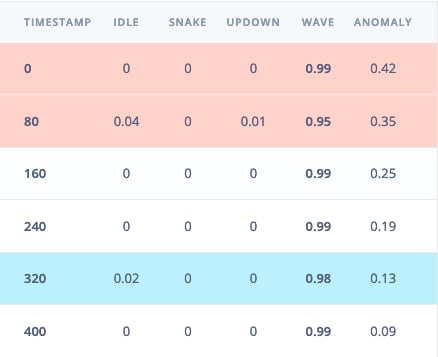
Selecting the row with timestamp '320' under 'Detailed result'.
In your case, since you might pick a different sample, the values and classification results might be different from the screenshot above. The important thing is that classification result in Studio matches the one from the device - which we will be checking a bit later.
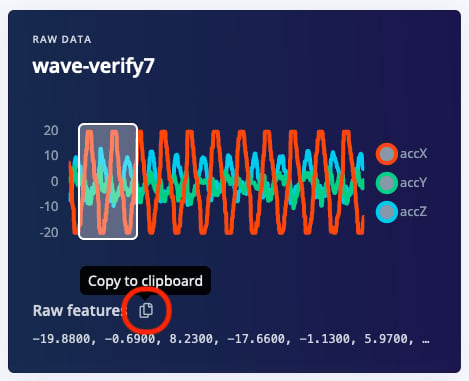
Copying the raw features.
ei_main.cpp and paste the raw features inside the static const float features[] definition, for example:
Seeing the output
To see the output of the impulse, connect to the development board over a serial port on baud rate115200 and reset the board. You can do this with your favorite serial monitor or with the Edge Impulse CLI:
Arduino library deployments
It is also possible to download Arduino library deployment and use that with ESP32 Arduino Core. See more details on how to do that in documentation about Arduino IDE library deployments. A few caveats to keep in mind:- The example sketches are tested with ESP32 Arduino core version 2.0.4. They are not guaranteed to work out of the box with other versions.
- The example sketches are written with ESP-EYE board in mind. To use them with other boards, changes need to be applied, specifically for data acquisition. The static_buffer sketch can be used for sanity check on canned data for any board.
- For ESP32-S3 and certain model types, arena size needs to be adjusted. You can do that depending on your deployment type (EON Compiled or TFLM):
- for the EON Compiler deployments, look for kTensorArenaSize in the tflite-model/tflite_learn_*_compiled.cpp and increase the size (depending on the memory available, you can start with doubling it)
- for the TensorFlow deployments, look for tflite_learn_arena_size constant in the tflite-model/tflite_learn.h and increase this value.