

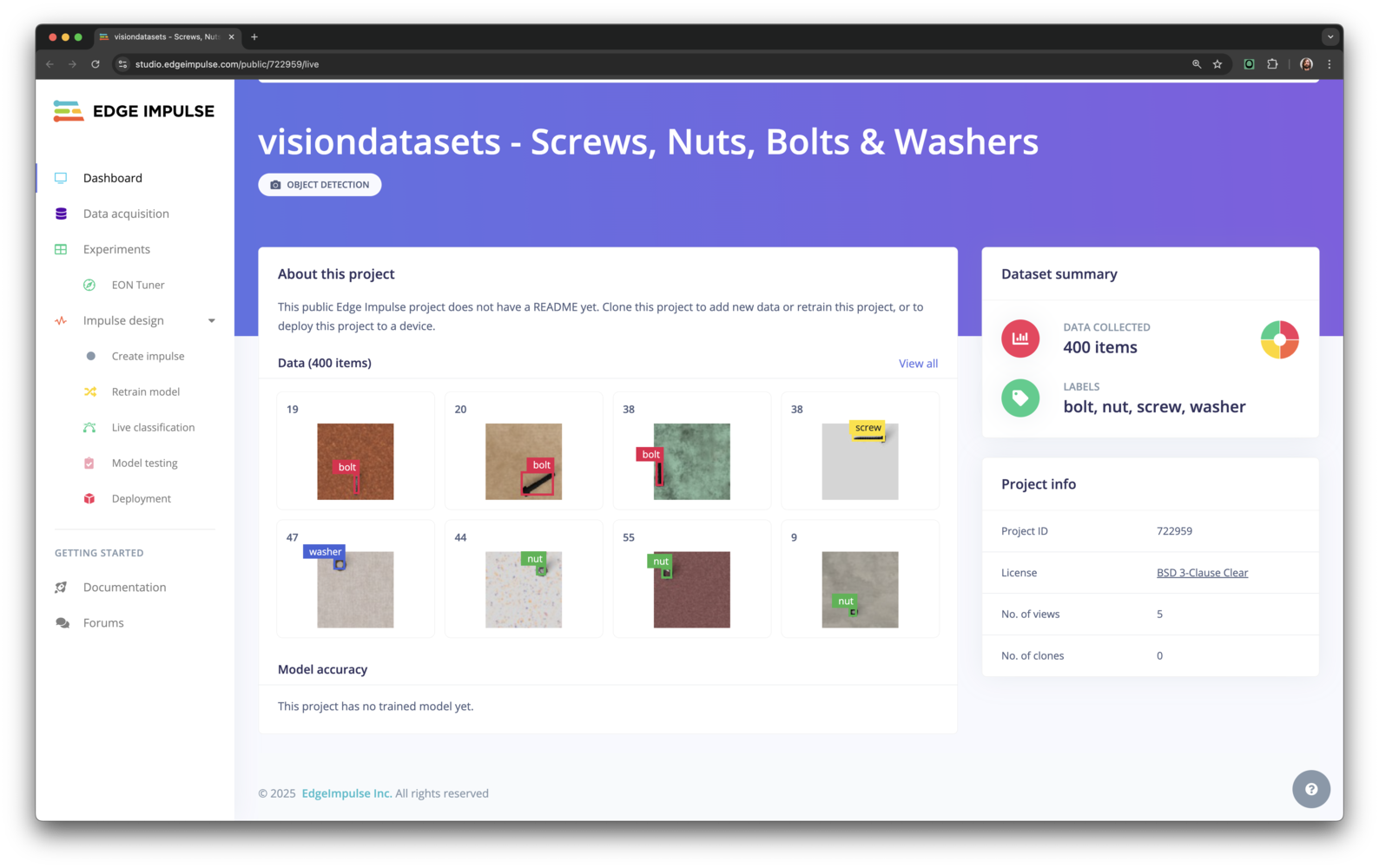
Screws Nuts Bolts and Washers Dataset
Getting started with syntheticAIdata
This guide explains how to import image datasets from Vision Datasets into Edge Impulse for training, testing, and deployment of computer vision models. This integration simplifies your workflow by eliminating the need for manual data collection or preprocessing.
Vision Datasets
Prerequisites
- An Edge Impulse account with a project created.
- A Vision Datasets account (free to sign up).
Select and upload a dataset to Edge Impulse
To get started with Vision Datasets and Edge Impulse integration, follow these steps:- Log in to the Vision Datasets dashboard.
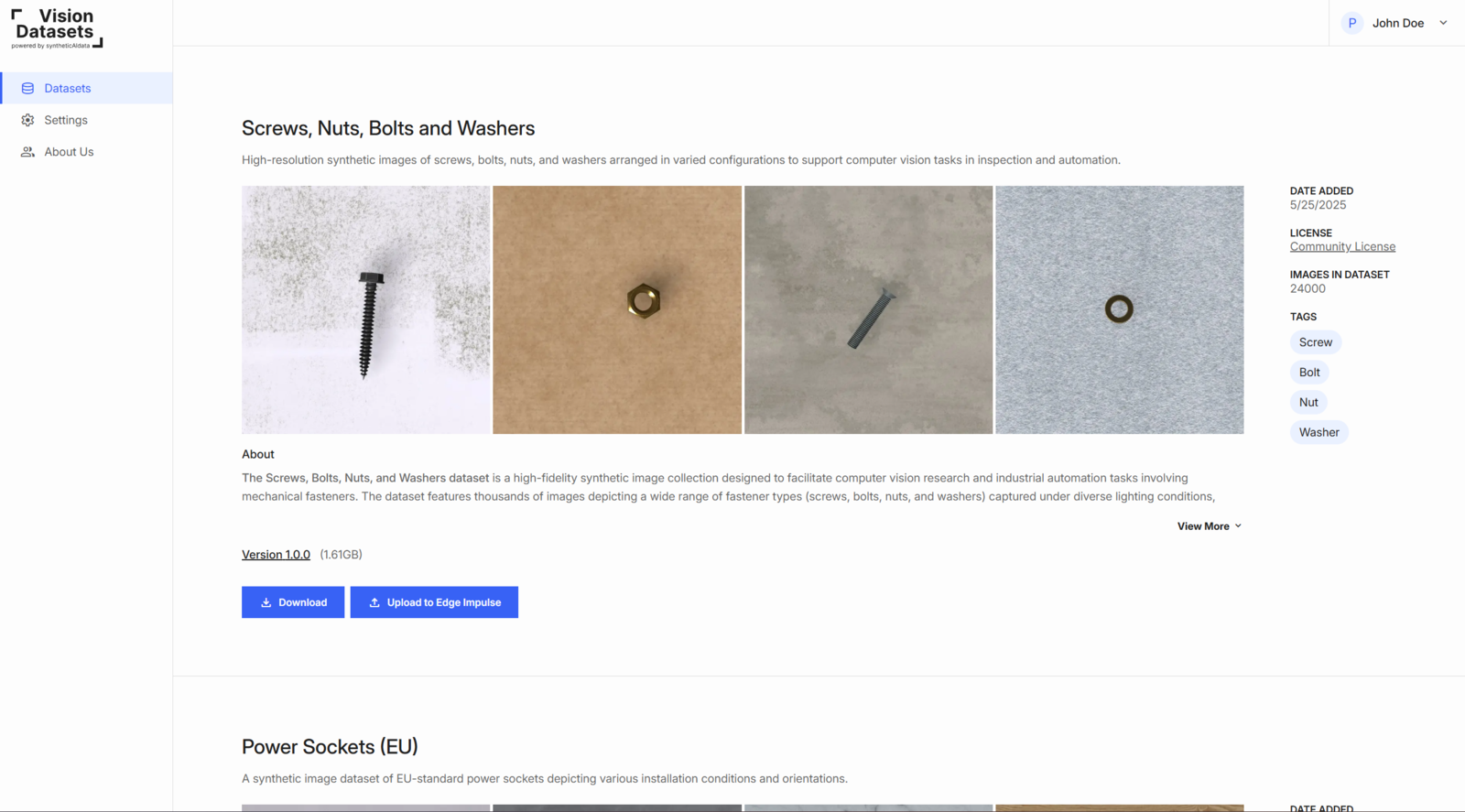
Vision Datasets - Screws Nuts Bolts and Washers Dataset
- Browse or search for a relevant dataset.
- Each dataset card shows:
- Description, preview images, image count, file size, classes, version, license
- Click Upload to Edge Impulse on your chosen dataset.
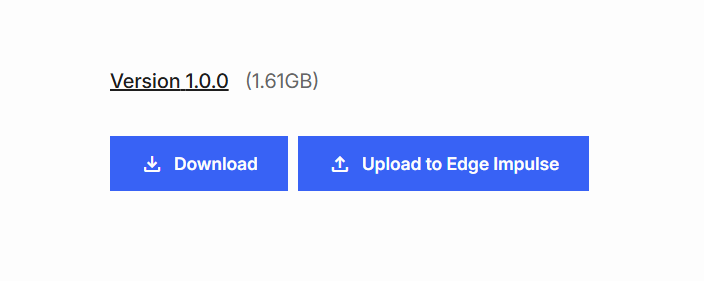
Vision Datasets - Download or Upload to Edge Impulse
- In the popup, provide:
- Edge Impulse API Key
- Find it in your Edge Impulse project:
Dashboard→Keys→API Keys
- Find it in your Edge Impulse project:
- Image volume (number of images to upload)
- Image resolution (e.g., 96×96, 320×320, 512×512)
- Classes to include (select one or more)
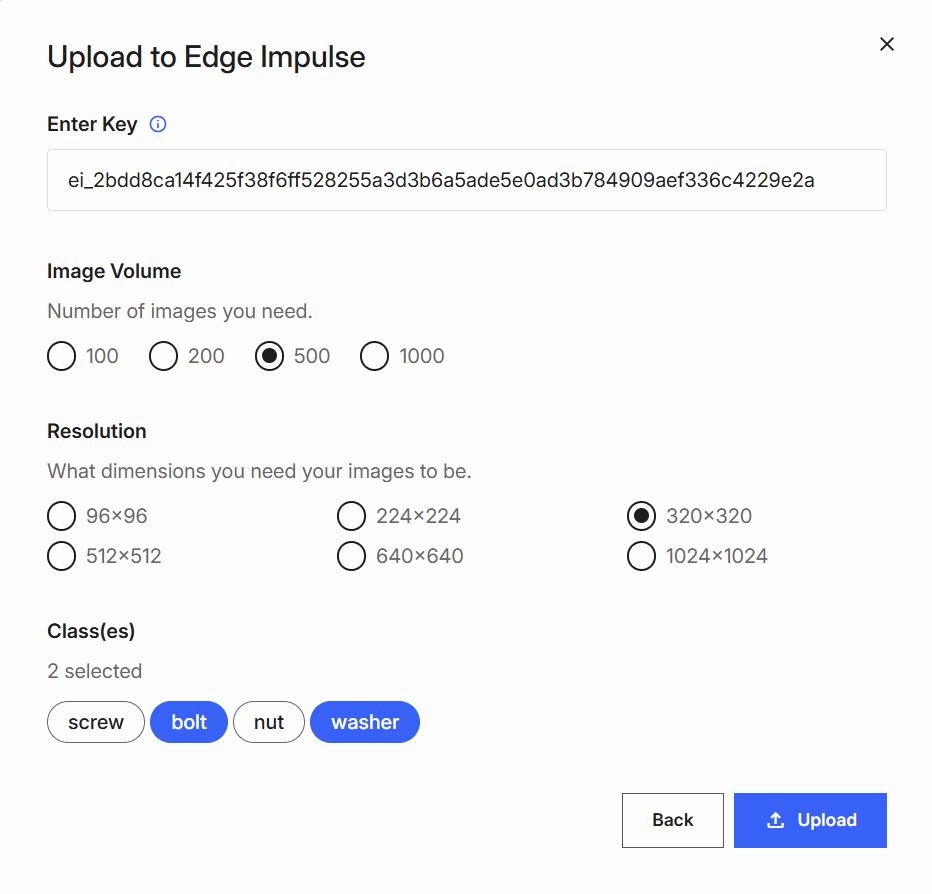
Vision Datasets - Classes to include
Example: Selecting 500 images and 2 classes uploads 1,000 images (500 per class).*
- Click Upload to start the transfer.
- After upload, you’ll see a success confirmation.

Vision Datasets - Confirmation
You can also use Download to export the dataset locally for inspection.
Review and verify data in Edge Impulse
- Go to Edge Impulse Studio and open your project.
- Navigate to Data Acquisition.
- Review your uploaded images:
- Correct labels (per selected class)
- Selected resolution
- Training/testing split
- Use filters or search to explore specific classes or subsets.
- Click any image to preview.
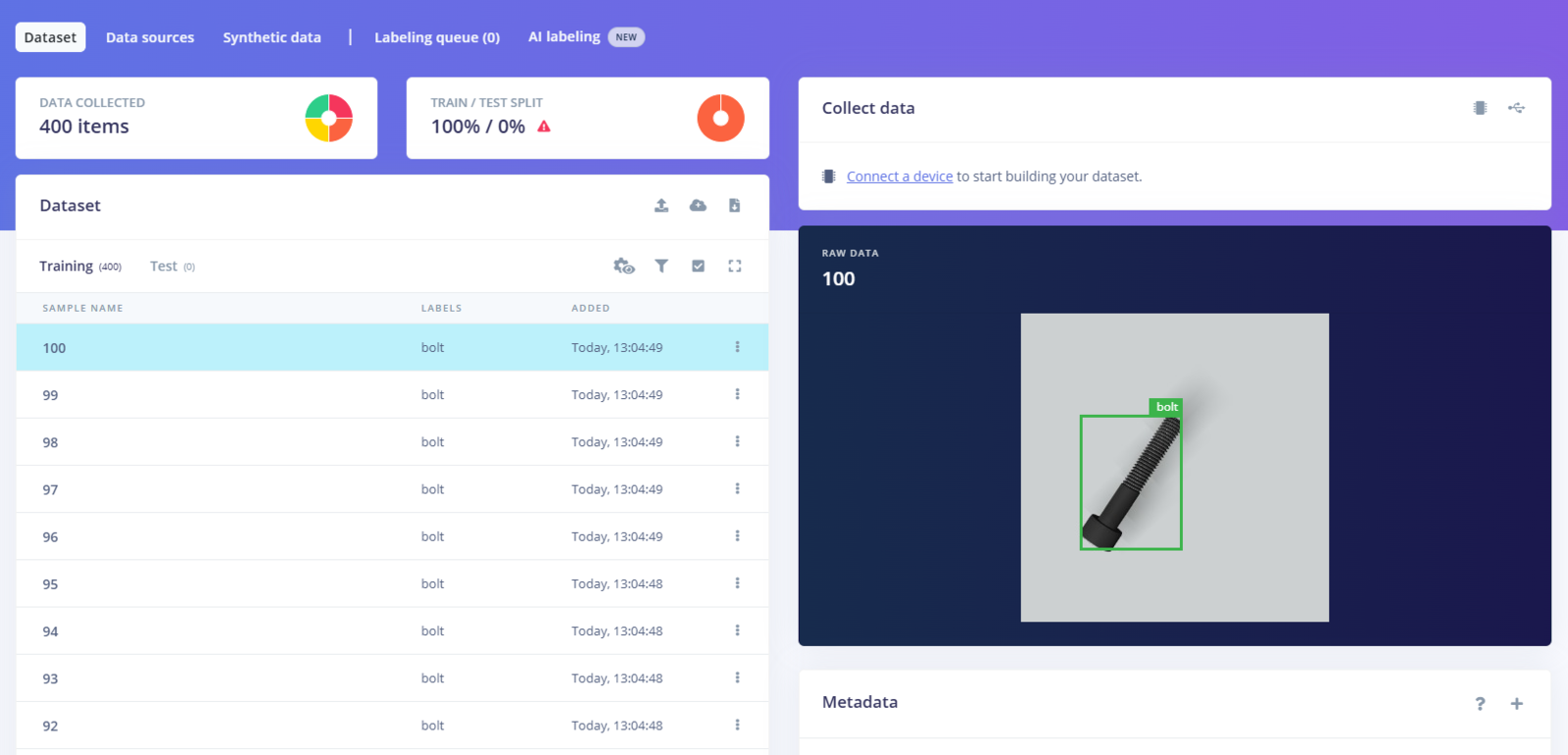
Vision Datasets - Preview image
Verifying your data ensures high-quality inputs for your pipeline.
To rebalance or modify your dataset, repeat the upload or manually add/remove data.
Vision Datasets - Enter Project API Key
Summary
By combining the breadth of Vision Datasets with the edge-deployment power of Edge Impulse, you can go from zero images to a fully-trained, device-ready model in record time. Try the integration yourself and let us know what you build! Head over to visiondatasets.com, grab a free sample, and start building computer-vision models faster than ever.Next steps: building a machine learning model
With everything set up you can now build your first machine learning model with these tutorials:- Keyword spotting
- Sound recognition
- Image classification
- Detect objects with bounding boxes
- Detect objects with centroids (FOMO)
Troubleshooting
If you encounter issues during the registration or upload process, here are some common troubleshooting steps: Unable to Register or Receive Confirmation Email- Check spam/junk folders.
- Ensure your email is correct.
- Resend the code or use a different email if needed.
Vision Datasets - Upload confirmed
- Use an API key from your Edge Impulse project (
Dashboard→Keys→API Keys). - Remove extra spaces/characters.
- Generate a new API key if needed.
- In Edge Impulse Studio, go to Dashboard.
- On the Project info card, set Labeling method to Bounding boxes (object detection) for correct labeling and display.
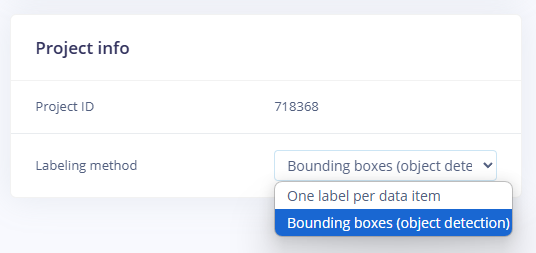
Vision Datasets - Label with another method