Introduction
In this project I’m going to walkthrough how to port an existing project developed on the SiLabs Thunderboard Sense 2, to SiLabs’ newer and more powerful xG24 development board. The original project was developed by Manivnnan Sivan to detect correct / incorrect posture of manufacturing workers using a wearable belt.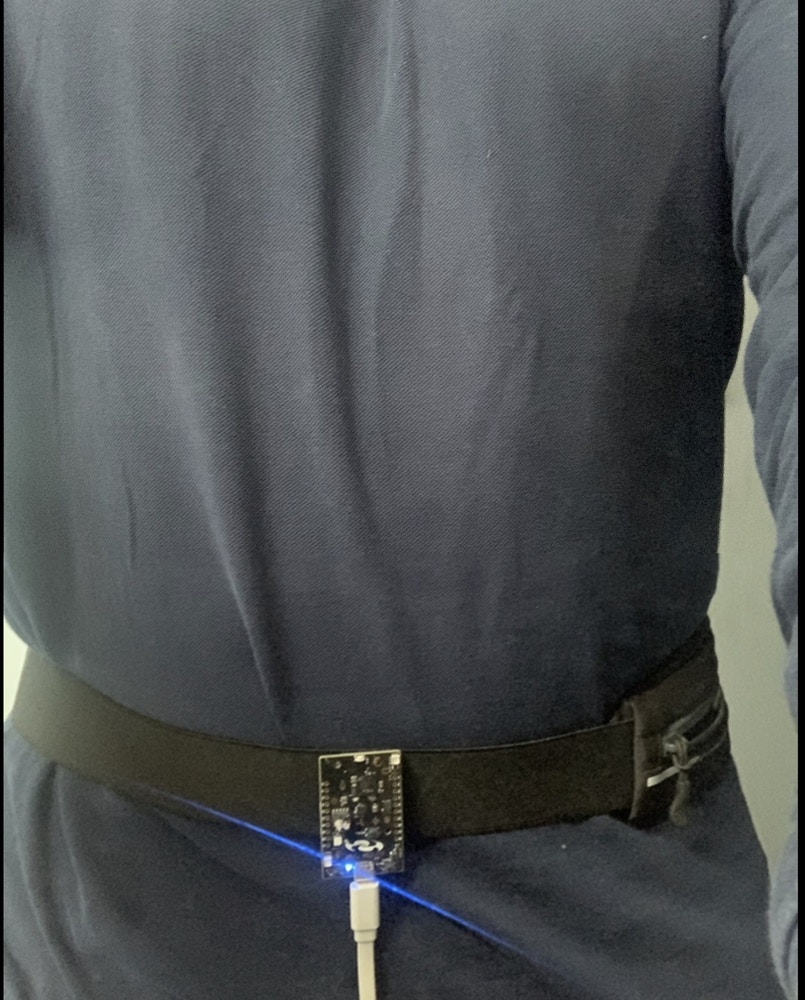
Image from original project
About the project : Posture Detection for Worker Safety
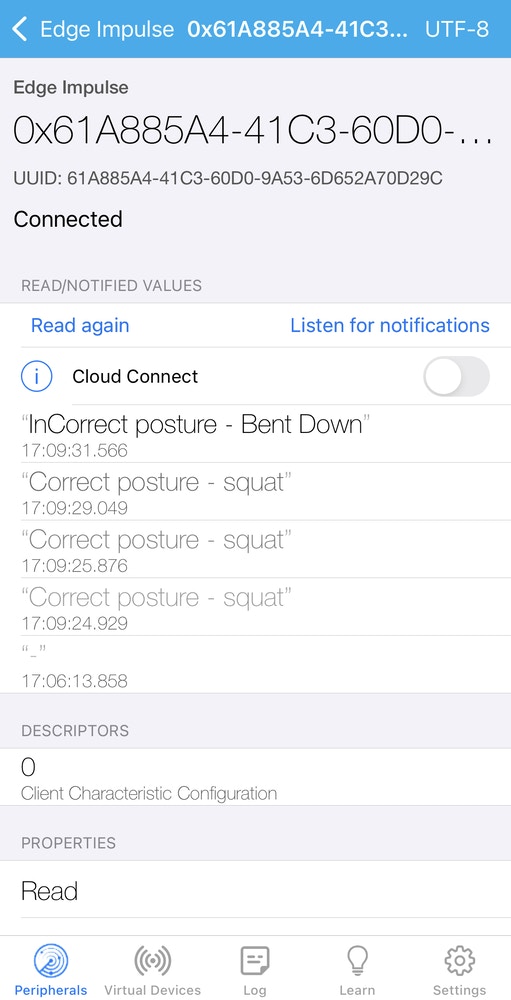
You can find more about the project here in the original project documentation, Worker Safety Posture Detection. The project is intended to help workers in manufacturing. They work in conditions that can put a lot of stress on their bodies. Depending on the worker’s role in the production process, they might experience issues related to cramped working conditions, heavy lifting, or repetitive stress. Poor posture can cause problems for the health of those who work in manufacturing. Along with that, research suggests that making efforts to improve posture among manufacturing employees can lead to significant increases in production. Workers can improve their posture by physical therapy, or simply by being more mindful during their work day. Manivnnan Sivan has created a wearable device using a SiLabs Thunderboard Sense 2 which can be fitted to a worker’s waist. The worker can do their normal activities, and the TinyML model running on the hardware will predict the posture and communicate to the worker through BLE communication. The worker can get notified in the Light Blue App on their phone or smartwatch.Running the Project on Thunderboard Sense 2
Before porting, we need to run the project on the existing platform to understand how it’s run and familiarize ourselves with it’s parameters. So let’s get started.Installing Dependencies
Before you proceed further, there are few other software packages you need to install.- Edge Impulse CLI - Follow this link to install necessary tooling to interact with the Edge Impulse Studio.
- LightBlue - This is a mobile application. Install from either Apple Store or Android / Google Play. This will be required to connect the board wirelessly over Bluetooth. The Android version can be found here. Apple / iOS users can download the App here.
Clone the Project
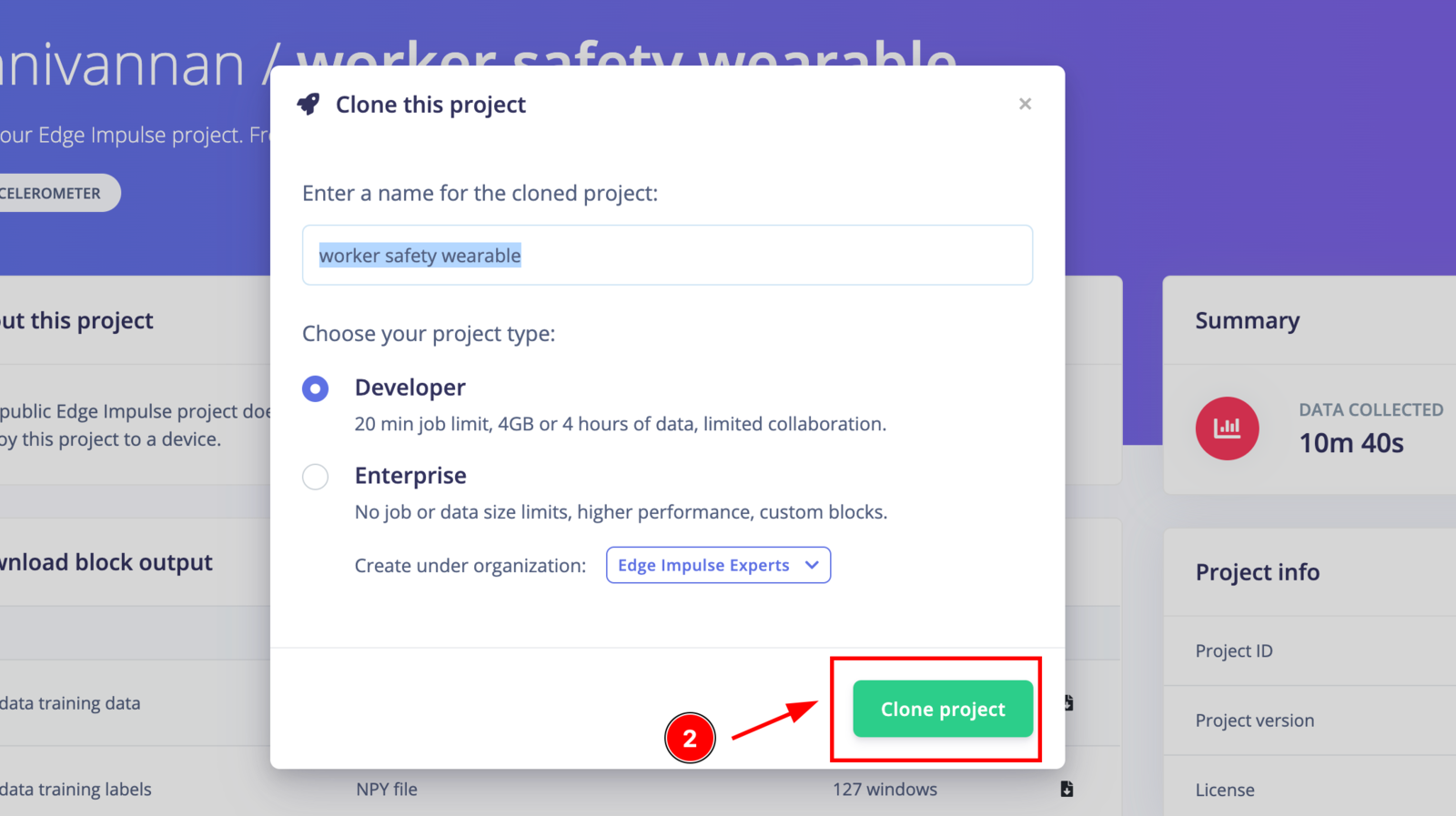
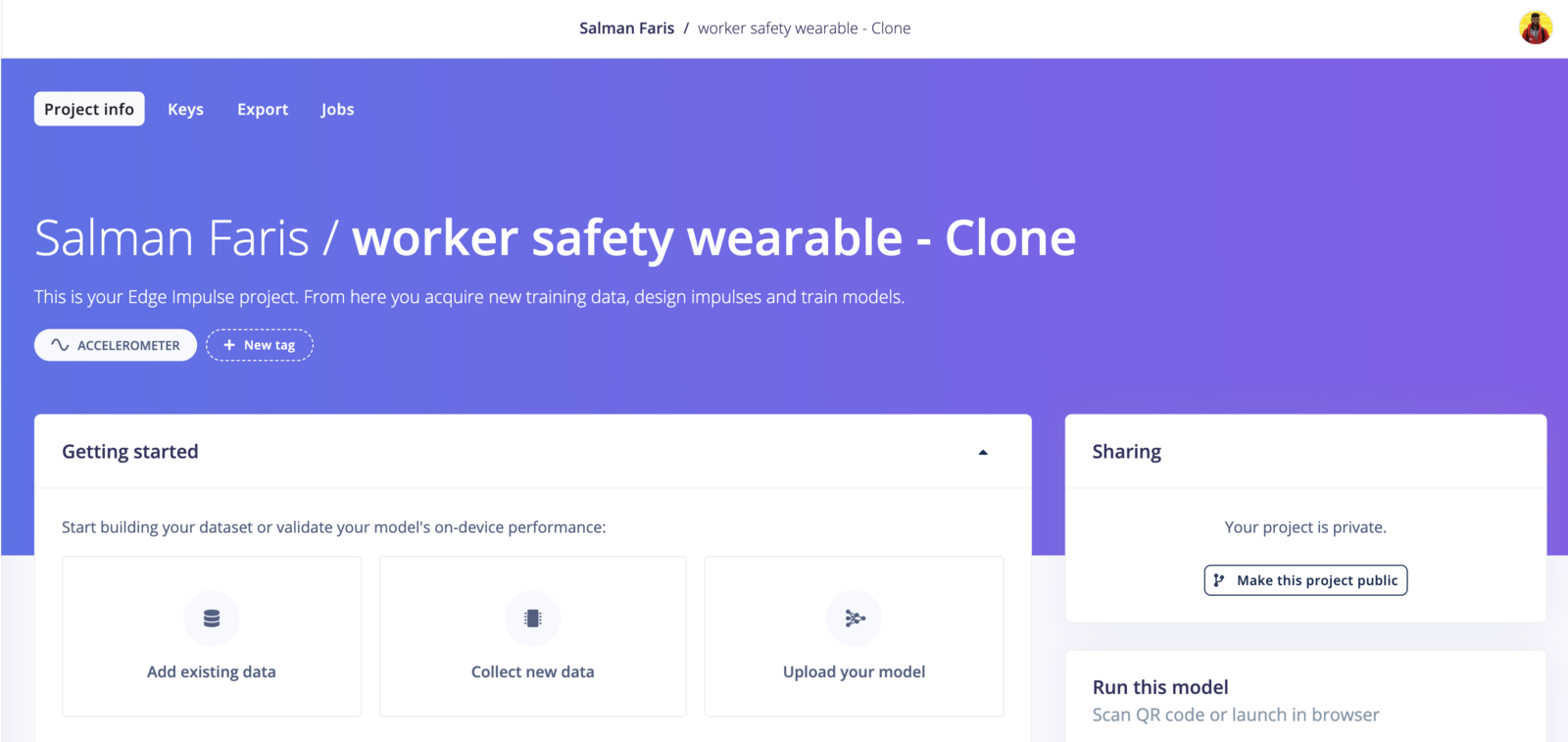
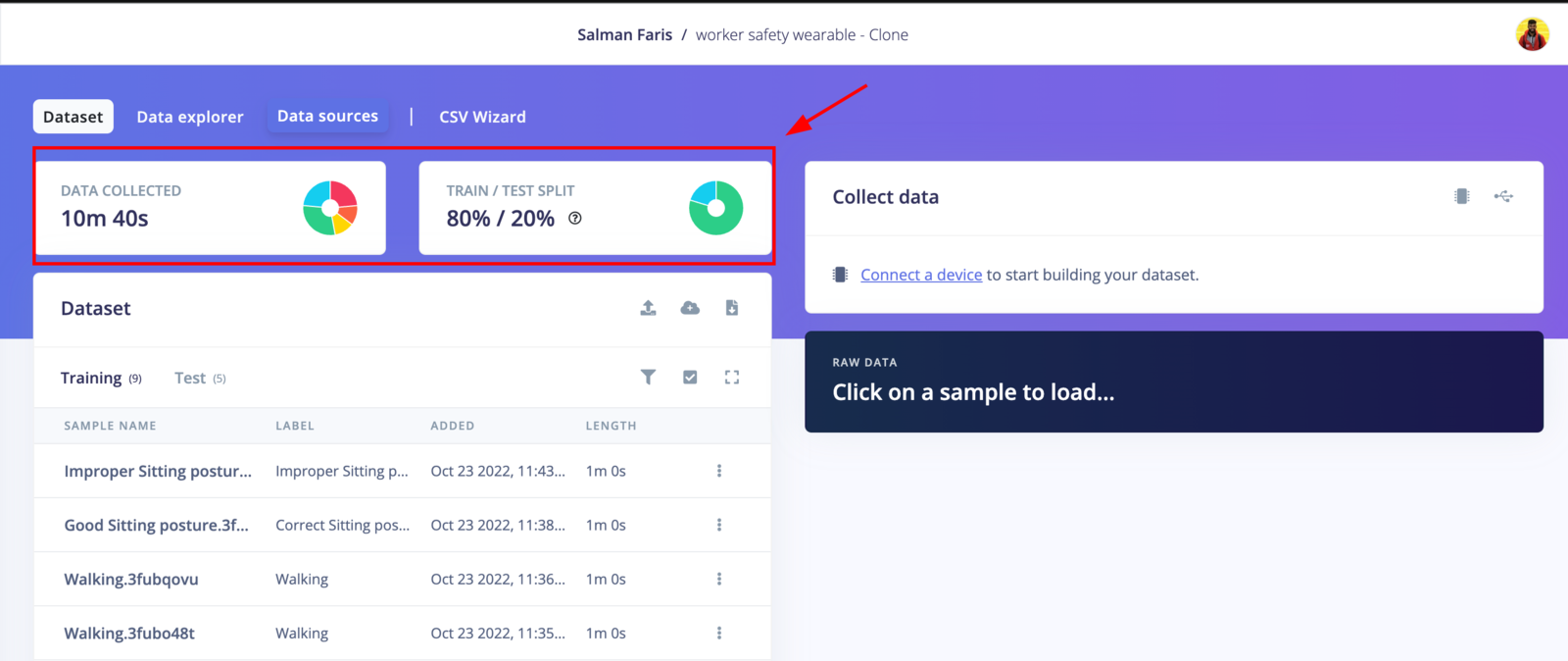
Go to the Edge Impulse project page using the link here, and clone it. Click Clone on the right corner button to create a copy of the project.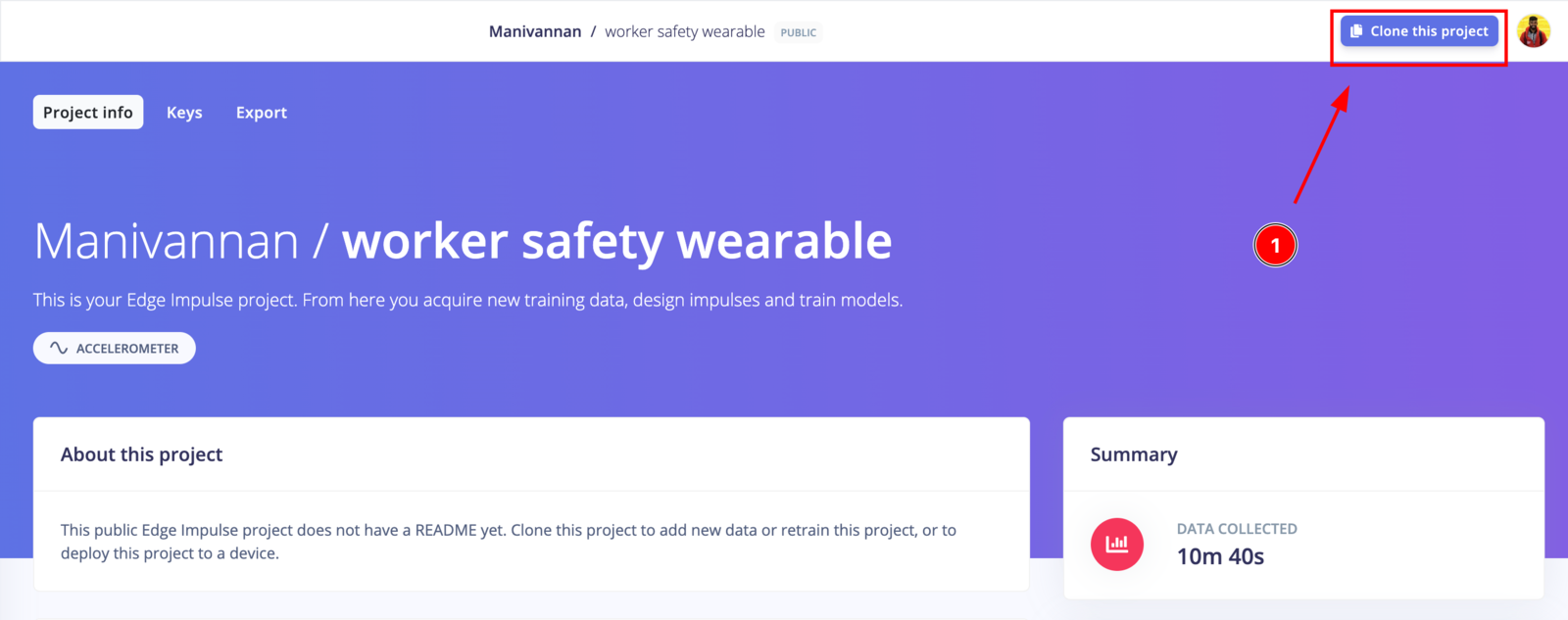
Run the Project
We can try to deploy the project on a Thunderboard Sense 2:-
Connect the development board to your computer : Use a micro-USB cable to connect the development board to your computer. The development board should mount as a USB mass-storage device (like a USB flash drive), with the name
TB004. Make sure you can see this drive. -
Update the firmware : The development board does not come with the right firmware yet. To update the firmware:
2.1 Download the latest Edge Impulse firmware.
2.2 Drag the
silabs-thunderboard-sense2.binfile to the TB004 drive.2.3 Wait 30 seconds.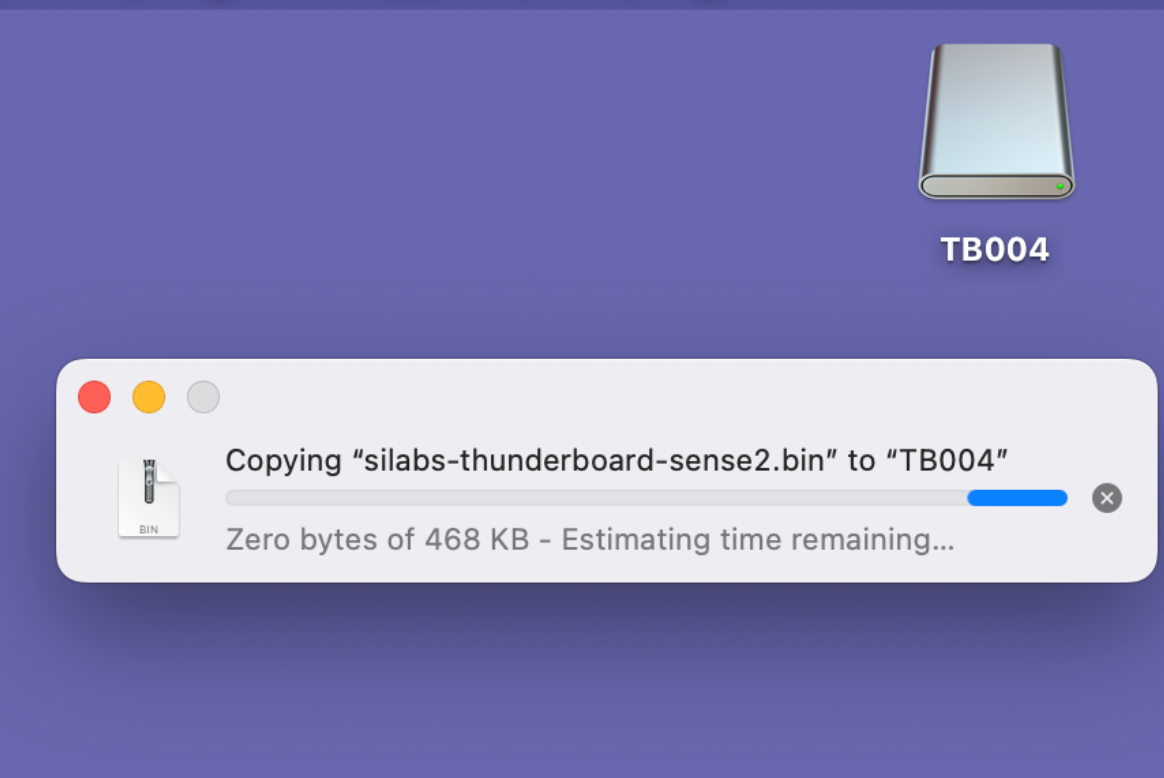
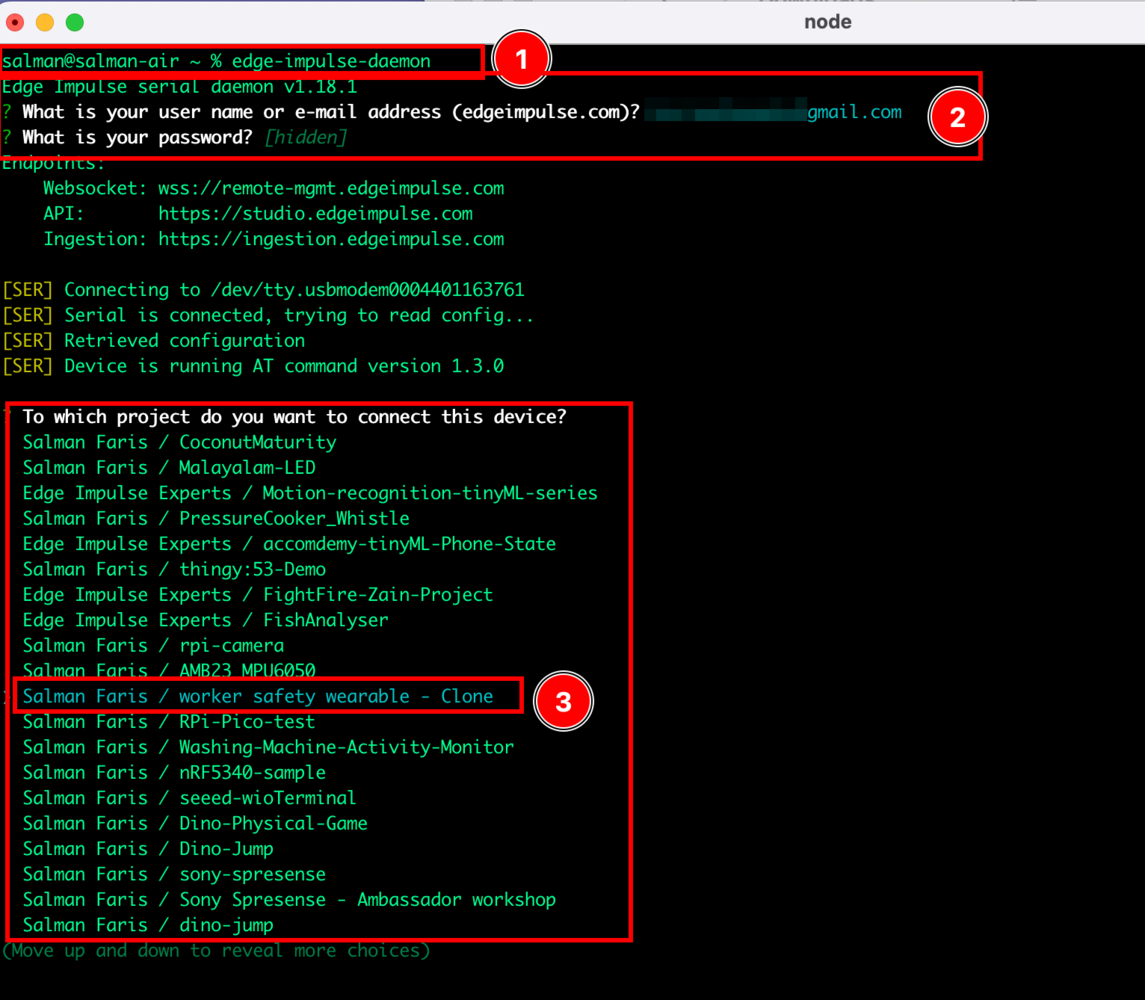
edgeimpulse-daemon
From here, Log in with your Edge Impulse credentials and choose the cloned project from the followed project list.

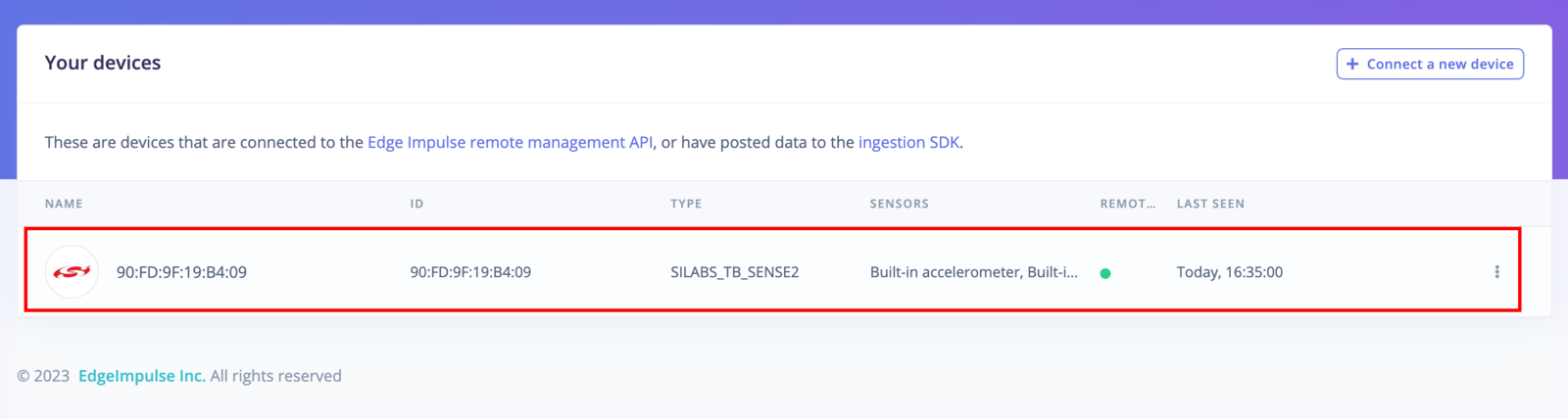
Build & Deploy the Project
Choose “Deployment” from the left toolbar and then choose the target device as “SiLabs Thunderboard Sense 2”, and click “Build” to start the process.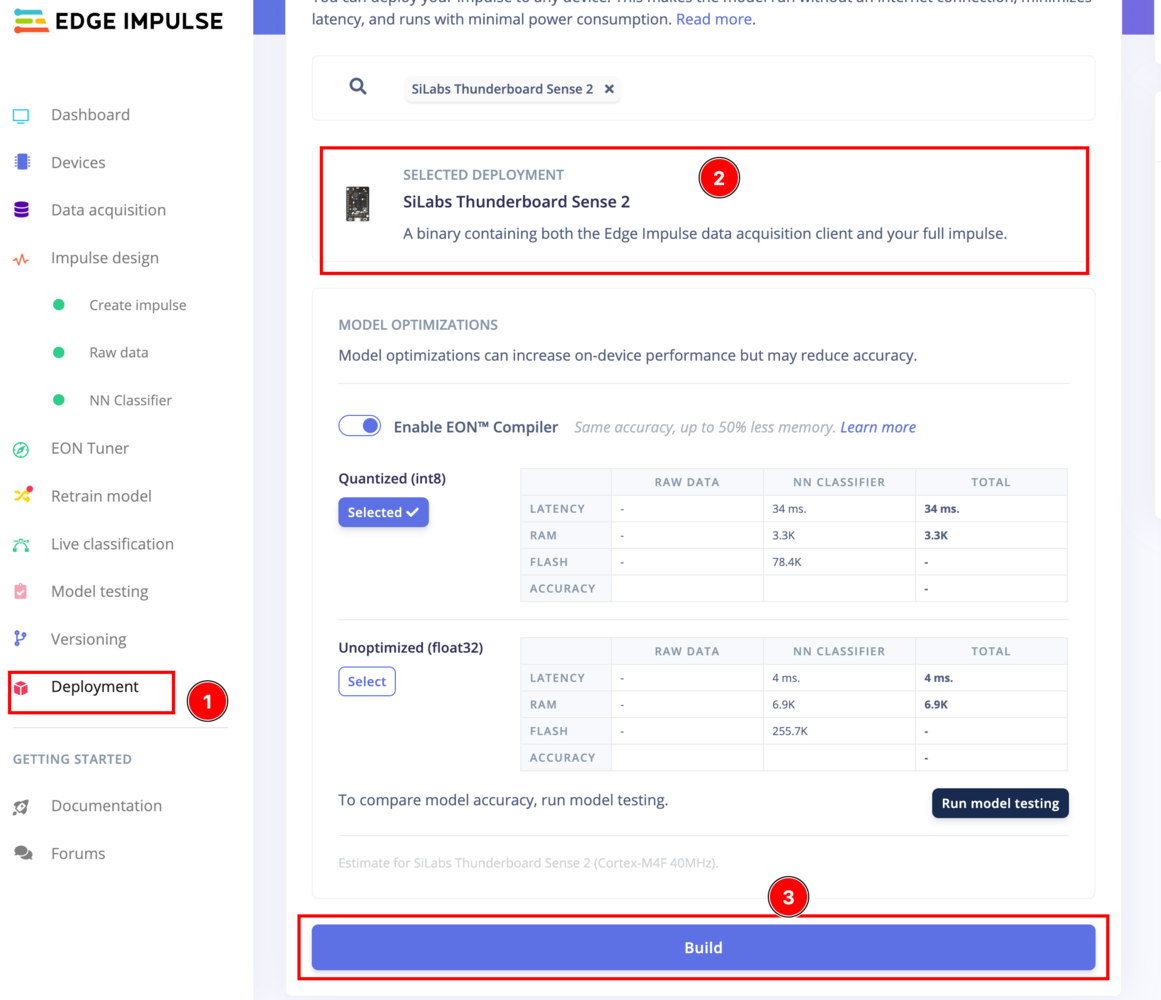
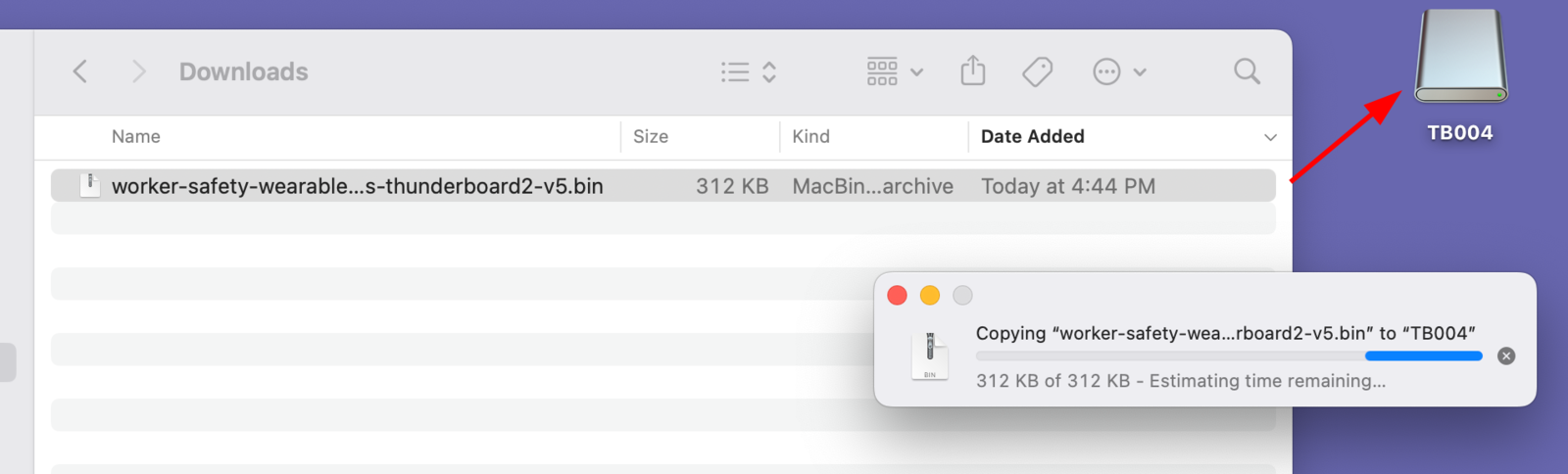
.bin file will be automatically generated and downloaded. You need to drag and drop it to the Thunderboard Sense 2 device drive.
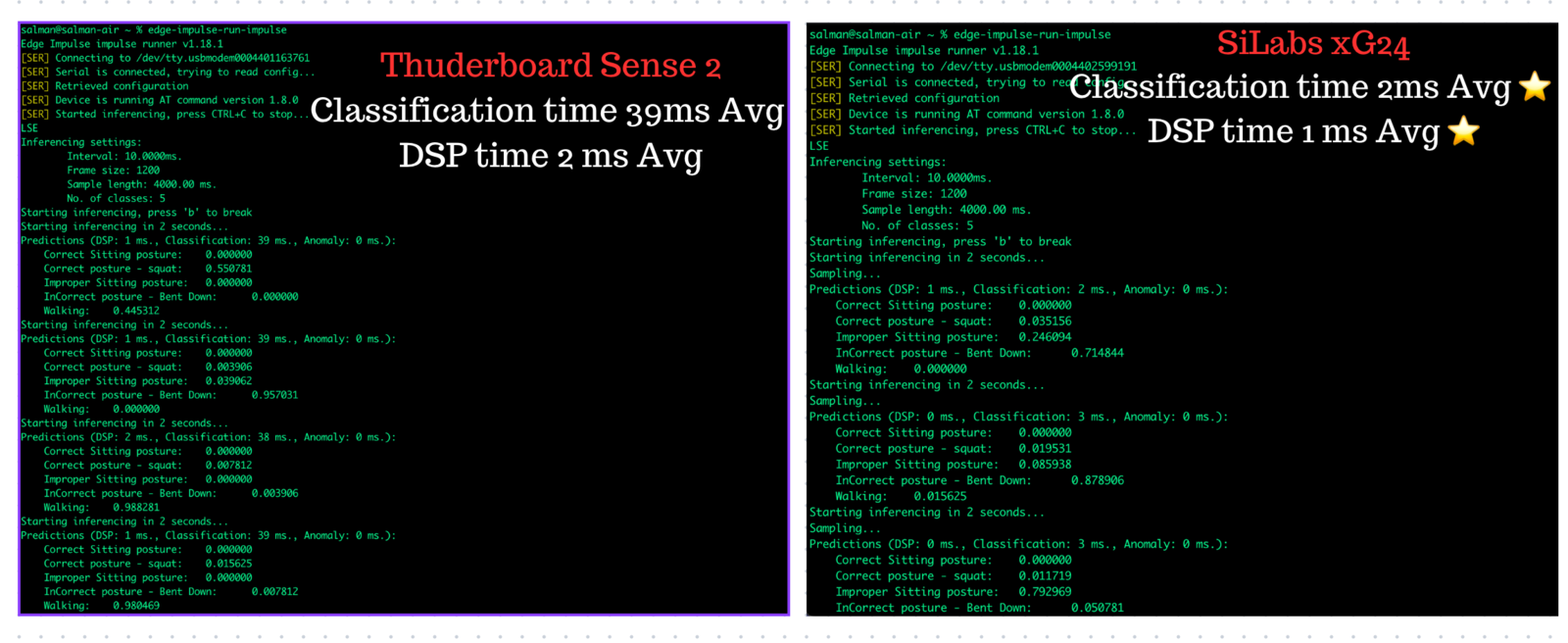
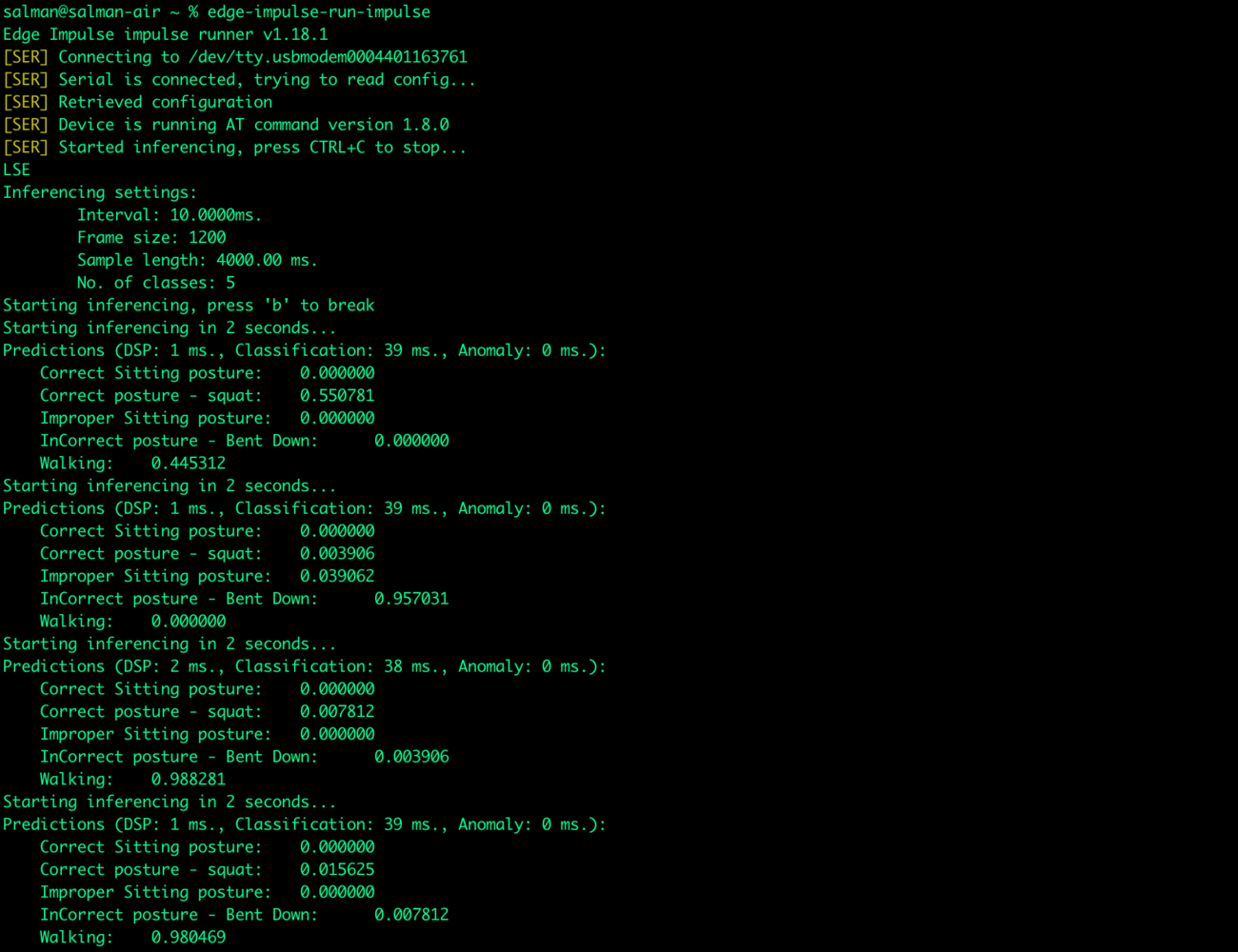
edge-impulse-run-impulse
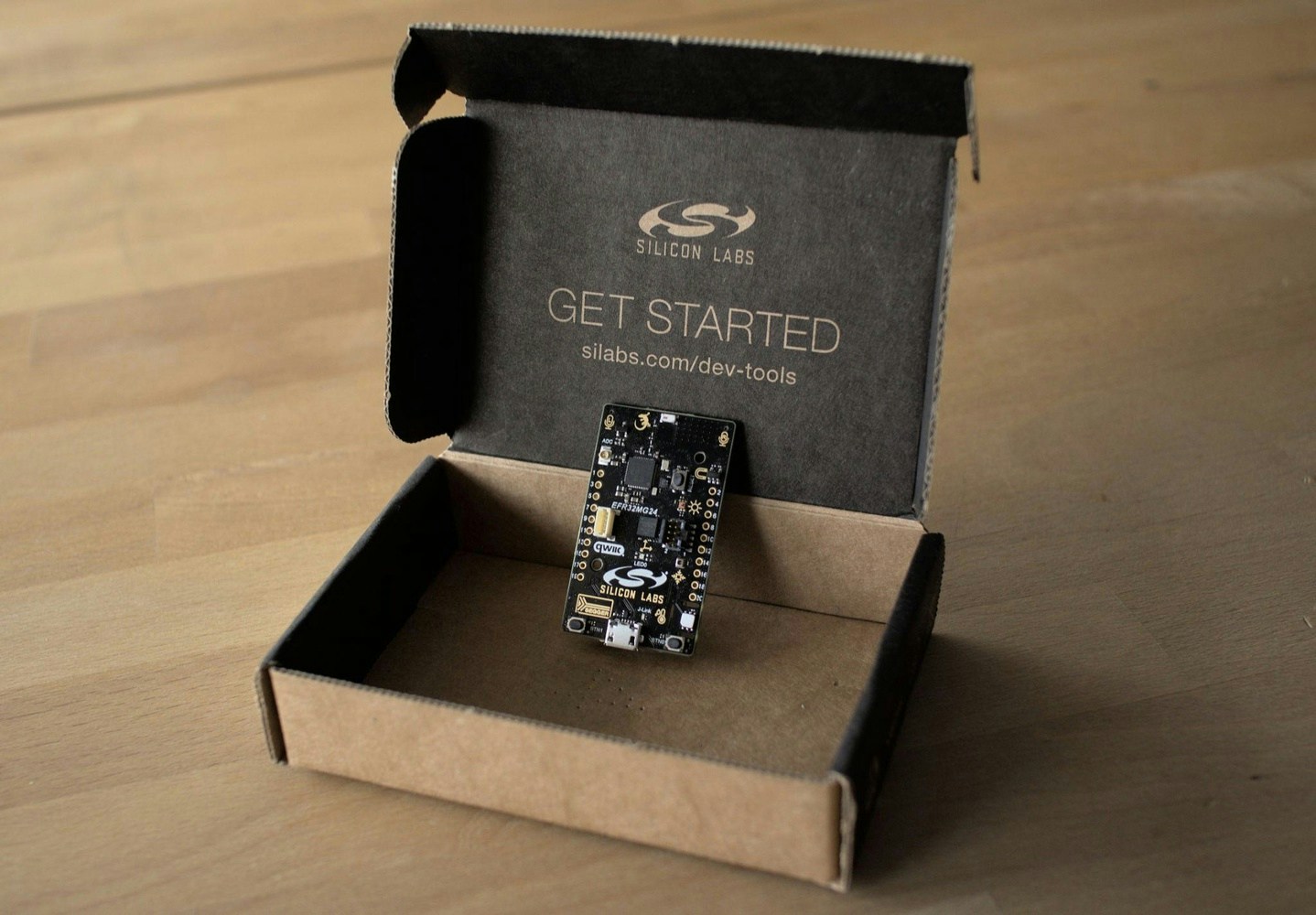
The New SiLabs EFR32MG24
SiLabs have launched the new EFR32MG24 also known as xG24 Wireless SoCs and they are full of interesting sensors and features making them very good for mesh IoT wireless connectivity using Matter, OpenThread, and Zigbee protocols for smart home, lighting, and building automation products or any other use case you see fit to this combination of sensors and connectivity.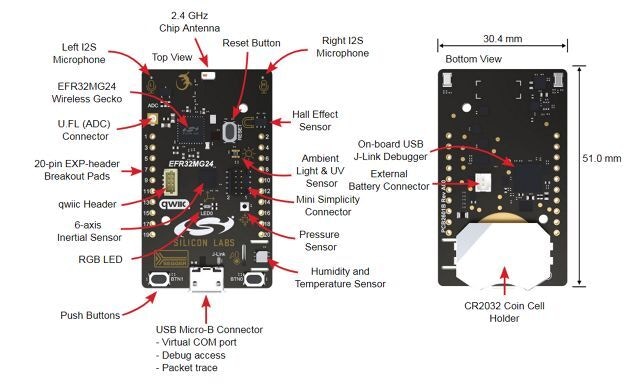
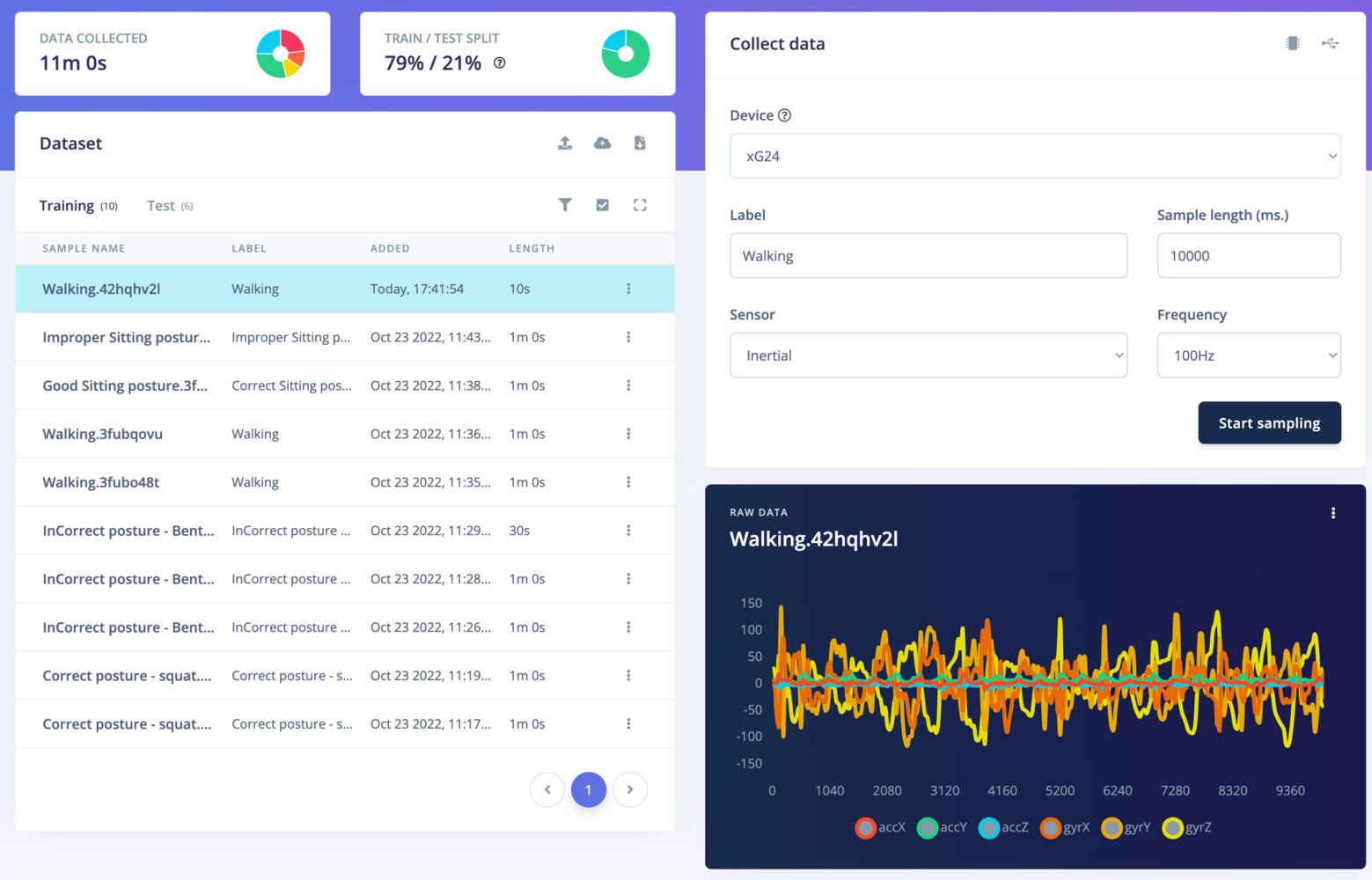
Collect More Data Using the xG24
Compared to the Thunderboard Sense 2, the xG24 does have some changes while connecting to Edge Impulse and uploading the firmware.- First - Download the base firmware image - Download the latest Edge Impulse firmware, and unzip the file. Once downloaded, unzip it to obtain the firmware-xg24.hex file, which we will be using in the following steps.
- Connect the xG24 Dev Kit to your computer - Use a micro-USB cable to connect the xG24 Dev Kit to your development computer, and download and install Simplicity Commander.
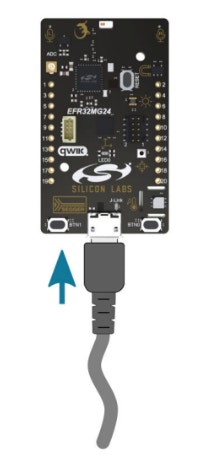
- Load the base firmware image with Simplicity Commander - You can use Simplicity Commander to flash your xG24 Dev Kit with the Edge Impulse base firmware image. To do this, first select your board from the dropdown list on the top left corner:
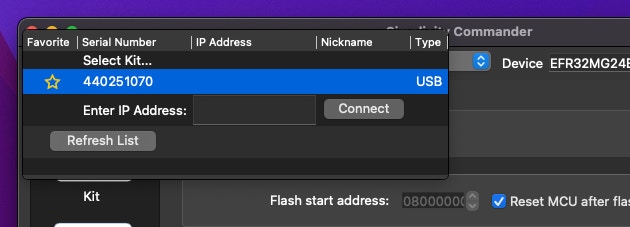
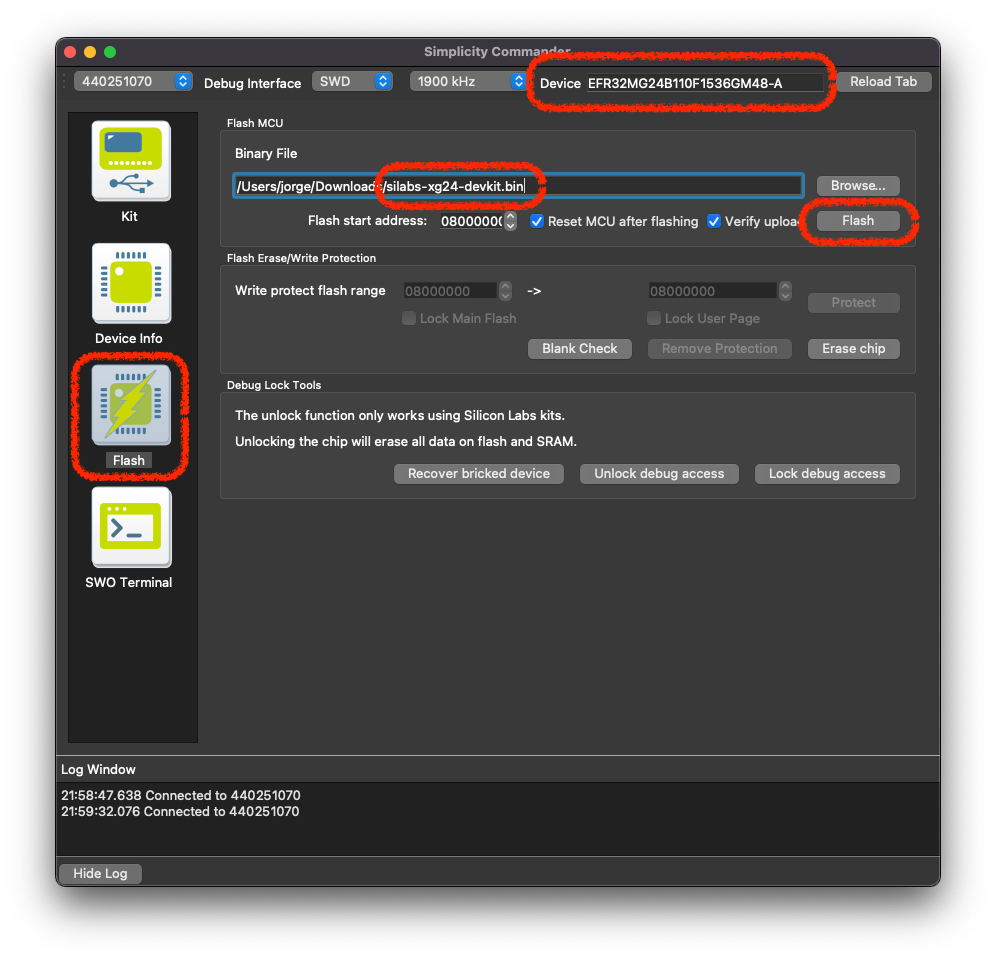
firmware-xg24.hex). You can now press the Flash button to load the base firmware image onto the xG24 Dev Kit.
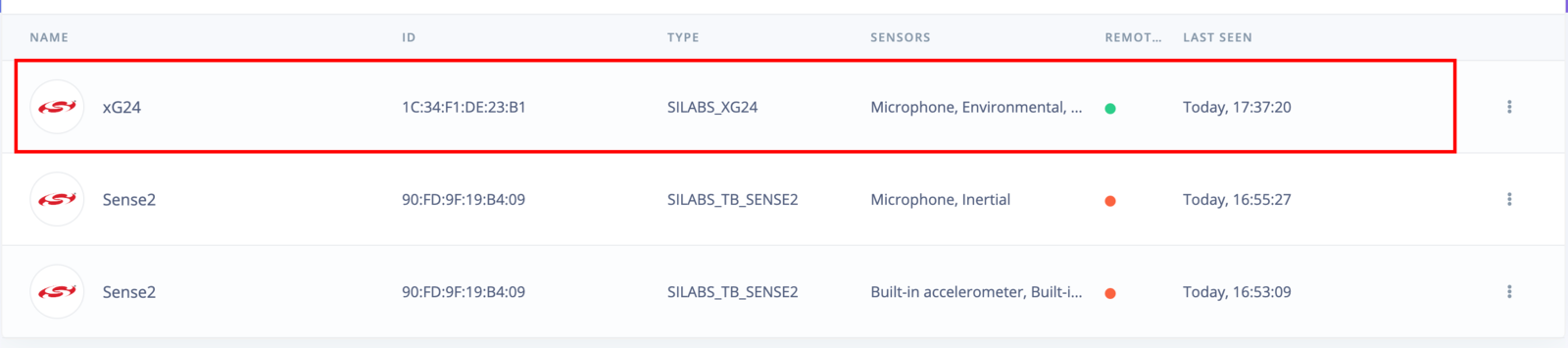
edgeimpulse-daemon
From here, log in with your Edge Impulse credentials and choose the cloned project from the project list that follows.

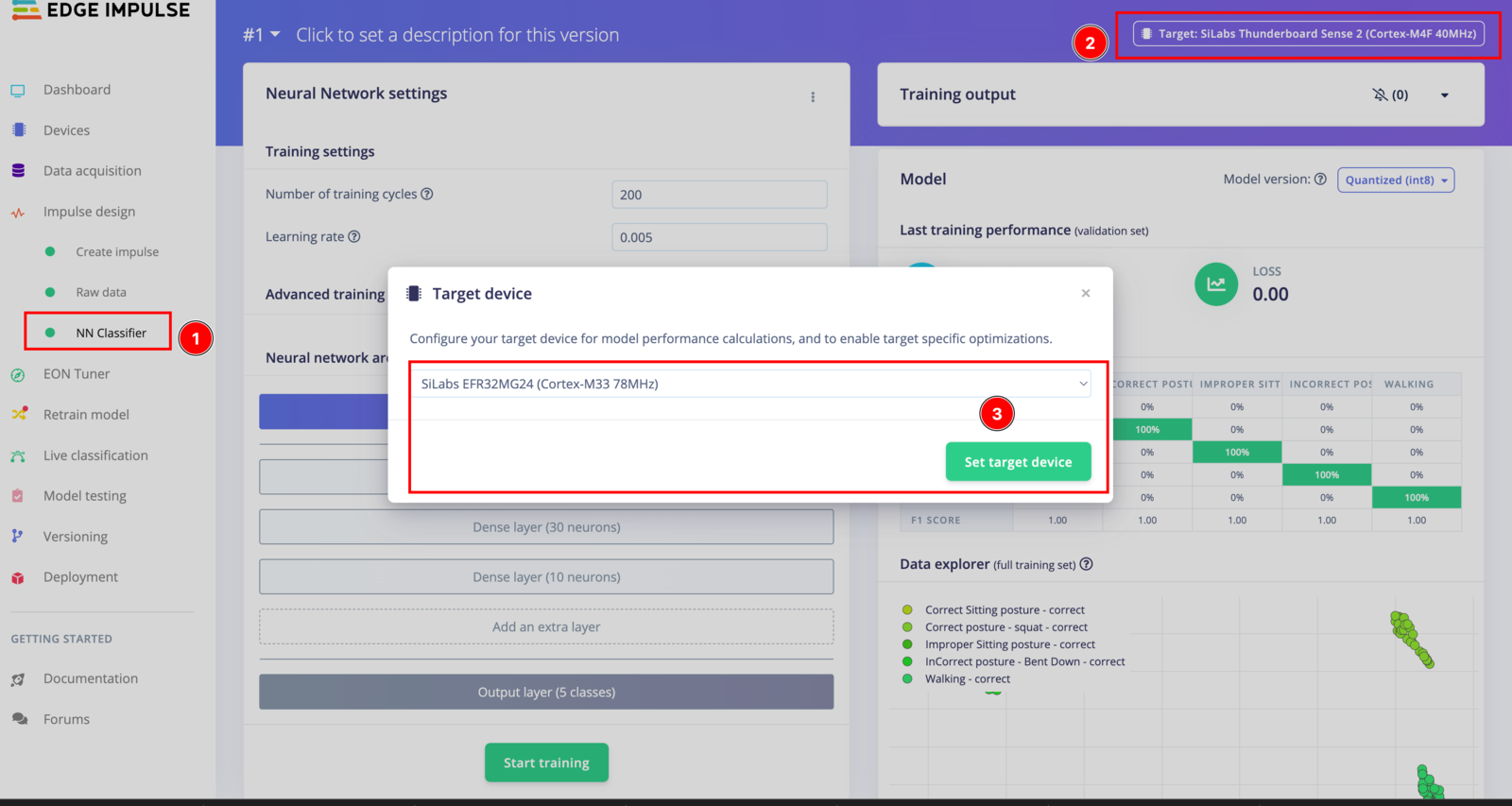
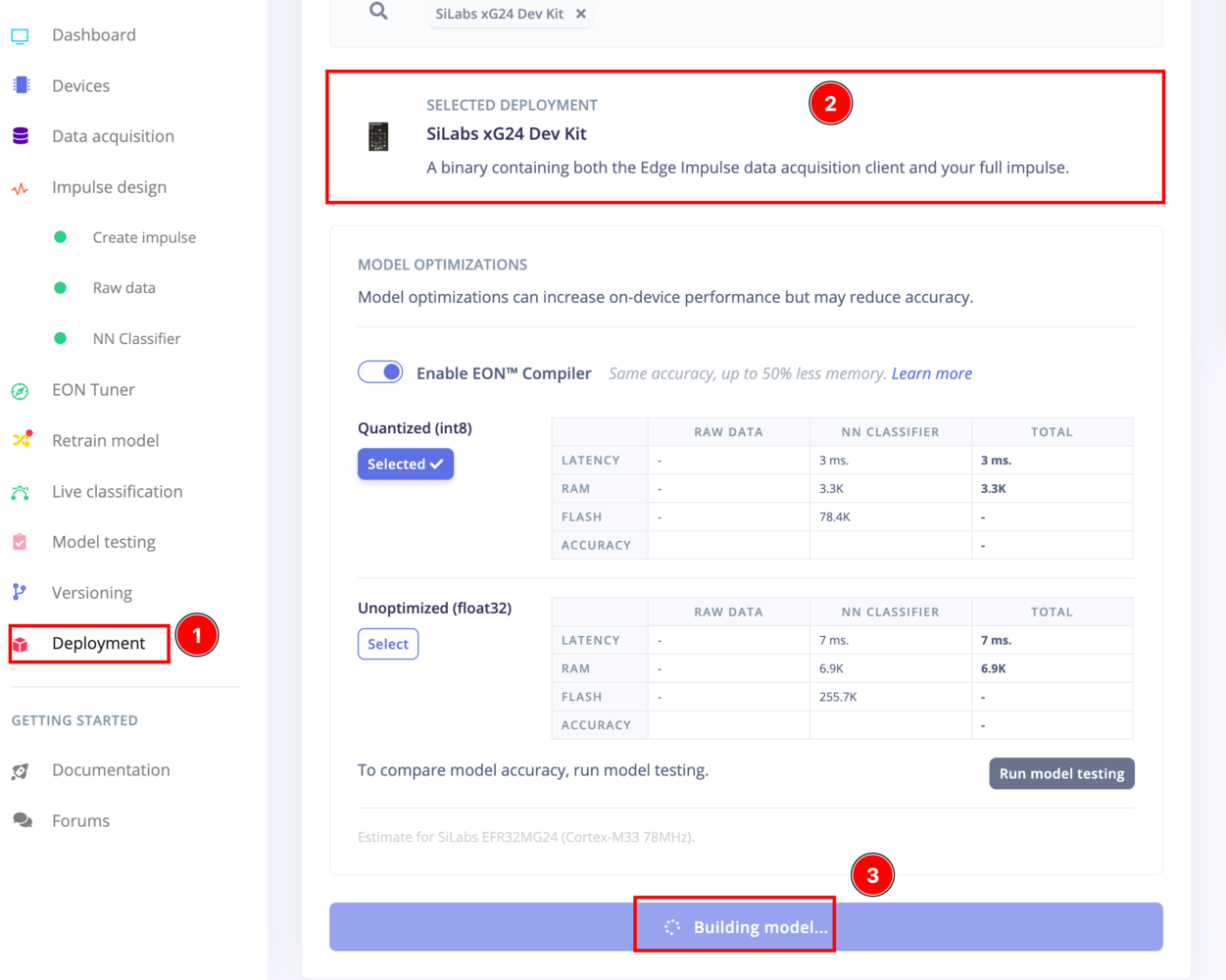
.bin file, we need to use Simplicity Commander to flash your xG24 Dev Kit with this firmware. To do this, first select your board from the dropdown list on the top left corner:
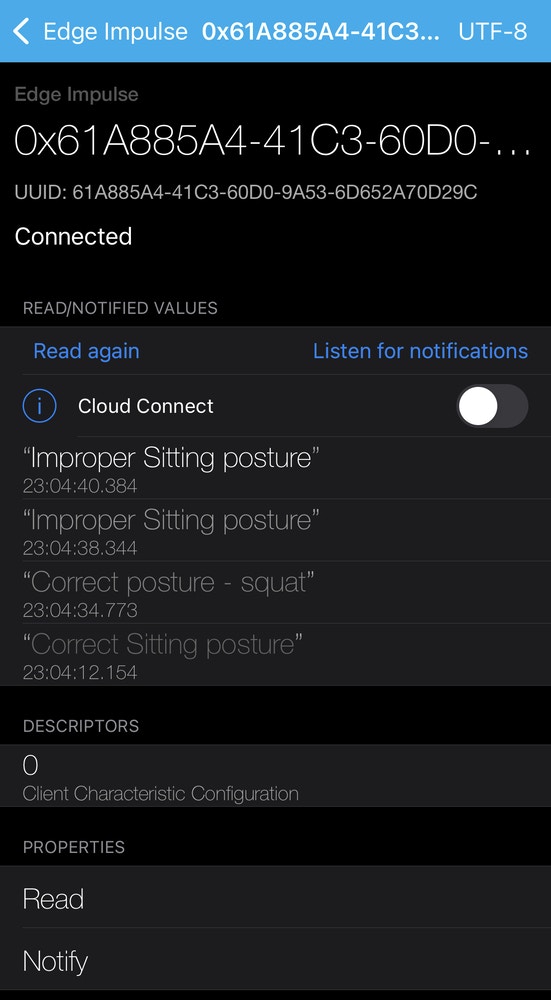
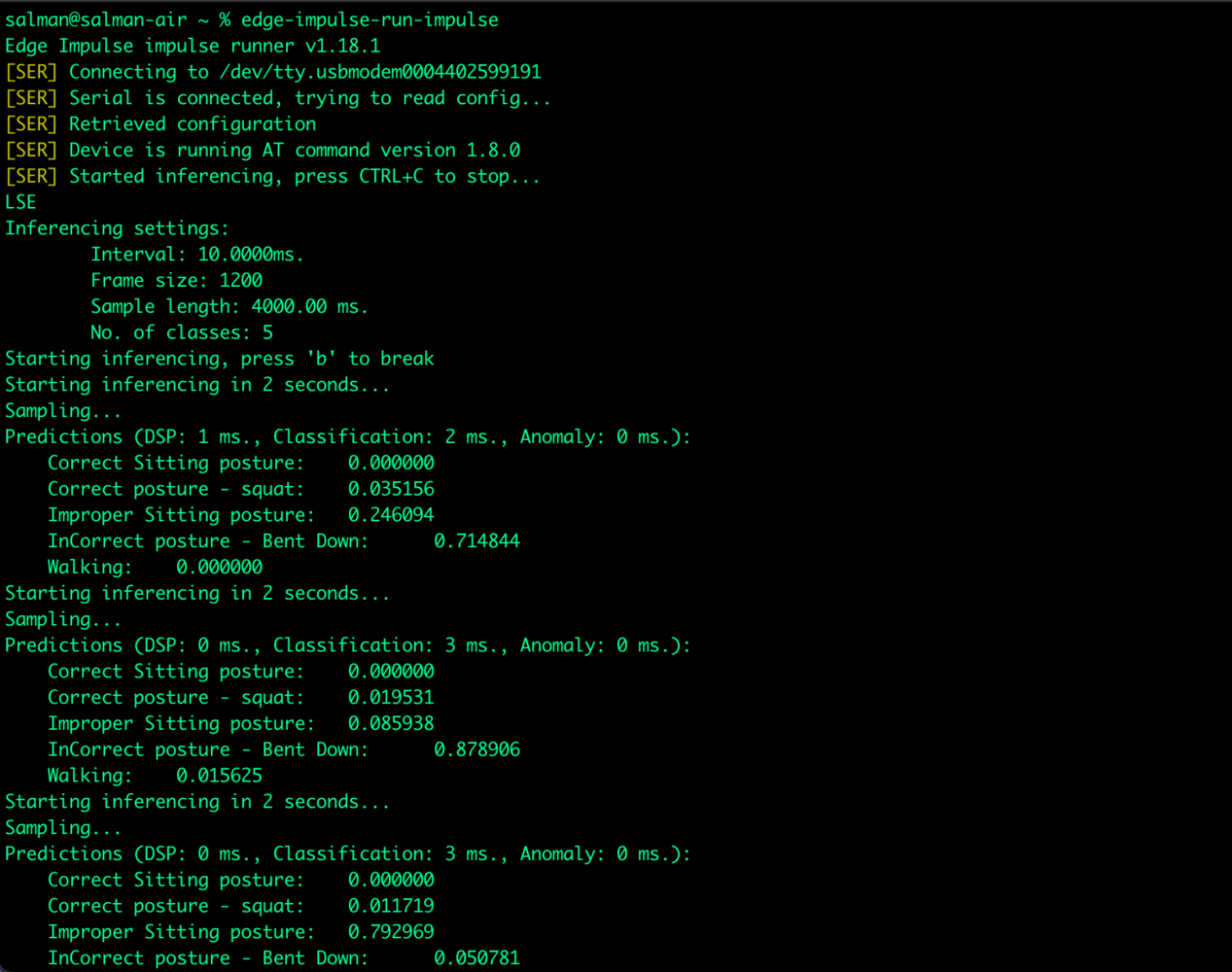
edge-impulse-run-impulse
Conclusion
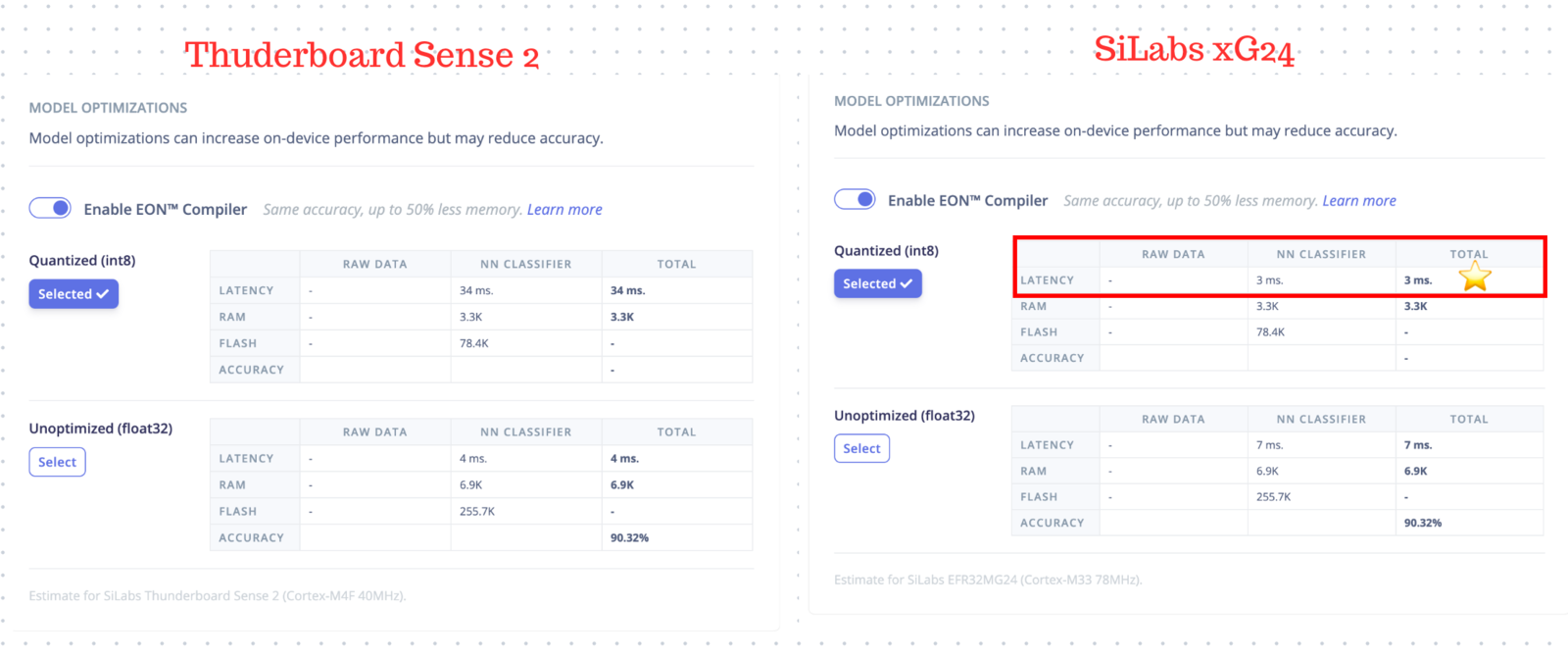
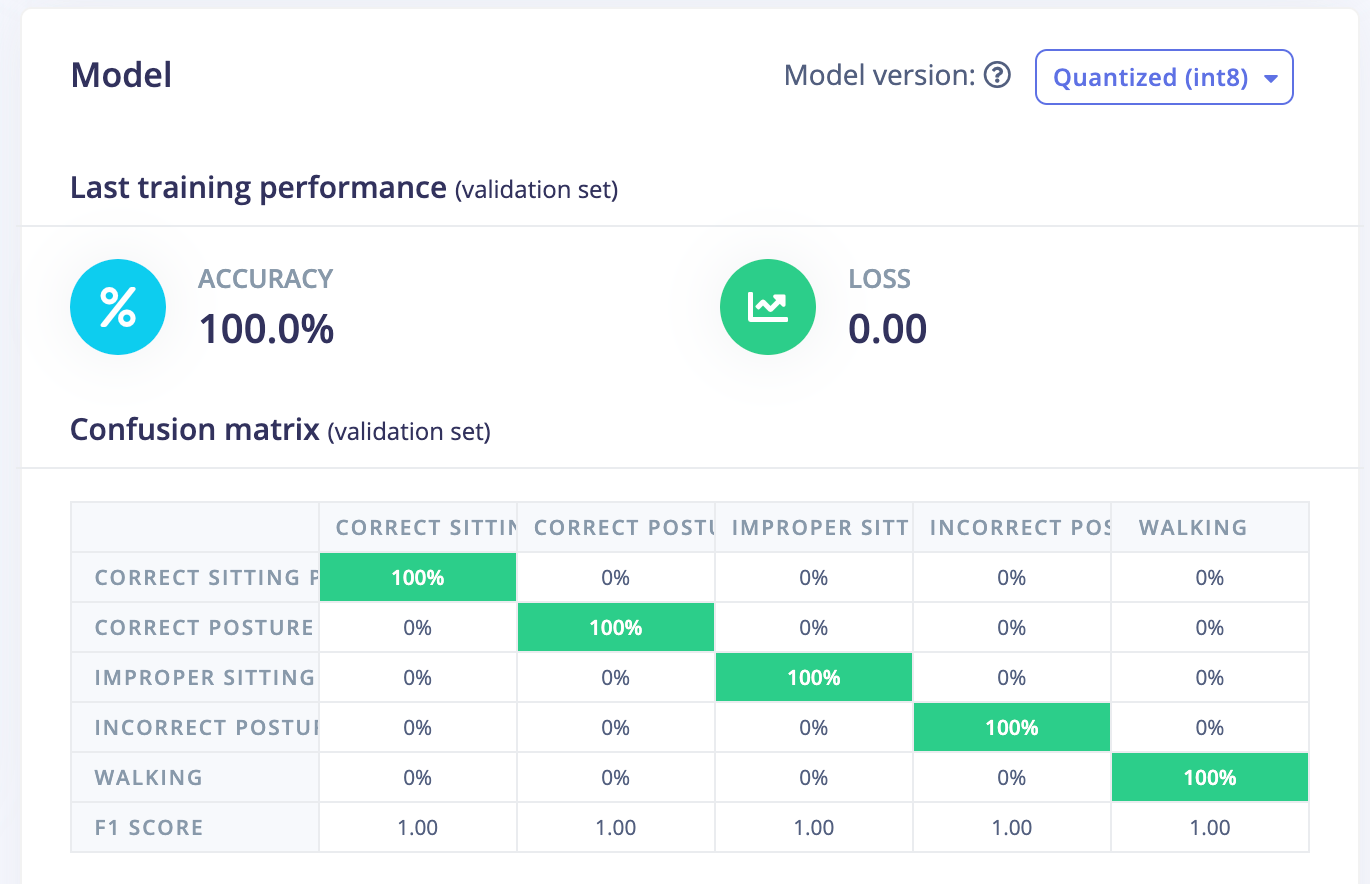
We can see here, the xG24 does a faster classification of these tinyML datasets without compromising the accuracy. Here you can see the comparison data, and we can see 91.1765% increased inferencing speed in the NN Classifier, while the RAM and Flash usage are the same.